No Design Skills Needed: How AI Lets Beginners Create Great Presentations in a Day
So… be honest. If I hand you a blank deck at 9am, do you actually think you can ship something that won’t get side-eyed by 5pm… or are you about to do the classic “I’ll just fix the slides later” lie?
An AI presentation maker helps beginners with no design skills by using AI that automates slide structure, layouts, and visual styling, so you can generate a first draft of slides from a text prompt in minutes. Tools like Gamma, Canva AI, Beautiful.ai, and Plus AI speed up drafting and formatting, but humans still need to verify facts, tune the narrative, and export cleanly for PowerPoint or Google Slides.
- Reality check: AI makes a “decent first draft,” not a miracle deck—and I recently read a free AI logo creation guide for small companies that spells out the same draft-versus-deliverable lesson.
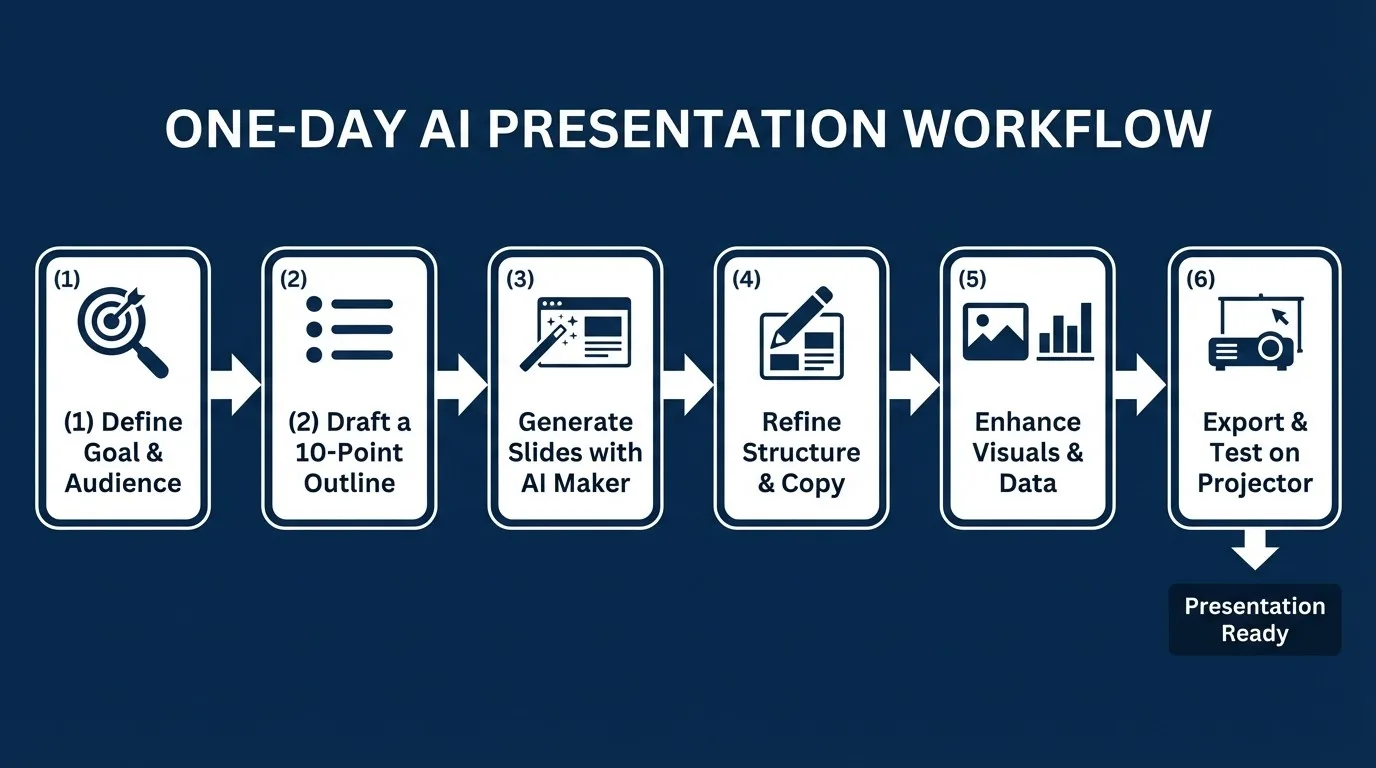
- Fastest path: outline → prompt → brutal edits → visuals → export test.
- Tool split: “generate new” (Gamma/Beautiful.ai) vs “work inside Slides” (Plus AI) vs “design buffet” (Canva AI).
- Main failure mode: vague prompts = generic slides that smell like stock photos.
- Shipping test: open it on the actual conference-room laptop. Not yours.
- Image 1 (Flowchart): One-day beginner workflow from messy idea to presentable deck
The part nobody advertises: editing is where your day goes
Clear-mode baseline: AI-generated slides usually require heavy editing because AI tends to produce generic phrasing, weak prioritization, and mismatched visuals. Beginners should plan to rewrite titles into claims, cut slide text by 30–50%, and replace stock imagery with diagrams, screenshots, or data visuals that match the actual message.
I’ve seen decks where every slide title is a noun. “Market Overview.” “Strategy.” “Execution.” That’s not a slide. That’s a filing cabinet label.
Try this instead: make every slide title a claim you’re willing to defend.
- Not “Q3 Results” → “Q3 revenue grew, but margin got punched by returns.”
- Not “Customer Feedback” → “Users love setup speed; they hate billing surprises.”
- Not “Roadmap” → “We can ship two bets this quarter, not five.”
Also, visuals. AI loves smiling-people stock photos. The world does not need more smiling-people stock photos.
Use:
- screenshots (product, dashboard, prototype)
- simple diagrams (2–5 boxes, arrows, labels)
- one chart per slide (not four charts plus a poem)
The killer feature: If this is your life, pick your tool like this
Clear-mode baseline: Beginners should choose an AI presentation maker based on workflow constraints: whether they must collaborate in Google Slides, deliver PPTX to a client, work on a phone during commutes, or maintain brand templates. Matching the tool to the user’s real context (shift work, parenting schedules, travel time, accessibility needs) matters more than “best AI” marketing.
Alright, here’s the part that actually helps people, because “just pick the best tool” is… not advice. It’s noise.
- If you’re constantly eating out / commuting (vibes, always mobile): you need speed and fewer knobs. Draft in Gamma (prompt-first), then finish in Google Slides for quick edits on the go. Keep fonts default. Don’t get cute. 📱
- If you’re night shift / weird hours (brain): pick the tool that wastes the least energy switching contexts. If your org uses Slides, go Plus AI so you’re not exporting at 3am and discovering the layout broke. 3am is not when you want surprises.
- If you’re a parent with broken attention (multitasking): use Beautiful.ai guardrails so you don’t spend 40 minutes nudging boxes around. You’ll hate the constraints. You’ll also finish. That’s the trade.
- If you’re older or dealing with vision fatigue (accessibility needs): prioritize readability over “style.” Big type, high contrast, fewer elements. Canva can tempt you into tiny text. Don’t. Also test in the actual room lighting.
Yeah, this is less sexy than “AI will make you a designer.” But it’s how you ship.
Image 3 (Comparison Chart): Pick based on where your deck must live
What AI still can’t do (and pretending otherwise is how you get burned)
Clear-mode baseline: AI presentation makers cannot reliably validate business facts, interpret ambiguous internal metrics, or anticipate stakeholder objections. AI can also introduce confident-sounding errors, generic recommendations, and mismatched visuals. Beginners should treat AI output as a draft, verify data against the source of truth, and run a stakeholder sanity check before presenting.
I’m gonna say the quiet part out loud: AI will sometimes hallucinate numbers or invent “insights.” Not often. But often enough to ruin your day.
Advanced metric (the one people ignore): don’t judge your deck by “how pretty it is.” Judge it by:
- Decision velocity: did the meeting end with a clear yes/no/next step?
- Objection coverage: did you answer the top 3 pushbacks before someone had to ask?
- Version survival: can your deck survive being emailed, opened on Windows, and projected?
If the deck can’t survive a different laptop, it’s not “done.” It’s cosplay.
Image 4 (Two-column Trend Compare): Common beginner mistakes vs a survivable deck
FAQ
Can AI create a full presentation for me from scratch? Yes, an AI presentation maker can generate a full first-draft deck from a prompt or outline, but you still need to edit structure, rewrite the copy, and verify any facts or numbers before you present.
Are there free AI-powered presentation makers? Some tools offer free tiers or trials, but free plans often limit exports, templates, or AI credits, so check the pricing page before committing your workflow.
What are the limitations of AI presentation makers? AI presentation makers commonly produce generic wording, mismatched visuals, and occasional factual errors, and they cannot understand internal context unless you provide it. Treat output as a draft and validate content.
Can I edit AI-generated presentations in PowerPoint or Google Slides? Many tools export to PPTX or integrate with Google Slides, but formatting can shift after export, so always test the file in the tool your audience will use.
My take, from too many late nights: the “no design skills” pitch is half true
Clear-mode takeaway: “No design skills needed” is true for generating a clean layout quickly, but beginners still need communication skills: clear claims, verified data, and ruthless editing. The best result comes from pairing an AI presentation maker with a simple narrative template and a real-world export test.
Look, I’m not anti-AI. I’m anti-delusion.
When you’re stressed, you want a machine to rescue you. I get it.
But the harsh part is: the deck is usually not the hard thing. The hard thing is deciding what you believe, what you can prove, and what you’re asking people to do next.
And yeah, that’s human work. Annoying human work.
The first tiny move I’d do (if I were you): open a blank doc and write one sentence: “After this presentation, I want them to ______.” Then I’d copy that sentence into the first slide title and let it bully the rest of the deck into coherence. That’s it. I wouldn’t even touch the AI tool until that sentence exists.