How to Ensure Your Online Activities Remain Private While Traveling
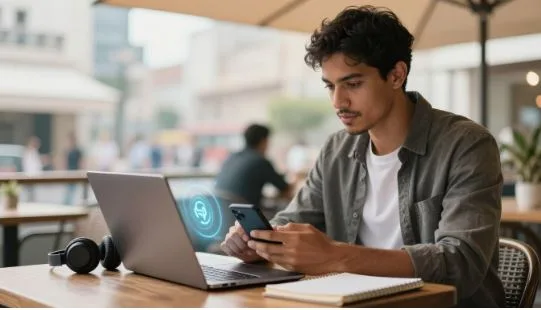
Travelers face more risks on the road than at home. Public Wi‑Fi, unfamiliar networks, and crowded spaces can expose logins, messages, bookings, payments, and location data.
Quick steps reduce that risk fast. This guide gives simple, travel-friendly advice that works in airports, hotels, rideshares, and cafés.
Start by securing devices before departure. Choose safer connections while out, lock down accounts and app permissions, and watch for common scams and phishing attempts.
Both digital and physical habits matter. Theft, shoulder-surfing, and unencrypted hotspots can become real data breaches without extra care.
Key Takeaways
- Protect logins, payments, and location data with simple pre-trip checks.
- Prefer encrypted networks and avoid open Wi‑Fi for sensitive tasks.
- Lock accounts with strong passwords and multi-factor authentication.
- Use physical caution in public places to prevent shoulder-surfing.
- Follow a short checklist for frequent flyers, remote workers, and families.
Why Privacy Risks Spike When You Travel
Risk climbs the moment you step away from a trusted home network. Using public -fi and shared networks on the road means more people can see or intercept your data. Attackers often wait on the same network and watch logins, messages, and payment pages.
Public Wi‑Fi and man-in-the-middle snooping
On an open network, someone nearby can act as a silent middleman. They capture information you send when pages or apps lack strong encryption.
Fake hotspots and lookalike SSIDs
Bad actors set up honeypot networks with names that mimic real ones. Guests connect, then attackers harvest passwords, forms, and other sensitive information.
Identity theft and credit card fraud trends
Identity theft is a clear threat for travelers. Stolen credentials plus rushed payments and unfamiliar settings make theft easier.
| Threat | How it happens | What travelers should do |
| Man-in-the-middle | Intercepted traffic on shared network | Use encrypted connections and a VPN |
| Honeypot hotspots | Fake SSIDs mimic legitimate networks | Confirm network name with staff; avoid auto-join |
| Credit card fraud | Compromised payments or saved card data | Monitor statements and use app-based freezes |
- Free Wi‑Fi in airports or hotels creates blind trust that attackers rely on.
- One careless login on the wrong network can lead to unauthorized charges or account takeovers.
How to Ensure Your Online Activities Remain Private While Traveling
Small connection habits cut most exposure when you use public Wi‑Fi. Make three easy moves that give a solid security layer without slowing travel plans.
Use a virtual private network for encrypted browsing
A VPN creates an encrypted tunnel between your devices and a private network. That tunnel blocks casual snooping on shared Wi‑Fi and lowers man‑in‑the‑middle risks.
Always use vpn for logins, email, work tools, travel apps, or any page asking for passwords or payment info.
Prefer a personal hotspot for sensitive information
When handling banking or employer systems, pick your phone’s cellular hotspot over public Wi‑Fi. A personal hotspot is a safer network and reduces many common risks.
Limit wireless connections and stop auto-joining
Disable Auto‑Join, set Wi‑Fi to ask before joining, and turn off Bluetooth when not in use. Log out of accounts when finished and use separate travel accounts where possible.
- Big three: run a virtual private network, use a hotspot for sensitive information, stop auto‑join unknown Wi‑Fi.
Pre-Trip Privacy Setup for Phones, Laptops, and Apps
Spend a few minutes now to harden devices and apps for the road. A short prep routine gives a solid layer protection that pays off during transit.
Install software updates and security patches before you leave
Update operating systems, browsers, and security tools. Install pending patches so known vulnerabilities cannot be exploited while you travel.
Run app updates on your phone and laptop, then reboot both devices.
Enable multi-factor authentication for email, banking, and travel apps
Turn on MFA for key accounts. Even if someone captures a password on public Wi‑Fi, a second factor blocks most logins.
Use strong passwords and a password manager for unique logins
Create unique, long passphrases and store them in a reputable password manager. This stops reuse of one password across services.
Back up important data and store copies of critical documents securely
Back up photos, work documents, and itineraries to an encrypted cloud or external drive. Keep digital copies of passport and ID with a trusted contact.
Minimize devices and sensitive information you bring on the trip
Bring only needed gadgets. Fewer devices mean less exposure. Business travelers should follow employer policies for MDM, VPN, and reporting lost gear.
- Quick checklist (under an hour): run updates, enable MFA, sync password manager, back up critical files, remove unused apps, and pack minimal devices.
Safe Browsing on the Road Without Leaking Personal Information
Pause before tapping any network in an airport or café; a quick check can stop many common traps.
Ask venue staff for the exact Wi‑Fi name and whether a password is required. Don’t connect to the first open hotspot that appears on your device.
What to do before you connect in airports, cafés, and hotels
Verify the network name, confirm if a password exists, and prefer password-protected options. If a login page appears, double-check the URL before entering credentials.
Confirming the correct name and spotting lookalike SSIDs
Attackers use subtle name changes like “Airport_WiFi” versus “AirportWiFi_Free.” When in doubt, ask staff. Turn off auto-join for unknown networks.
When to avoid logging into financial accounts
Avoid bank and investment logins on public -fi unless you use a trusted VPN and must act immediately. If possible, use a personal hotspot for credit card or banking tasks.
Check for HTTPS and reduce exposure during bookings
Look for HTTPS and a valid lock icon before entering payment details. Use official travel apps or digital wallets rather than typing a credit card number repeatedly on unknown pages.
Disable file- and printer-sharing on shared networks
Turn off file-sharing, printer-sharing, and device discovery so others on the same network can’t access folders or printers.
- Don’t click “urgent” booking links in unexpected emails; open the airline or hotel site directly.
- If something feels off: disconnect, forget the network, switch to cellular hotspot, and change any credentials you entered.
| Situation | Quick action | Why it matters |
| Unknown open hotspot | Ask staff for exact SSID; avoid immediate join | Prevents connecting to lookalike networks |
| Booking or payment page | Confirm HTTPS and use a wallet or app | Reduces risk of credit card data capture |
| Shared network use | Disable file/printer sharing and discovery | Stops other users from browsing device data |
Account and Device Lockdown While You’re in Transit
Transit brings short windows of distraction where a lost or unlocked phone can leak a lot of personal information.
Shorten auto-lock timers so screens lock quickly when idle. Require a biometric or a strong passcode for unlock. These features stop a quick grab from becoming an account takeover.
Use Find My and set up remote wipe
Enable tracking before departure. Turn on Find My Phone (or the equivalent), confirm you can sign in from another device, and test location reporting once.
Learn the remote wipe steps and when to trigger them. If a device is lost in a rideshare, left at a gate, or stolen from a bag, remote erase protects saved passwords, payment apps, and personal data.
Limit location tracking and app permissions
Review app permissions and change location access from Always to While Using where possible. Turn off background GPS for nonessential apps and restrict ad tracking.
A locked device reduces identity and theft risk. It keeps payment apps, credentials, and personal information out of reach if a phone or other devices are lost.
- Lost-device checklist: lock device, change key account passwords, contact your carrier, and monitor statements for suspicious activity.
| Action | Quick steps | Why it matters |
| Auto-lock and biometrics | Set 30–60s screen lock; enable fingerprint or face unlock | Prevents quick access after brief distraction |
| Find My and remote wipe | Enable, test sign-in, learn erase process | Allows recovery or secure erase if device gone |
| Location and app permissions | Change Always to While Using; disable background GPS | Reduces constant tracking and data exposure |
Physical Security That Protects Your Digital Privacy
Physical theft is the fast lane to digital breach—treat devices like cash. If someone grabs an unlocked laptop or phone, email, saved passwords, and travel apps are exposed in minutes.
Prevent shoulder surfing by angling your screen away from walkways, using a privacy filter, and avoiding password entry in crowded lines. Small habits cut observation risk fast.
Keep mobile devices close: use zippered bags, crossbody packs, and quick seat checks before leaving planes, lounges, or cafés. A pocket or body strap makes theft harder.
Use hotel safes strategically for laptops and tablets when you must leave them. Power down and log out first. Many breaches trace back to stolen gear, not hacked accounts.
- Avoid public charging stations; the FCC warned about juice jacking risks in 2023. Bring an AC adapter or power bank.
- Never leave devices unattended “just for a minute” in lobbies or conference halls.
These simple measures protect personal information and reduce theft-driven breaches with little effort.
Avoid Travel Scams, Phishing, and Social Media Oversharing
Scammers and oversharers create easy targets when trip details leak online. Watch emails closely and treat unusual messages with suspicion. A quick verification step often stops fraud before it starts.
Spot spoofed airline, hotel, and booking emails before you click
Look for mismatched sender domains, odd phrasing, urgent “payment failed” prompts, shortened links, and unexpected attachments.
Better habit: open the airline or hotel app, or type the provider URL yourself rather than tapping a link in an unsolicited message.
Use privacy settings and delay posting travel updates until you’re home
Posting in real time tells burglars when a house is empty and raises personal safety risks for travelers and family at home.
Simple rule: share highlights after the trip, or restrict posts so only trusted friends see them.
Never share photos of boarding passes, passports, or IDs
Images of boarding passes and IDs expose barcodes, booking codes, and personal information that fuel identity theft.
Business travelers should also avoid posting conference badges, meeting locations, or photos showing employer systems. Those images can reveal travel patterns and corporate risks.
- Spot spoofed messages: check sender domain, avoid short links, verify via official app.
- Delay posting: share after returning or limit audience with strict privacy settings.
- Never upload boarding passes, passports, or other ID photos; they help thieves steal identity.
“Scam prevention is a cybersecurity layer that costs nothing — just a quick verification step before you click or share.”
Conclusion
Finish strong: review recent statements, rotate any passwords used on the trip, and run an antivirus scan on key devices.
Combine safer connections (use a trusted vpn or a cellular hotspot), account hardening, and simple physical habits for a lasting layer of protection. Small actions add up and cut most common risks.
Post-trip routine: check bank and card activity, remove travel‑only apps, and scan for malware. These quick steps help guard personal information and reduce theft risk.
Top 5 checklist (screenshot this): update software, enable MFA, use a VPN, avoid public USB charging, and lock devices fast.
Privacy is ongoing cybersecurity, not a single task. Make sure these measures become part of every trip. They protect your data and keep travel convenient.
FAQ
Why do privacy risks increase when I travel?
Travel puts you on unfamiliar networks and in public spaces where attackers use tools like packet sniffers and man-in-the-middle techniques. Airport and hotel Wi‑Fi often lack strong encryption, and cybercriminals set up fake hotspots that mimic legitimate SSIDs to steal credentials and financial data. Identity theft and credit card fraud spike because travelers commonly use public networks and share information while distracted.
Should I use a VPN on public Wi‑Fi?
Yes. A reputable virtual private network encrypts your traffic and prevents local snooping on public Wi‑Fi. Choose established providers such as ExpressVPN, NordVPN, or Proton VPN, enable kill-switch features, and avoid free VPNs that may log data. A VPN adds an important layer of protection but doesn’t replace strong passwords or multifactor authentication.
Is using my phone’s personal hotspot safer than public Wi‑Fi?
Generally, yes. A cellular hotspot uses your mobile carrier’s network and reduces exposure to rogue Wi‑Fi networks. For sensitive tasks like banking or accessing work systems, prefer your phone’s hotspot or cellular data. Be mindful of data limits and roaming charges when abroad.
How can I verify a legitimate network name at airports or cafes?
Confirm the SSID with staff before connecting and avoid networks with generic names like “Free Wi‑Fi” or lookalike spellings. Turn off auto-join for open networks, forget networks you no longer use, and limit your device’s Wi‑Fi scanning in crowded areas to reduce accidental connections to honeypot hotspots.
What pre-trip steps should I take for phones, laptops, and apps?
Install the latest OS and app updates, enable security patches, and run anti-malware scans. Set up multi-factor authentication for email, banking, and travel apps. Use a password manager such as 1Password, Bitwarden, or LastPass to create unique passwords. Back up critical documents privately and minimize sensitive data carried on devices.
When should I avoid logging into financial accounts while traveling?
Avoid logging into banking or investment accounts on public or unknown networks. If you must, use your cellular connection or a trusted VPN. Consider scheduling large transactions before travel or after you return, and enable bank alerts for suspicious activity while you’re away.
How do I check for secure connections during bookings and payments?
Look for HTTPS and a valid padlock icon in the browser address bar before entering payment details. Verify the site’s domain name, and use trusted payment methods like credit cards with fraud protection or PayPal. If a site triggers security warnings or insecure forms, do not proceed.
What device settings reduce exposure on shared networks?
Disable file sharing, AirDrop or Nearby Share, and printer discovery. Turn off network profile sharing and enable your device’s firewall. Shorten auto-lock timers and use biometric locks or strong passcodes to prevent unauthorized access if a device is left unattended.
How can I prepare for loss or theft of a device during a trip?
Enable Find My iPhone or Find My Device on Android and set up remote wipe. Keep device backups encrypted and store recovery keys in a secure password manager. Log out of sensitive accounts, and notify your carrier and banks immediately if a device is stolen.
What physical habits protect my digital privacy in public spaces?
Shield screens from shoulder surfing in airports, rideshares, and hotel lobbies. Keep devices on your person or locked in a hotel safe, and never leave them unattended. Avoid public USB charging stations—they can carry malware or be used for “juice jacking.” Carry a portable power bank instead.
How do I spot travel scams and phishing attempts?
Inspect sender addresses and look for spelling errors or unexpected links in emails claiming to be airlines, hotels, or booking sites. Verify bookings directly through official apps or your account page. Do not download attachments from unknown senders, and enable email filters and two-factor authentication to reduce risk.
Is it safe to post travel updates and photos while away?
Delay sharing real-time updates about location, flight times, or detailed photos of boarding passes and passports until you return. Adjust social media privacy settings, avoid geotagging, and never post images that reveal personal IDs or travel documents that criminals could use for fraud.
What should I do if I think my accounts were breached during a trip?
Immediately change passwords using a secure device, enable or reconfigure multifactor authentication, and review recent account activity. Contact your bank to freeze or monitor cards, and report fraud. Run security scans on any devices you used and revoke access tokens for suspicious apps.