How to Recover Data from a Mac That Won’t Boot
Quick Answer: When your Mac fails to start, you can recover data from Mac that won’t boot by using macOS Recovery Mode or creating a bootable media drive with Wondershare Recoverit Mac. This allows you to access the internal SSD and copy your files to an external drive even if the operating system is corrupted.
How to Recover Data from a Mac That Won’t Boot
A MacBook showing a folder with a question mark or a stuck Apple logo is a scary sight. However, a Mac won’t boot data recovery mission is often successful. Unless the logic board is fried, your files are likely still sitting safely on the internal flash storage.
Why a Mac May Fail to Start
- Startup Disk Full: macOS needs free space to boot; if it’s 100% full, it may crash.
- Update Failure: A macOS update interrupted midway.
- FileVault Errors: Issues with the disk encryption process.
- Hardware Damage: Water spills or drop damage.
Check Whether the Mac Still Shows Signs of Life
- Intel Macs: Hold Command + R during startup to enter Recovery Mode.
- Apple Silicon (M1/M2/M3): Press and hold the Power button until “Loading startup options” appears. If you can reach these screens, you can retrieve files from dead MacBook.
Recovery Methods for a Non-Booting Mac
Use Wondershare Recoverit Bootable Media
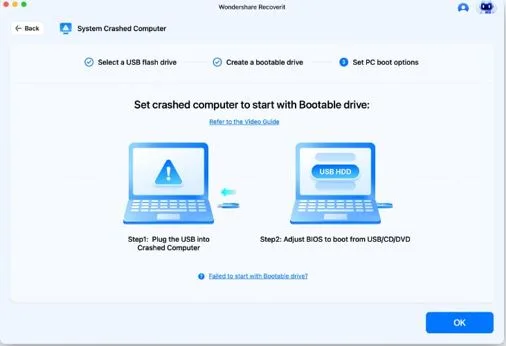
If the standard macOS Recovery doesn’t work, Wondershare Recoverit usb data recovery software allows you to create a bootable USB on a working Mac. You can then boot the “dead” Mac from this USB to access and recover Mac hard drive data.
Target Disk Mode / Share Disk
If you have another Mac and a Thunderbolt cable, you can put the broken Mac into “Target Disk Mode” (Intel) or “Share Disk” (Apple Silicon). This makes the broken Mac act like an external hard drive for the healthy Mac.
Step-by-Step File Recovery
- Create Bootable USB: Use a working Mac and Wondershare Recoverit to burn a recovery tool onto a USB.
- Startup broken Mac: Plug in the USB, hold the Option (Intel) or Power (Silicon) button, and select the Recoverit drive.
- Mount the Disk: Enter your Mac password to unlock the FileVault encryption.
- Export Data: Select your “Documents” and “Desktop” folders and copy them to an external HDD.
When the Drive or Logic Board Is Failing
If your Mac doesn’t turn on at all (no fans, no light), the issue is physical. On modern MacBooks, the SSD is soldered to the logic board. In these cases, you may need a specialist who can repair the board just enough to extract the data.
FAQ
Can I recover files from a MacBook that shows a black screen? Yes, if the Mac is “on” but the screen is dead, you can connect it to an external monitor or use Target Disk Mode.
Does recovery mode allow file copying? Yes, through the “Terminal” or by using a dedicated recovery tool like Wondershare Recoverit.
What if the internal SSD is soldered? Software can still recover it as long as the Mac can power on. If it’s completely dead, professional hardware repair is required.
Conclusion
A Mac startup failure is a hurdle, not a dead end. By staying calm and using tools like Wondershare Recoverit, you can bypass a broken OS and secure your files. Always remember to turn on Time Machine once your Mac is back in action!