RVZ to WBFS Conversion Guide – Fast & Free Methods Explained
Trying to convert RVZ to WBFS but don’t know where to start? Many users search for how to convert RVZ to WBFS because RVZ files do not run directly on a Wii console. This creates a common problem for gamers who want to play their backups. The good news is simple. You can convert RVZ to WBFS by using a safe method that includes an extra step. Instead of direct conversion, you first change RVZ into ISO, and then ISO into WBFS. In this guide, you will learn how to convert RVZ to WBFS step by step using easy tools. Even beginners can follow these steps without confusion.
Part 1: What Are RVZ and WBFS Files?
When you try to convert RVZ to WBFS, you should first understand both formats. The RVZ file format is a compressed version of Wii game data. It saves storage space and works well with emulators. However, the RVZ file format does not work on real Wii consoles. On the other hand, WBFS is a format made for Wii systems. It allows games to run from USB drives. That is why many users need to convert RVZ to WBFS before playing.
RVZ vs WBFS Comparison Table
| Feature | RVZ File Format | WBFS Format |
| File Size | Smaller (compressed) | Larger |
| Use Case | Emulator use | Wii console use |
| Compatibility | Dolphin emulator | Wii USB loaders |
| Editing Support | Limited | Supported |
In short, RVZ vs WBFS shows that RVZ saves space, while WBFS works on actual hardware. That is why users often convert Wii game format from RVZ to WBFS.
Part 2: Can You Convert RVZ to WBFS Directly?
The simple answer is NO. You cannot directly convert RVZ to WBFS because both formats work differently. The system cannot read RVZ in the same way as WBFS. Instead, you must follow this path:
RVZ → ISO → WBFS
First, you use an RVZ to ISO converter to extract the game file. Then you use a WBFS converter to change ISO into WBFS. Many users try to skip this step. That is a common mistake. If you try direct RVZ to WBFS, the file may fail or become unusable. So always follow the correct method when you convert RVZ to WBFS.
Part 3: Best Methods to Convert RVZ to WBFS
Before you convert RVZ to WBFS, it is important to choose the right method. In this section, you will learn simple and working ways to handle RVZ to WBFS conversion using safe tools and clear steps.
Method 1: Dolphin + Wii Backup Manager (Most Stable Method)
If you want a safe and reliable way to convert RVZ to WBFS, this method is the best choice. It uses trusted tools that handle the process step by step without errors. Many users prefer this approach because it gives stable results and works well for most Wii game files.
Steps to follow:
Step 1: Download and install the latest Dolphin version from its official website. Make sure you use version 5.0-14095 or newer so it can support the RVZ file format properly.
Step 2: Open Dolphin and go to “Config,” then click on “Paths.” Add the folder where your RVZ file is stored so it appears in the game list.
Step 3: Find your game in the Dolphin library. Right-click on the RVZ file you want to convert and choose “Convert File” from the menu.
Step 4: In the settings window, select ISO as the output format. If WBFS option is available, you can select it, but ISO is mostly used for safe conversion.
Step 5: Click on “Browse” and choose where you want to save the converted file. Make sure you have enough storage space available.
Step 6: Click on “Convert” to begin. The process usually takes 5–15 minutes depending on file size and system speed.
Method 2: Online Converter
Some websites claim to convert RVZ to WBFS online. These tools look simple but come with risks.
- File size limits may block large games
- Uploading files may risk your data privacy
- Conversion may fail for complex files
You can use them for testing, but do not depend on them for full conversions.
Method 3: Advanced CLI Tools
Some users use command-line tools from GitHub to convert RVZ to WBFS. These tools can act as an RVZ to ISO converter and more. However, they require technical knowledge. This method is for advanced users only. Beginners should avoid it because wrong commands can break files.
Part 4: Important Tip – Back Up Files Before Conversion
To avoid losing your RVZ files, always create a backup before you convert RVZ to WBFS. During the conversion process, files can sometimes get corrupted or fail to convert properly. A backup helps you stay safe and avoid starting again from scratch. You can use tools like 4DDiG Partition Manager to manage your storage and keep your data protected. It supports disk backup and file safety. This step becomes even more important when you handle large game files or repeat the RVZ to WBFS process many times.
Key Features
- Full Disk Backup: Creates a complete copy of your data so you can restore files easily if something goes wrong during conversion.
- Partition Management: Helps you organize storage space and manage drives properly before starting the RVZ to WBFS process.
- Data Safety Tools: Protects files from damage or loss, especially when you convert large RVZ game files.
- Simple Interface: Easy to use for beginners, so you can back up files without confusion or technical steps.
- Reliable Recovery Option: Lets you recover lost or corrupted files if the convert RVZ to WBFS process fails.
Steps to Back Up RVZ Files Before Conversion
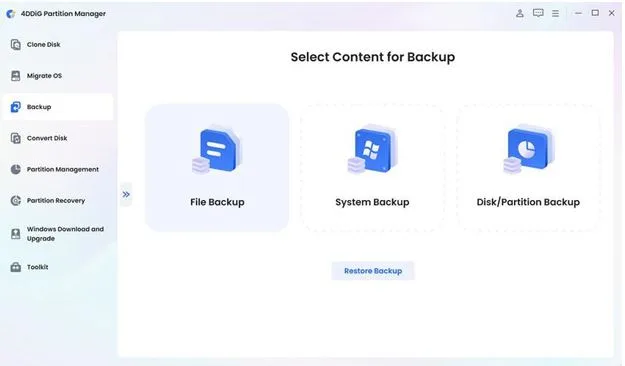
Step 1: Launch 4DDiG Partition Manager and go to the “Backup” section. This helps you protect your RVZ files before you convert RVZ to WBFS.
Step 2: Click on “File Backup” and choose your RVZ files or the full folder where your games are stored. This ensures all data is included before conversion.
Step 3: Select a safe storage location where your backup will be saved. Always pick a drive with enough free space for smooth backup.
Step 4: Check your settings and click “Start” to begin. The tool will create a backup of your RVZ files for safety.
Step 5: After completion, test the backup by using the restore option. This confirms your data is safe before you convert RVZ to WBFS.
Part 5: Common Errors and Fixes
When you try to convert RVZ to WBFS, you may face some common problems. These issues can stop the process or create files that do not work on your Wii. The good part is that most errors are easy to fix if you follow the right steps. Below are some common issues and their solutions to help you if convert RVZ to WBFS failed.
- Conversion fails: Check if your RVZ file is complete and not damaged. Try again using a proper RVZ to ISO converter.
- File not recognized: Update Dolphin and re-import the file. Old versions may not support the latest RVZ file format.
- WBFS file not working: Make sure the ISO file is correct before using a WBFS converter like Wii Backup Manager.
- Game not loading on Wii: Re-convert the file and confirm that you followed the full RVZ → ISO → WBFS process.
FAQ Section
Q1: Can you convert RVZ to WBFS directly?
No, you cannot convert RVZ to WBFS directly. You must first use an RVZ to ISO converter, then use a WBFS converter to complete the process properly.
Q2: What is the best RVZ to WBFS converter?
The best method to convert RVZ to WBFS is using Dolphin convert RVZ to ISO, then using Wii Backup Manager RVZ workflow for safe and stable results.
Q3: How to avoid losing files during conversion?
To stay safe while you convert RVZ to WBFS, always back up your files first using tools like 4DDiG Partition Manager to prevent data loss.
Q4: Can RVZ files run on Wii?
No, RVZ file format does not work on Wii consoles. You must convert Wii game format into WBFS before running it on a Wii system.
Conclusion
Many users try to convert RVZ to WBFS because RVZ files do not work on Wii consoles. The correct method is simple: first change RVZ to ISO, then use a WBFS converter. In this guide, you learned how to convert RVZ to WBFS using Dolphin convert RVZ and Wii Backup Manager RVZ steps. You also saw common errors and how to fix them. Before you start, always protect your data. Tools like 4DDiG Partition Manager help you back up files and manage storage safely. This keeps your RVZ to WBFS process smooth and reduces the risk of file loss.