A Practical Review of NanoPhoto.AI for Fast Background Removal
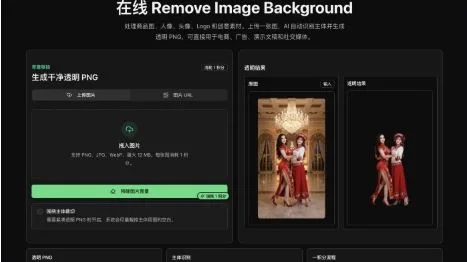
I have used enough online image editors to know that background cleanup can become a surprisingly slow production task. A single product photo turns into a mask, a rough edge pass, a canvas crop, and one more export setting before the asset is ready. That is why I wanted to try NanoPhoto.AI’s remove image background workflow as a lightweight alternative for everyday creator and ecommerce work. The page keeps the job narrow: upload an image or paste a public URL, let AI isolate the subject, and download a transparent PNG.
The tool is built around one specific result
The strongest thing about this page is that it does not try to become a full design suite. The interface centers on one task: create a clean transparent PNG. In the live page, the main panel includes an upload tab, an image URL tab, a preview area, and a crop option for trimming empty transparent space around the subject. That crop setting matters more than it sounds. For product images, creator cutouts, stickers, and profile assets, a compact PNG is often easier to reuse than a full-canvas file with a tiny subject floating in the middle.
The preview side shows the original image beside the transparent result, which is useful for quick quality control. When background removal goes wrong, it usually fails around hair, clothing edges, glass, packaging corners, or low-contrast subject boundaries. A side-by-side preview lets a user decide whether the output is production ready or whether the source image needs a cleaner upload. NanoPhoto.AI also makes the credit cost visible, so the user knows this is a one-credit operation before starting.
From a workflow perspective, this is closer to an asset-prep utility than a creative editor. That is a good thing. If a shop owner has 20 supplier photos, a marketer has a portrait for a webinar graphic, or a founder needs a cutout for a landing page, the goal is not to learn another editing workspace. The goal is to isolate the subject, export the file, and move on.
The three-step workflow fits daily production
NanoPhoto.AI explains the process in three practical steps: upload or paste, let AI separate, and download the PNG. That might sound basic, but it reflects how background removal is actually used in small teams. The work usually starts with a real production constraint: a marketplace listing needs a consistent white or transparent asset, a social thumbnail needs a person cutout, or a pitch deck needs a product isolated from a cluttered photo.
The public URL option is useful when assets already live on a CDN, website, or storage bucket. Instead of downloading a file locally and re-uploading it, the user can paste the image URL and let the server process it. For one-off work, uploading is still the safer route because some hosts block automated access or expire signed URLs. But for teams that keep assets in public storage, URL input can remove a step.
The tool is also positioned as a server-side workflow. That matters for users who care about operational safety. A browser-based form should not expose private model credentials or processing keys. NanoPhoto.AI’s page copy describes the processing route as server-side, while the user only interacts with the upload and result layer. For a non-technical user, this simply means the page feels like a normal web tool. For a team, it means the workflow is easier to trust than a quick front-end demo wired directly to a private API.
I also like that the tool avoids a confusing preset wall. Many editing products ask users to pick modes such as product, person, logo, object, social, and ecommerce before they have even seen the first output. Here the task is plain: remove the background, optionally crop the subject, then download the transparent file. If the user needs more design work later, the cutout can move into another editor, ad builder, deck, or image generation workflow.
Best fit: ecommerce, creator assets, and fast design cleanup
The page’s use-case section matches the scenarios where an AI background remover is most valuable. Ecommerce teams often need every SKU to feel consistent even when photos come from different suppliers, phones, lighting conditions, or old catalogs. A transparent PNG gives them a reusable product layer that can sit on white, a brand color, a seasonal background, or a comparison layout without reshooting the item.
Creators have a similar need. A portrait cutout can become a YouTube thumbnail, course cover, newsletter hero, or webinar promotion. Props and objects can become visual elements for a social post. Even when the final design is simple, removing the background early makes every later composition easier.
Design and marketing teams can use the tool as a cleanup step before bigger creative work. For example, a product shot can be isolated before being placed into a banner. A founder portrait can be prepared before adding a new generated background. A logo mockup can be cleaned before resizing for a comparison table. The tool does not remove the need for art direction, but it takes away the repetitive first step.
The main caveat is the same one that applies to most AI cutout tools: the source image still matters. If the subject is blurred, extremely small, or nearly the same color as the background, the output may need review. For everyday product photos, portraits, and objects with visible edges, NanoPhoto.AI feels like a practical shortcut.
Overall, this is a good fit for people who need transparent PNGs often enough that manual masking becomes annoying, but not so often that they want a complex desktop workflow. It keeps the interface focused, makes the preview easy to inspect, and gives small teams a fast way to turn raw images into reusable visual assets.