A Practical AI Workflow for Turning One Creative Brief Into Multiple Media Assets
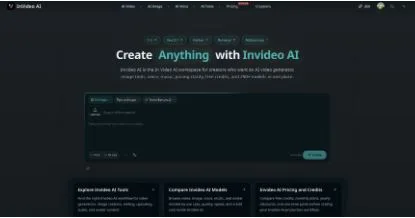
I opened Invideo AI with a simple question: could one creative brief remain useful as it moved from an image idea to a video concept and then into supporting media? The homepage gave me a sensible starting point. Instead of asking me to choose from every model at once, it put a prompt composer, upload control, aspect ratio, quality setting, model choice, and visible credit estimate in the same workspace.
Start With One Small Asset, Not a Full Campaign
The homepage was most useful when I treated it as a place to test direction. Its default image workflow showed Nano Banana 2, a 16:9 aspect ratio, 1K Lite output, and a nine-credit estimate. Those details made the first decision concrete: test one visual before spending on a larger batch.
For a product launch, that first prompt might describe the central scene, subject, lighting, and mood. For a social campaign, it might be the opening frame of a short clip. The important part is to keep the prompt small enough to judge. If the subject or art direction is wrong, generating ten related assets only creates more material to discard.
I also liked that the workspace kept upload and text input together. A creator can begin with a written concept or bring an existing reference into the process. That supports a practical review loop: make one draft, compare it with the brief, save the useful prompt language, and only then decide what the next media format should be.
Move to Video After the Direction Is Clear
The text-to-video page made the cost of changing formats impossible to ignore. The screen showed Veo 3.1 at 450 credits, with controls for 720p or 1080p, five- or ten-second duration, three aspect ratios, and public visibility. A rendered example sat beside the controls, which helped me compare the promise of the prompt with the kind of motion the tool could produce.
This is where workflow discipline matters. A premium video attempt should not be the first time anyone reviews the concept. I would finalize the scene, camera movement, subject behavior, and intended channel before clicking Generate. I would also check the visibility switch, because not every client draft belongs in a public gallery.
The interface encouraged a useful progression. A still image can establish the look. A short video test can establish motion and pacing. Voice, music, cleanup, captions, or upscaling can follow only after the clip has survived review. Keeping those steps connected reduces the temptation to restart the idea in a different app with slightly different wording.
Choose Models by Job and Review Stage
The In Video AI model library was more helpful than a simple logo wall. It opened with routes for text to video, image to video, text to image, and pricing, then explained how to match a model to the output type and review stage. Model cards also displayed credit costs, which made it easier to separate cheap exploration from expensive final rendering.
That distinction is valuable for small teams. Early drafts should be fast enough to reject. Final models should be chosen after the brief, reference, aspect ratio, and delivery format are stable. The page included video, image, voice, music, and avatar options, so the same campaign can be planned as a sequence rather than a collection of disconnected experiments.
My takeaway is that an all-in-one AI workspace is most useful when it protects the original creative decision. Start with one asset, record what worked, move to the next format, and budget for more than one attempt. The software can offer many models, but the creator still needs a clear review rule for deciding which output is worth carrying forward.