Digital Safety Checklist for People Using Messaging Apps Across Borders
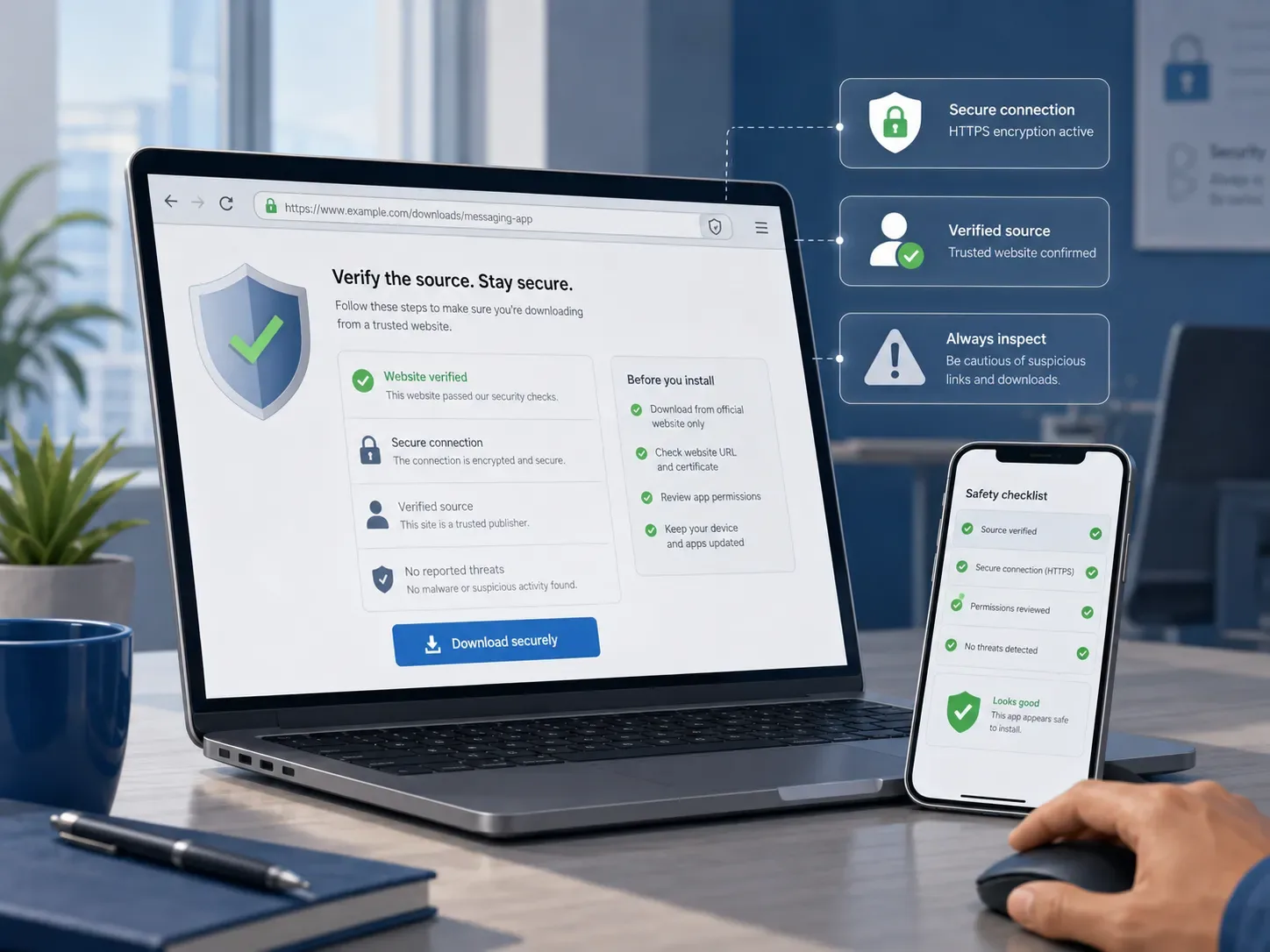
Messaging apps are now part of everyday life for people who travel, study abroad, work remotely, or keep in touch with family across different countries. The same account may be used on a phone, a laptop, and a browser, often while the user is moving between networks and time zones.
That convenience creates a practical security problem: people are often asked to trust a website, a download, a group invitation, and an account setup all at once. Those are separate decisions, and treating them separately makes it easier to spot trouble before it becomes an account or device problem.
Verify the Website Before Following Software Links
Search results for a popular messaging platform can mix official pages with app-store listings, tutorials, software directories, advertisements, and third-party resources. Some are useful; others may be outdated, misleading, or designed to imitate a trusted brand.
For Telegram users, source checking can become confusing when search results mix official pages with tutorials, app directories and third-party resources. A Telegram website verification guide can provide additional context on what to verify before following a download or login link.
Before installing anything, check the domain carefully, confirm that the software publisher is identifiable, and compare the download source with a recognized app store or another reliable reference. A page that asks for credentials unusually early, or makes exaggerated privacy and security claims, deserves additional scrutiny. Visual polish is not proof of legitimacy; imitation pages can reproduce familiar logos, screenshots, and interface elements convincingly.
Choose the Correct Client for Your Device
Most messaging platforms offer several ways to connect: mobile apps, desktop applications, and browser versions. The correct choice depends on the operating system, the device being used, and the publisher of the software.
Problems often begin when users assume that every installer carrying a familiar logo is an official client. Modified apps, outdated packages, and unofficial desktop installers can circulate through search results and online communities. Someone who normally uses an app on a phone should not automatically trust a desktop installer simply because it looks familiar; publisher information and the source of the download still need to be checked.
Don’t Trust a Link Just Because It’s Shared
Links shared inside group chats can feel safer because they arrive through people or communities the user already knows. That confidence is misplaced when an account has been compromised, a link has been forwarded without checking, or a malicious file is being circulated as an urgent update.
Common warning signs include:
- requests to install an urgent or “special” version of an app;
- unexpected prompts to verify an account through an external page;
- QR codes or shortened links with no clear explanation;
- browser extensions or executables shared through a chat;
- messages asking for login or verification codes;
- pressure to act immediately before an account or benefit supposedly expires.
When in doubt, locate the software independently rather than opening the version circulated in the chat. That adds a small amount of friction, but it removes the sender from the trust decision.
Verify Communities Separately From the Platform
A legitimate messaging app does not make every group, channel, bot, or administrator on that platform trustworthy. This matters in investment groups, online marketplaces, gaming communities, fan channels, and cross-border discussion groups, where a familiar platform can give an unfamiliar operator a false sense of credibility.
Warning signs include:
- administrators who cannot be independently identified;
- guaranteed financial returns or pressure to send money quickly;
- requests for money through unfamiliar or unverifiable channels;
- fake customer-support accounts and unexpected direct messages;
- links to additional downloads, wallets, extensions, or login pages;
- shortened or disguised URLs that hide their final destination.
The app is only the infrastructure. The people operating a community still need to be evaluated on their own merits.
Secure Your Account Before You Join
Good account hygiene is easier to set up before a problem occurs. Two-step verification adds an additional barrier if a login or SMS code is intercepted, while a regular review of active sessions can reveal old laptops, shared computers, or browser sessions that should no longer have access.
A basic account review should include:
- enabling two-step verification and maintaining a secure recovery method;
- reviewing active sessions and ending access on devices no longer in use;
- limiting phone-number and profile visibility where appropriate;
- checking who can add the account to groups or contact it directly;
- paying attention to unfamiliar login notifications and recovery messages.
Remote workers should also keep a clear boundary between casual group chats and work conversations. Passwords, API keys, financial records, private customer information, and confidential documents should not be moved casually through messaging groups. Clearer boundaries make unusual requests and unexpected account activity easier to spot.
Be More Cautious on Shared Networks and With Shared Files
Travel introduces situations that do not occur as often at home: hotel Wi-Fi, airport networks, coworking spaces, temporary SIM cards, borrowed devices, and public computers. The network itself is only part of the risk. A user may also leave a session open on an unfamiliar machine or react too quickly to a security warning while trying to reconnect.
Consider a traveler who receives a desktop download link in a group chat while using hotel Wi-Fi. There are several separate questions to answer: Is the group trustworthy? Is the link genuine? Is the installer appropriate for the device? And is the account protected if that laptop is later lost or shared? Treating those questions separately is more useful than relying on a single “safe” or “unsafe” label.
Shared files deserve the same caution. APK files, EXE installers, ZIP archives, browser extensions, scripts, and documents that ask users to enable macros should be treated as untrusted until their source is clear. For ordinary documents and media, the sender and the context still matter; an attachment appearing inside a familiar group is not automatically safe.
A Practical Messaging Safety Checklist
Before relying on a messaging platform across multiple countries or devices, a short review can catch many of the most common problems:
| Check | What to Verify |
| Website | Is the source what it claims to be? |
| Client | Does the software match the operating system? |
| Publisher | Can the developer or publisher be identified? |
| Account | Is two-step verification enabled? |
| Sessions | Are there unfamiliar logged-in devices? |
| Links | Do external URLs lead where they claim to lead? |
| Files | Are installers and attachments from trusted sources? |
| Groups | Can administrators or community owners be verified? |
| Privacy | Is personal information visible only to the intended audience? |
| Recovery | Is the account recovery method current and secure? |
Final Thoughts
The safest approach is to treat the app, the download source, the account, and the community as four separate trust decisions. A legitimate messaging platform does not automatically make every installer, group invitation, shared file, or external login page trustworthy.
For people who move frequently between countries and devices, taking a minute to verify those details is usually easier than recovering a compromised account later.