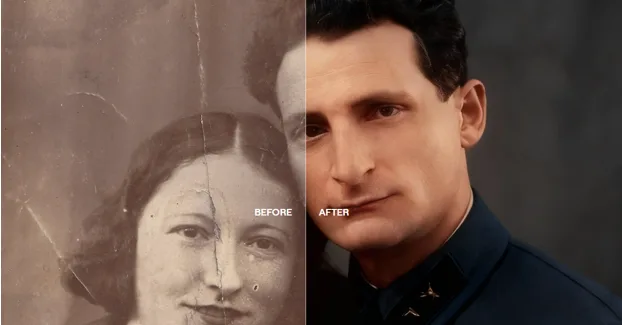
Old photographs often hold moments that are impossible to recreate: a grandparent’s wedding, a childhood holiday, or a family gathering captured decades ago. But what to do if the dearest face has become blurry, or some important details have faded over time? Don’t worry, you can repair old photos online.
Many browser-based restoration tools use artificial intelligence (AI) to recognize faces, reduce noise, repair visible damage, or add color to black-and-white pictures. Others give you more control over individual adjustments, ensuring the final results look realistic. Some services offer free processing, while others charge for high-resolution downloads or additional features.
In this article, we compare several programs for photo repair online to help you find the best software that matches the photos you restore, your budget, and your post-processing skills.
1. Luminar
Luminar, and specifically its latest browser-based update, is not limited to old photo restoration online for free. It introduces a broad post-processing workflow, ranging from basic adjustments to AI-based enhancements.
Luminar’s Restoration tool automatically removes scratches and imperfections and reconstructs missing detail. Keep in mind that AI-based restoration is not available for free. However, there are free tools that will help you repair the picture manually. Erase works well for small marks and creases, while Clone lets you paint over larger damaged areas using pixels sampled from elsewhere in the photo. Faded colors and weak contrast can be corrected with tonal and color adjustments.
| Pros | Cons |
| The program automatically repairs scratches and imperfections while reconstructing some missing image detail. | Even though the core program is free, the specific tools for AI-based photo restoration can be found only in the All Platforms plan for ~$145. |
| Color and tonal adjustments help correct fading after physical damage has been addressed. | The range of tools may feel excessive for users who only need to remove a few scratches. |
| The restoration workflow can be combined with further adjustments to help balance the final image. | Reconstructed features should be checked against the original. Luminar cannot recover historically accurate information that is completely absent from the image. |
2. RestorePhoto
Suppose you are a casual user who wants to fix old pictures online for free. RestorePhoto is a great beginner-friendly option. Its AI automatically removes scratches, fills tears, reduces water damage, restores faded colors, and sharpens faces. If you are not satisfied with the result, you can rerun the restoration process with custom instructions. They will let you guide the AI, but they are not a substitute for precise pixel-level editing.
The free plan includes three restorations, with watermarked previews limited to 1,600 pixels. If you need to process more images, consider a Family (~$49/year) or Pro (~$99/year) paid subscription.
| Pros | Cons |
| The program automatically addresses scratches, tears, fading, and water stains. | Free online photo repairs are limited. The free version also includes watermarks. |
| Face enhancement and optional colorization help refresh old portraits. | You cannot manually clone pixels or repair every tiny defect yourself. |
| Users can request another restoration pass with specific instructions when the first result needs adjustment. | The app may struggle to reconstruct large missing sections or reproduce a person’s exact facial features when the original contains little information. |
3. PicReviver
If you are wondering how to restore old photos that are severely damaged, PicReviver was designed specifically for it. The app will automatically soften scratches, cracks, and folds. Sharpness tools can further improve blurry, low-resolution, or faded images. You can select a processing mode and the output size, then view and download the results.
The app is completely free and can be used on any desktop and mobile device via the web browser.
| Pros | Cons |
| The editor targets common physical damage, including creases, cracks, scratches, and water stains. Separate sharpening and colorization tools help address faded or soft images. | You can restore only 10 pictures a day. |
| The service offers full-size downloads without watermarks. | The service does not provide the same level of targeted brush control as a full desktop editor. |
| The uploaded photos are removed after processing, so you don’t have to worry about data leaks. | The main repair workflow does not guarantee the recreation of large areas of completely missing image content. Large missing corners and extensive tears may still require a separate editor or professional retouching. |
4. Adobe Firefly
Adobe produces the industry-standard post-processing software for different tasks, including online photo restoration. Firefly can automatically address scratches, creases, dust, stains, fading, and missing areas through its AI restoration workflow. It can also improve color and tonal balance, while generative tools reconstruct damaged sections using surrounding image context. For facial restoration, it can enhance visible detail.
You have more control when you use the brush to select a specific damaged area and describe the repair in a prompt. However, Firefly is not a traditional pixel-by-pixel restoration tool: you can tell the algorithm what to fix, but you cannot manually repair damaged areas.
There is a free plan with limited daily generation and numerous paid options, starting with the Standard plan at $9.99/month.
| Pros | Cons |
| The brush-based workflow allows photographers to target individual damaged areas. | The results may also vary between generations, so compare each version with the source before choosing one. |
| The program can repair multiple types of damage, including tears, scratches, stains, creases, and fading. It also rebuilds missing areas with Generative Fill. | Generated details can differ from the original scene, so historical photographs require careful review. |
| Restored images can be carried into other Adobe editing tools for further adjustments. | Photographers who prefer fully manual, pixel-by-pixel repair may find generative editing less predictable. |
Conclusion
Think about what you plan to do with the completed restoration before you select a restoration tool – whether you want to share it with loved ones, frame it for an album, or add it to your collection of stored images. Each workflow can set you on the right path without any extra steps. Want to spruce up your treasured photos? Take a look at these options for restoring old photos and preserving your memories.