How to Use a Calculator on a School Chromebook Without Installing Any App
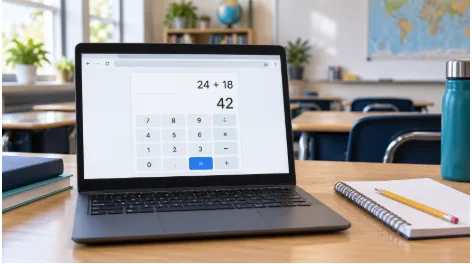
You are halfway through a maths assignment when you need to check a percentage, calculate a square root, or divide a long decimal. Your school Chromebook is open, but installing a calculator app is not an option. Fortunately, a browser-based calculator can often handle the task without a download.
The basic process is simple: open an approved calculator website in Chrome, enter your calculation, and check the result. However, school-managed devices may limit which websites you can access, and different calculators offer different functions.
This guide explains how to get started, choose suitable tools, avoid common input mistakes, and deal with access problems while following your school’s rules.
Can You Use a Calculator Without Installing Anything?
Yes. A web calculator runs inside a browser tab, so you do not need to install an Android app, browser extension, or desktop program.
This can be convenient when you already use your Chromebook for worksheets, digital textbooks, and classroom assignments. You can keep the calculator in one tab and your coursework in another.
However, browser compatibility and school permission are separate questions. A website might function in Chrome but still be unavailable under your school’s filtering settings. Google’s administrator guidance confirms that managed Chrome browsers and ChromeOS devices can have website allowlists and blocklists. Access therefore depends on your school’s configuration.
Before starting, check that calculator use is allowed for the assignment. Some activities are designed to practise mental arithmetic or written methods.
Step 1: Open an Approved Calculator Website
Start with a calculator link supplied by your teacher, school portal, or digital textbook. A school-provided option is usually the easiest place to begin because it has already been selected for your learning environment.
If your teacher allows you to choose a browser-based tool, you can open calc-solver.co and check whether it is accessible on your Chromebook. Assess the available calculator against your assignment rather than assuming every tool includes the same functions.
To open a calculator page:
- Launch Chrome on your Chromebook.
- Select the address bar.
- Enter the website address carefully.
- Press Enter and wait for the page to load.
- Locate the calculator’s input area and controls.
Using a web calculator should not require installing an extension. If you encounter a download prompt, check whether it is optional or whether you have opened the intended page.
Step 2: Check the Functions You Need
A basic calculator may be enough for addition, subtraction, multiplication, and division. More advanced coursework can require scientific functions.
Before entering a long problem, look for the controls relevant to your subject:
| Assignment task | Useful calculator feature |
| Everyday arithmetic | Basic operations and decimal input |
| Percentage problems | Percentage support or decimal multiplication |
| Algebraic expressions | Brackets, powers, and clear expression entry |
| Geometry | Square roots, powers, and the constant pi |
| Trigonometry | Sine, cosine, tangent, and angle-mode controls |
| Science calculations | Scientific notation and exponent input |
Not every calculator provides all these features. A tool that is suitable for a percentage worksheet may be insufficient for a trigonometry assignment.
Also inspect the display. You should be able to distinguish a negative sign from subtraction and see which numbers belong inside brackets or under an exponent.
Step 3: Test a Simple Calculation
Before relying on an unfamiliar calculator, try a calculation with a known answer. For example, enter 24 + 18 and confirm that the result is 42.
Then test the operations you expect to use. If your homework involves brackets, enter (8 + 4) ÷ 3, which should equal 4.
These checks help you understand the interface. Some websites support typing directly into the display, while others rely mainly on on-screen buttons. Keyboard shortcuts and calculation behaviour can also vary.
Check how to delete a single character, clear the current expression, and begin a new calculation. Learning these controls first makes it easier to correct mistakes later.
Step 4: Enter the Full Expression Carefully
A calculator evaluates the expression you enter, which may differ from the expression you intended.
Consider these two examples:
- 18 ÷ (3 + 3) equals 3.
- 18 ÷ 3 + 3 equals 9.
The brackets change the calculation. Copy them carefully from the question, and review the entire expression before accepting the result.
For percentage questions, translating the problem into multiplication can help. To find 15% of 240, enter 0.15 × 240, giving 36. This avoids relying on a percentage button whose behaviour you have not yet checked.
If you use trigonometric functions, confirm the angle mode. Degrees and radians represent angles differently, so the same number can produce different results depending on the selected setting.
Step 5: Keep Your Working Alongside the Answer
A numerical result does not explain how you solved a problem. Record the formula, substitution, and final answer in your notebook or assignment document.
For example, if you calculate the area of a circle with a radius of 5 centimetres, write the formula A = πr², substitute the radius, and then evaluate π × 5². Include square centimetres in the answer.
Keep extra decimal places during intermediate calculations when appropriate, and round the final result according to the question’s instructions.
Do not assume the calculator will preserve your history after closing the tab, restarting the Chromebook, or ending a session. Save important working separately.
How to Choose a Calculator for Regular Chromebook Use
Once you understand the basic process, look for a tool that is comfortable to use repeatedly.
When evaluating a calculator that works on school Chromebooks, check whether the page opens under your school’s settings and whether the controls suit your coursework. A page’s name or description cannot guarantee access across every school network.
Useful qualities include readable numbers, clear brackets, straightforward editing, and a layout that fits your screen. Try a representative homework question before making the calculator part of your routine.
If your school permits bookmarking, save the approved page for future lessons. Some schools also provide managed bookmarks: Google documents that administrators can distribute website bookmarks to help students reach learning resources.
What to Do If the Calculator Will Not Open
First, identify the type of problem. A page that loads slowly, a calculator with unresponsive buttons, and an explicit school block message require different responses.
| Problem | Practical next step |
| The address does not open | Check the spelling and your connection |
| The page loads incompletely | Refresh once and allow it to finish loading |
| Calculator buttons do not respond | Try a simple input, then reopen the tab |
| The page displays a school restriction | Ask your teacher or IT team for an approved option |
| The required function is missing | Use a teacher-approved calculator with that feature |
If a website is restricted, provide your teacher with the exact address and explain which functions you need. They can suggest an alternative or request a review through the school’s normal process.
For tests, use the calculator specified by the assessment instructions. Access during ordinary lessons does not automatically mean a website is permitted during an exam.
Build a Simple Calculator Routine
Using a calculator on a school Chromebook does not need to involve downloads or complicated setup. Start with an approved website, check its controls, and test a familiar calculation before tackling your assignment.
As you work, review brackets, angle settings, and units. Keep your method alongside the result so that you can explain your reasoning and spot errors.
A browser calculator is most useful when it supports the mathematics you understand. With a dependable tool and a careful routine, you can check calculations while keeping your attention on the lesson.
Frequently Asked Questions
Do I need an Android app to calculate on a Chromebook?
No. You can use an accessible browser-based calculator in Chrome without installing an Android app.
Will every online calculator open on a school Chromebook?
No. Availability depends on the website, your connection, and the school’s device and network policies.
Can I use a browser calculator without Wi-Fi?
Only if that specific tool supports offline use and is ready for it. Do not assume a previously opened page will remain functional offline.
Why is my calculator giving an unexpected answer?
Check brackets, negative signs, angle mode, and rounding. Also confirm that the entered expression matches the original question.
What should I do if a calculator website is blocked?
Ask your teacher or school IT team for an approved alternative or a review of the website.
Can I use the same calculator during an exam?
Only if the assessment rules permit it. Follow the instructions provided by your teacher or examination provider.