
Why Your Photos Lose Quality Every Time You Share Them, and How to Get It Back
A photo that looked crisp on your phone can arrive blurry in a family group chat. Forward it once more, screenshot it, post it, download it again, and it gets worse each time. This isn’t your imagination. Most apps quietly shrink and recompress photos to save data and storage. Here is why shared photos lose quality, how to stop it, and what you can do with the ones that are already blurry.
Why do photos get blurry when you send them?
Photos get blurry when you send them because many messaging and social apps resize and recompress them by default. A modern phone photo can be 12 megapixels or more and several megabytes in size. To send it quickly, an app may cut it down to a fraction of that size and save it again as a heavily compressed JPEG. Fine detail such as hair, text and leaves is the first thing to go.
Compression also stacks. Every time a photo is saved again as a JPEG, it loses a little more detail. A photo that is forwarded from chat to chat, or downloaded and reposted, is recompressed at every step. That is why the version you receive after three forwards looks so much worse than the original.
Do screenshots reduce photo quality?
Yes, screenshots usually reduce photo quality. A screenshot saves what is on your screen, at the screen’s resolution, not the photo itself. If you zoomed in, the screenshot contains only the zoomed part, at screen size. If the photo was shown smaller than full screen, the screenshot is smaller still. Screenshots of screenshots compound the loss.
A screenshot also captures interface elements, reflections of the app’s compression and sometimes a status bar. If you want to save a photo someone sent you, use the app’s save or download option instead of a screenshot whenever it’s available.
How do you send photos without losing quality?
You send photos without losing quality by turning off automatic compression or by sending the photo as a file. A few habits help:
- Look for an HD or original-quality option. Several messaging apps, including WhatsApp, offer an HD option when you attach a photo. Check your app’s photo or media settings too.
- Send it as a file or document. Attaching a photo as a document, rather than as a photo, usually keeps the original file untouched. WhatsApp and Telegram both support this.
- Use a shared album or cloud link for important photos. Shared albums and cloud storage links let people download the full-size original instead of a chat copy.
- Use AirDrop, Quick Share or a cable for nearby devices. Direct transfers between devices generally keep the original file.
- Ask for the original. If a photo of an important moment arrived blurry, ask the person who took it to send the original file. That beats any fix.
Can you restore the quality of a photo that was compressed?
You can often improve a compressed photo a lot, but you can’t get back the exact original. Compression throws detail away permanently. What modern AI tools do is rebuild plausible detail: they learn from millions of photos what skin, hair, fabric and edges usually look like, and redraw the parts that compression smeared.
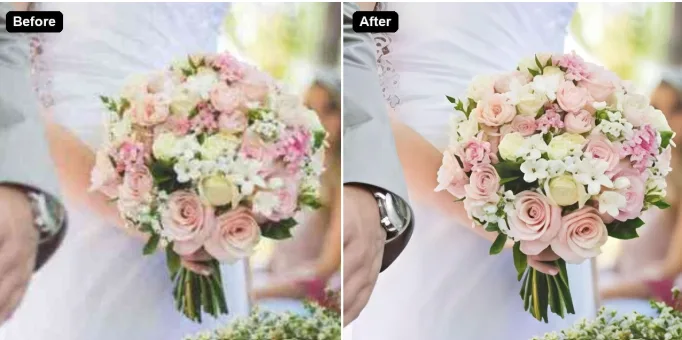
A browser-based photo quality enhancer such as Clarpex works this way. You upload a JPG, PNG or WebP, the AI removes blockiness and noise and sharpens soft detail, and you compare the result with the original on a before/after slider before you download it. For a photo that went through a group chat or two, the difference is usually clear at a glance.
Before you share an enhanced photo, check small details such as flowers, lace and jewelry at full size. Original photo: Wikimedia Commons, CC0.
What can AI photo enhancement not fix?
AI photo enhancement can’t recover detail that is completely gone, and it can’t tell what was really there. A few honest limits:
- Very small images. A thumbnail of a few hundred pixels doesn’t contain enough information for a faithful face. The AI will produce a sharp face, but it may not look exactly like the person.
- Text. Small text that compression turned into a smudge may be redrawn as different letters. Don’t rely on an enhanced screenshot for a receipt, a document or a license plate.
- Heavy motion blur. A photo taken while the camera or the subject was moving fast may improve, but not fully.
- Anything that must be accurate. For ID photos, legal records or evidence, use the original file, not an enhanced copy.
When the original still exists somewhere, getting that file is always the better fix. Enhancement is for the photos where the original is lost: a picture from an old phone, a relative’s post, a chat from years ago.
A quick checklist
- Send important photos in HD or as files, not as default chat photos.
- Save photos with the app’s download option instead of a screenshot.
- Keep originals in a backup, not only in chat threads.
- Ask for the original file before trying to fix a blurry copy.
- If the original is gone, enhance the best copy you have, and compare faces and text with care.
Most of the quality we lose on photos isn’t lost when we take them. It’s lost in the sharing. A few settings and habits keep it where it belongs.