A Complete Guide to Features, Security, and Usage (2026 Edition)
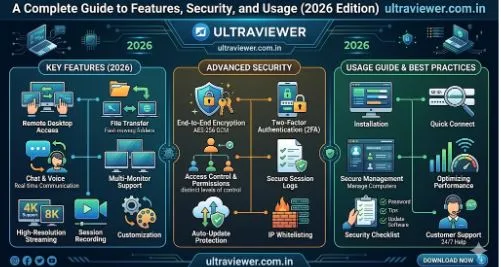
UltraViewer is a remote desktop software designed to allow one computer to control another over the internet. It is widely used for remote technical support, online teaching, team collaboration, and accessing personal files from a distance. This article provides a detailed structural analysis of UltraViewer, including its core functionality, security protocols, step-by-step usage, advantages, limitations, and a comparison with alternatives.
What is UltraViewer? – Core Overview
UltraViewer is a free-to-use remote control tool that enables screen sharing and remote access between Windows-based systems (with limited support for other OS). It operates by generating a unique ID and password for each session, allowing two devices to connect securely without complex network configurations.
Key Characteristics at a Glance
- Type of Software: Remote desktop, remote administration, and screen sharing
- Primary Users: IT support technicians, remote workers, educators, and home users
- Connection Model: Client-server with one-time authentication codes
- Platform: Primarily Windows (7, 8, 10, 11) and some compatibility with Windows Server
How UltraViewer Works – Technical Mechanism
UltraViewer establishes a peer-to-peer connection through a central authentication server. When both parties run the software, the remote helper enters the partner’s unique ID and password to request control.
Step-by-Step Connection Workflow
- Download the installer from the official website and run it on both computers
- Open the application. The host computer sees a 9–12 digit ID and a dynamic 6-digit password
- The host shares the ID and password with the remote user (via chat, phone, or email)
- The remote user enters the ID in the “Partner ID” field and clicks “Connect”
- The remote user enters the password. The host may receive a confirmation prompt
- Full remote control begins, including mouse, keyboard, and file transfer capabilities
Key Features of UltraViewer (Detailed)
UltraViewer is not just a screen viewer; it offers several tools for efficient remote management.
Essential Functional Features
- Remote Mouse & Keyboard Control: Full control over the remote computer’s input devices
- Chat Box: Built-in text chat for real-time communication during a session
- File Transfer Manager: Drag-and-drop interface to send/receive files between computers
- Screen Scaling & Resolution Adjustment: Automatically fits remote desktop to the viewer’s screen
- Session Recording (Limited in free version): Some versions allow recording remote sessions for auditing
- Multi-Monitor Support: Switch between multiple displays on the remote machine
- Reconnect Feature: Automatically re-establishes connection if the network drops briefly
Security & Privacy Measures
- One-Time Password (OTP): A new 6-digit password is generated each session; it changes after every connection or reboot
- AES 256-bit Encryption: All data (keystrokes, mouse events, screen data) is encrypted
- Permission-Based Access: The remote user cannot connect without the current password, and the host can disconnect anytime
- Optional Black Screen Mode: Hides the remote screen on the host’s monitor during sensitive operations
- Block Remote Input (Pro version): Prevents the host user from interfering while remote support is active
How to Use UltraViewer – Practical Guide
For the Person Receiving Help (Host)
- Download and install UltraViewer from the official website
- Open the application. Copy the Your ID and Password
- Send these credentials to the trusted helper (via secure channel)
- Approve any connection pop-up if prompted
- To end the session, close the software or click “Stop Sharing”
For the Person Providing Help (Client/Viewer)
- Install UltraViewer on your computer
- In the main window, paste the host’s ID into the Partner ID field
- Click Connect
- Enter the 6-digit password provided by the host
- Once connected, use your mouse and keyboard as if you were sitting at the remote PC
- Use the toolbar for chat, file transfer, or scaling options
💡 Pro Tip: Do not share your password with anyone you do not trust. The password changes every time UltraViewer restarts.
Advantages and Disadvantages of UltraViewer
Advantages (Pros)
- Free for personal and commercial use (with limitations in free version)
- No router configuration (port forwarding or firewall changes) required
- Lightweight installer (under 10 MB) and low memory usage
- User-friendly interface – minimal learning curve
- Fast connection setup (typically under 10 seconds)
- Unattended access support (Pro version) – set a fixed password for 24/7 remote access
Disadvantages (Cons)
- Windows-only – no native macOS or Linux client (may run via emulation but not supported)
- Limited mobile support – no official iOS/Android remote control app
- Free version restrictions – no unattended access, session recording, or commercial support
- Less known than TeamViewer or AnyDesk – smaller user base and fewer third-party integrations
- Potential security concerns if users reuse passwords or share them carelessly
UltraViewer vs. Competitors (Comparison Table)
- Platform Support: UltraViewer (Windows only), TeamViewer & AnyDesk (All platforms)
- Unattended Access: UltraViewer (Pro), TeamViewer (Limited), AnyDesk (Yes)
- File Transfer: Available in all
- Session Recording: UltraViewer (Pro), TeamViewer (Yes), AnyDesk (No)
- Encryption: AES 256-bit (UltraViewer & TeamViewer), TLS + AES (AnyDesk)
- Commercial Use: UltraViewer (Allowed), others (Paid required)
- Pricing: UltraViewer (Low), TeamViewer (High), AnyDesk (Medium)
Is UltraViewer Safe to Use?
Yes, when used correctly. The software employs strong encryption and a temporary password model. However, safety depends on user behavior.
Best Practices for Secure Usage
- Always download UltraViewer from the official website – avoid third-party downloaders
- Never share your password via public forums or social media
- After each support session, click “Stop Sharing” and close the app
- Update to the latest version to receive security patches
- Use a firewall to restrict outgoing connections if not in use
- For commercial environments, upgrade to the Pro version for unattended access with fixed credentials
Potential Risks to Avoid
- Social engineering attacks – Someone pretending to be tech support may ask for your ID/password
- Leaving the software open – Others may attempt connection
- Using the same password – Avoid poor security habits
Conclusion – Should You Use UltraViewer?
UltraViewer is an excellent choice for basic, on-demand remote support between Windows computers, especially for personal use, small IT consultants, or helping family members. It is lightweight, free, and straightforward.
Choose UltraViewer if:
- You only need Windows-to-Windows connections
- You want a simple, no-configuration remote tool
- You don’t require unattended access or mobile control
Consider alternatives (AnyDesk, TeamViewer) if:
- You need cross-platform (Mac, Linux, mobile) support
- You require unattended access in a free version
- You want a more established brand with extensive features
For many casual and professional Windows-based support scenarios, UltraViewer remains a reliable, secure, and cost-effective solution.