Boost Gaming Comfort with Smart Monitor Adjustable Features
After three hours into an intense gaming session, your neck starts to ache, your eyes burn, and your back protests every shift in your chair. Sound familiar? For millions of gamers worldwide, physical discomfort isn’t just an annoyance — it’s a performance killer that cuts sessions short and accumulates into long-term health issues.
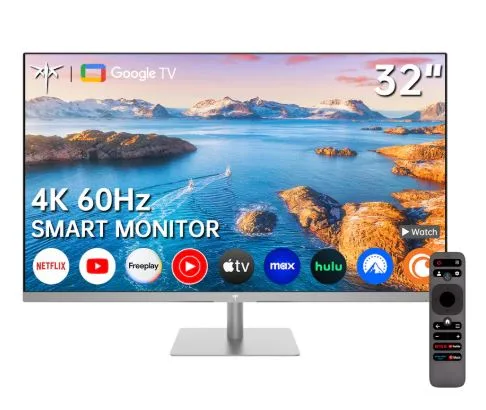
This is where the smart monitor changes everything. More than just a display, a smart monitor is a comprehensive ergonomic and visual solution engineered with gamers in mind. Features like fully adjustable stands let you dial in your perfect posture, while low blue light technology shields your eyes during marathon sessions. Add 4K clarity and versatile multiple interfaces into the mix, and you have a setup that works as hard as you do.
This article is your practical guide to understanding and leveraging these smart monitor features. Whether you’re building a new gaming station or upgrading an existing one, you’ll discover exactly how to use these tools to reduce strain, sharpen focus, and ultimately play longer and better.
Why Gamers Need Smart Monitors: Addressing Core Comfort Challenges
Most gaming setups are built around performance specs — frame rates, response times, resolution — while ergonomics get treated as an afterthought. The result is a static arrangement where the monitor sits at a fixed height, angle, and distance, forcing your body to adapt to the screen rather than the other way around. Over time, this mismatch creates real physical consequences.
Prolonged gaming in a poorly configured setup puts sustained pressure on the cervical spine, particularly when the screen sits too high or too low. Your neck compensates by tilting forward or backward for hours at a stretch, leading to the familiar stiffness that sets in mid-session. Meanwhile, lower back strain accumulates from the subtle postural shifts you make trying to get comfortable. Eye strain compounds these issues — staring at a bright screen in a dimly lit room, or squinting at fine details in a game, triggers headaches, blurred vision, and the kind of fatigue that tanks your reaction time and focus well before you’re ready to stop playing.
These aren’t minor inconveniences. Repeated strain can develop into chronic conditions like tension headaches, cervical spondylosis, and digital eye strain syndrome — all of which directly shorten your gaming longevity. Competitive players especially feel this impact, since peak performance demands sustained concentration and physical ease that a painful setup simply cannot support.
A smart monitor directly counters these problems by putting control back in your hands. Fully adjustable stands eliminate the one-size-fits-all positioning that causes strain. Low blue light modes reduce the wavelengths most responsible for eye fatigue. High-resolution displays reduce the visual effort needed to interpret fine game details. Together, these features transform your monitor from a passive screen into an active ergonomic tool — one designed to keep you comfortable, focused, and playing at your best for longer.
Essential Smart Monitor Features for Superior Gaming Comfort
Understanding what separates a smart monitor from a standard display comes down to how its features work together to solve real problems. Each capability targets a specific weakness in the typical gaming setup, and knowing how they function helps you use them to their full potential.
The Adjustable Stand: Your Foundation for Ergonomic Gaming
A fully adjustable stand gives you control over four key movements: height, tilt, swivel, and pivot. Height adjustment ensures your eye level meets the top third of the screen, keeping your neck neutral rather than craned. Tilt lets you angle the panel to eliminate glare and match your natural viewing line. Swivel allows horizontal rotation for multi-device switching or sharing your screen, while pivot enables portrait mode for specific tasks. To find your optimal position, sit in your normal gaming posture first, then adjust the monitor to fit — never the reverse. Your arms should rest comfortably, and you shouldn’t need to lean forward to see clearly.
Low Blue Light Technology: Combating Eye Strain for Marathon Sessions
Blue light occupies the high-energy end of the visible spectrum, and prolonged exposure — especially during evening sessions — disrupts melatonin production and accelerates eye fatigue. Low blue light technology filters these wavelengths at the hardware level, reducing strain without the color distortion that software filters often introduce. Most smart monitors offer this as a dedicated mode in the OSD menu, sometimes labeled “Eye Care” or “Reading Mode,” with adjustable intensity levels. Monitors like those in the KTC gaming lineup, for instance, implement this at the panel level rather than through software overlay, which helps preserve color accuracy while still cutting fatiguing wavelengths. Activating it during sessions longer than two hours noticeably reduces the burning sensation and helps your body wind down naturally afterward, protecting both your eyes and your sleep quality.
4K Monitor Clarity and Multiple Interfaces: Immersive and Versatile Setup
A 4K monitor delivers four times the pixel density of 1080p, meaning game environments, text, and UI elements render with sharp precision. Your eyes work less hard to interpret fine details — distant textures, small map markers, and subtitle text all become effortlessly legible, reducing the subconscious squinting that builds fatigue over time. Multiple interfaces amplify this by letting you connect a PC, console, and peripherals simultaneously without cable swapping. HDMI handles consoles cleanly, DisplayPort supports high refresh rates for competitive play, and USB-C consolidates power and data in a single cable for laptops — keeping your desk organized and your transitions between devices instant.
Practical Steps to Choose and Optimize Your Smart Monitor
Selecting the right smart monitor isn’t just about picking the highest specs — it’s about matching the monitor’s capabilities to your specific gaming environment and habits. A systematic approach to both selection and configuration ensures you actually use the features that matter most rather than paying for options that never leave their default settings.
Step 1: Assessing Your Gaming Environment and Needs
Start by measuring your desk space — a monitor with a wide swivel range needs clearance on both sides, while a height-adjustable stand requires vertical room. Audit your existing hardware: if you game across a PC and a console, multiple interfaces become a priority. Be honest about your session length too. Gamers who regularly push past two hours should weigh low blue light capability heavily in their decision, while competitive players logging short, intense sessions may prioritize response time alongside ergonomic adjustability.
Step 2: Adjusting and Configuring Your Monitor for Ideal Ergonomics
Once your monitor is on your desk, resist the urge to just plug it in and play. Follow this sequence for proper ergonomic setup. First, sit in your natural gaming posture with your back supported and feet flat. Raise or lower the stand until the top edge of the screen sits at or just below eye level — this keeps your neck neutral through long sessions. Position the screen roughly an arm’s length away, typically 50–70 cm, and tilt it back 10–20 degrees to match your natural downward gaze. Next, open the OSD menu and locate the Eye Care or Low Blue Light setting — set it to a moderate intensity level that reduces strain without washing out game colors. Finally, confirm your resolution is set to native 4K in your system display settings, and assign each input source to the correct interface port so switching between devices takes a single button press rather than a cable hunt.
Real-World Benefits: How Smart Monitors Transform Gaming Experiences
The cumulative impact of smart monitor features becomes most apparent after weeks of consistent use. Gamers who make the switch from static, unadjusted displays consistently report the same progression: the neck stiffness that used to set in around hour two simply stops appearing, eye fatigue pushes back to the end of a session rather than the middle, and the mental clarity that comes from physical comfort translates directly into sharper in-game decision-making.
Consider a competitive FPS player who spends four to six hours daily grinding ranked matches. Before switching to an ergonomically configured smart monitor, mid-session headaches were a regular occurrence that forced breaks and disrupted momentum. After properly adjusting stand height, enabling low blue light mode, and locking in native 4K resolution, that same player can maintain focus through extended sessions without the fatigue tax that previously cost them late-game performance. The improvement isn’t placebo — reduced physical strain means your brain isn’t splitting resources between managing discomfort and processing the game.
Casual gamers see equally meaningful gains. Someone who previously capped sessions at ninety minutes due to eye strain finds they can comfortably extend to three hours with low blue light active and the screen properly positioned. Brands such as KTC have built their gaming monitor range around exactly this use case, combining ergonomic stand flexibility with hardware-level eye care features to serve players who game across varying session lengths and environments. The ability to connect a console and PC through dedicated interface ports also eliminates the friction of cable management, making the overall experience feel seamless rather than cobbled together.
Long-term, these benefits compound. Avoiding chronic strain means fewer interruptions to your gaming schedule, lower risk of developing persistent conditions like tension headaches or digital eye strain syndrome, and a setup that actively supports your health rather than quietly undermining it. A smart monitor doesn’t just improve how you play today — it protects your ability to keep playing for years ahead.
Invest in Comfort, Play at Your Best
Gaming comfort isn’t a luxury — it’s a prerequisite for playing at your best and protecting your health over the long haul. As this guide has shown, the physical strain that plagues so many gamers isn’t inevitable. It’s a solvable problem, and a smart monitor equipped with the right features is the most direct solution available.
The adjustable stand gives you precise control over your posture, eliminating the neck and back strain that static setups silently accumulate. Low blue light technology shields your eyes through marathon sessions, preserving both your focus and your sleep. A 4K display reduces the visual effort your eyes exert to process fine details, while multiple interfaces keep your entire setup clean, connected, and responsive. Together, these features don’t just improve individual sessions — they compound into lasting gains for your health and performance.
If your current setup is causing discomfort, that’s your signal to act. Start by evaluating which features your existing monitor lacks, then use the selection and configuration steps in this guide to make an informed upgrade. Position your screen correctly, activate eye care modes, and commit to the ergonomic habits that keep strain at bay. Your body — and your in-game performance — will reflect the difference. The best gaming investment you can make isn’t a faster processor or a louder headset. It’s a setup that lets you keep playing, comfortably, for years to come.