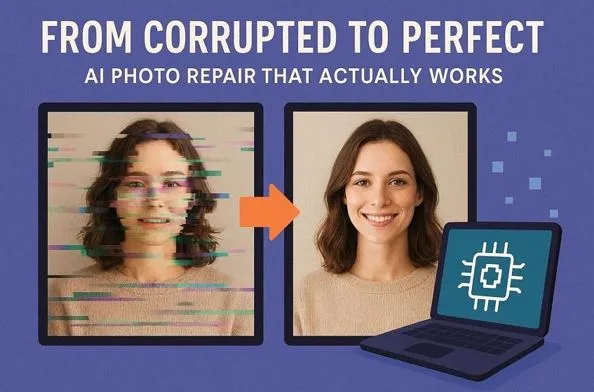
From Corrupted to Perfect: AI Photo Repair That Actually Works
Many people feel upset when their favorite photos stop opening or gets corrupted. This problem can occur after transfer errors, storage faults, or sudden power loss. However, there are many AI photo repair tools that help fix damaged images without hard steps. Most tools work automatically, so anyone can repair photos without stress or confusion. Thus, this guide explains easy ways to restore pictures and keep memories safe at home.
Part 1. Warning Signs Your Photo or JPEG Is Damaged
You may need AI photo restoration when pictures suddenly stop opening properly. Below are clear warning signs showing your JPEG file is already damaged:
- Partial Image: Only part of the picture is shown, while the remaining area looks empty now. The top section appears normal, but the bottom half is missing completely from view.
- Strange Colors: The photo shows wrong colors with bright patches or rainbow bands. Skin tones and backgrounds look unnatural, showing that the data inside the image gets broken.
- Shifted Parts: Sections of the picture look cut and shifted sideways out of place. Lines and objects appear misaligned, showing that the file structure gets damaged inside.
- Weird Lines: Randomly colored lines appear present across the photo that weren’t in the scene before. Green or purple streaks indicate missing data blocks inside the image file structure.
- Odd Size: The file size is 0 or smaller than normal photos from the camera device. A large size can also signal damaged or mixed photo data inside.
Part 2. Why AI Photo Restoration Beats Traditional Repair Methods
When photos stay damaged for days, AI photo repair becomes necessary for recovery. This section explains why modern tools outperform manual methods for damaged images:
- Fast Results: AI restores damaged photos within seconds instead of long manual hours. However, traditional editing may require days for one damaged picture alone.
- Batch Processing: AI systems fix many photos together, saving effort when restoring large files. Traditional repair handles one image at a time, making bulk restoration very slow.
- Lower Cost: AI repair tools cost less money than hiring professional photo restorers. Experts charge per photo, which becomes costly for large damaged collections overall.
- Better Quality: AI models learn patterns from many images to fix damage. Manual methods depend on human skill, which can vary between different editors.
- Multi Fixes: AI fixes scratches, blur, noise, and fading together without manual steps. Traditional repair needs different tools for each problem, increasing time and effort.
Try First Choice for Repairing Photos: AI-Powered Software [Repairit]
You should try Repairit when you want an effortless and fast solution. This advanced tool automatically detects and repairs damaged or corrupted photos using AI. Furthermore, it restores blurry, pixelated, or old images with only a 1-single click. You can even repair multiple photos together, saving time on large photo collections. The program preserves original image quality while repairing damaged or corrupted photos completely.
Additionally, it handles hard corrupted images automatically using advanced algorithms for photo recovery. Users can preview repaired images to ensure accuracy before saving. Moreover, Repairit supports 20+ popular photo formats like PNG, JPG, and ARW. It repairs scratches, stains, pixelation, and color loss together in a single process. This AI photo repair achieves a 99.5% success rate for photos with AI-powered restoration.
Key Features
- Resolution Boost: Enhance image resolution up to 8x without losing detail or quality.
- Smart AI: Automatically detects damage type and applies appropriate AI repair techniques.
- Specialized Formats: Supports GPR and SWF formats and repairs them without damaging the structure.
Detailed Guide to Fix Damaged or Unopened Photos Using Repairit
Let’s explore the steps below to fix the corrupted photo to make it perfect:
Step 1. Import Your Damaged Photos to Fix
When you access the tool, head to the “More Types Repair” section and click the “Photo Repair” option.
Step 2. Start the Repairing Process
As your damaged photos get added, press the “Repair” button to start the repair process.
Step 3. Preview and Download the Repaired Photos
Once the repair process is done, press the “Preview” button to view them. At last, opt for the “Save” button to export them to your PC.
Why Choose It
- Uses advanced AI algorithms to restore photos without manual effort.
- Supports all popular photo formats, including PNG and other image types.
- Repairs blurry, pixelated, or corrupted images in seconds instead of long hours.
- Process multiple photos together, saving time on large collections with efficiency.
- Maintains original details, textures, and colors while enhancing image clarity.
Part 3. Quick Fixes for Corrupted JPEGs You Can Do Yourself
Some users prefer manual fixes rather than trying AI photo repair with tools. This section explains simple fixes you can do yourself to restore corrupted images:
Fix 1. Restart The System And Retry Opening The Image
Sometimes pictures fail to open due to temporary glitches in the system or apps. You should restart your system to refresh memory and reset the viewer to normal. A restart also completes codec or software updates, restoring support for unreadable formats. However, it cannot fix corrupted files; JPEG repair software helps recover them. So, take guidance from below to learn how to restart your PC:
Instructions. Press “Windows Key” and click the “Power” button, then choose “Restart.”
Fix 2. Open JPEG In Alternative Programs (Photos, Paint, GIMP)
You should open problematic JPEGs in alternative programs to recover visible image data. Photos, Paint, and GIMP can sometimes display images that other programs cannot read. These programs can re-encode files, creating a cleaner structure while preserving visible pixels. This method works best for easy corruption that leaves most image data intact. Combined with AI photo restoration, it can maximize recovery for limited damaged JPEGs.
Fix 3. Convert JPEG To Another Format (PNG) And Retry
When JPEGs show corruption, you should try to convert their format using tools like CloudConvert. Converting the file to PNG re-encodes the visible image data into a lossless format. This approach preserves any readable content and bypasses minor header or metadata errors. Combining this method with JPEG repair software can improve the chances of recovery. Thus, go through the given guide to convert JPEG to another format like PNG:
Step 1. Go to the official website of a photo converter like “CloudConvert.” After that, press the “Select File” button and choose the PNG format.
Step 2. When you add a photo, opt for the “Convert” button.
Step 3. Once your photo gets converted, opt for the “Download” button to save it to your device.
Conclusion
In conclusion, damaged or corrupted photos can make memories feel lost and sad. Many people struggle to recover images using manual methods, which are slow and inconsistent. However, AI photo repair tools simplify the process for restoring clarity and details. Therefore, if you want a reliable, fast solution, Repairit handles severe corruption. It supports multiple formats and makes photo recovery simple for everyone.