Game Night Without the Spinning Wheel: What Actually Breaks Live Sports at Home (and How to Fix It Before Kickoff)
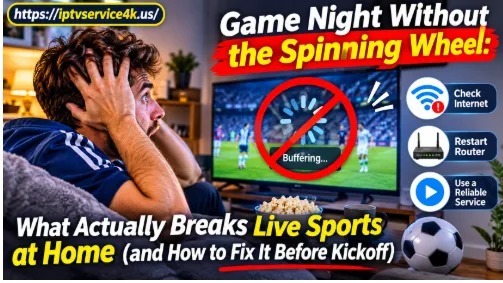
Every big game has the same moment. The score is tied, the crowd is on its feet, and on your TV the picture freezes on a blurry close-up while a little wheel spins in the middle of the screen. By the time it comes back, the play is over and someone’s phone has already told the whole room what happened.
Most people blame the streaming service. Sometimes they’re right. But after years of answering support messages on the busiest nights of the sports calendar, the honest picture is more mixed: a good share of game-night freezes start inside the house, and most of them can be fixed in ten minutes, well before the opening whistle.
Here’s what really goes wrong, in the order we see it, and what to do about each one.
1. The TV is on the weakest Wi-Fi in the house
The living room TV is often the device furthest from the router, behind a wall, a cabinet or the TV itself. A phone on the couch can show a perfect speed test while the TV a few feet away is getting a fraction of that signal.
The fix is boring and it works. Run the speed test on the TV, not on your phone. If you can, plug the TV or streaming stick into the router with a cable; even an older Ethernet port is plenty for a 4K stream. If a cable isn’t possible, move the TV to the 5 GHz Wi-Fi band and keep the router out of a closed cabinet. As a rough guide, plan for about 10 Mbps per HD screen and 25 Mbps for 4K, with some room to spare.
2. Everyone else in the house is online at the same time
Game night is rarely just one screen. Someone is gaming upstairs, someone is uploading photos, a laptop is quietly downloading an update. Each of those takes a slice of the same connection, and live video is the first thing to suffer because it can’t pause and catch up the way a movie can.
Before kickoff, pause big downloads and console updates. If your router has a priority or “QoS” setting, put the living room TV at the top. It takes two minutes and it’s the single change that saves the most second halves.
3. The streaming stick has been on for three weeks
Small streaming devices don’t have much memory. Left on for weeks, apps build up cache and the device slows down, and the first sign is usually stutter on live channels. A real restart, unplugging the device for thirty seconds, clears it. Do it on game day morning, not at halftime.
While you’re there, check that the player app is up to date. An old app version is one of the quiet causes of channels that take ten seconds to start.
4. Testing at the wrong time
People try a new service on a Tuesday afternoon, flick through a few channels, and decide it’s great. Then Sunday evening arrives, half the neighborhood is streaming, and the picture starts to break.
The only test that counts is a live game, on your own TV, at the time you normally watch. Most decent services offer a free trial for exactly this reason. Use it during a real game, switch between a few channels, and time how long each one takes to start. If it holds up at peak time, it will hold up the rest of the week.
5. The service really is overloaded
Sometimes it isn’t you. When every channel stutters, on every device, at the same hour every week, the provider is short on capacity at peak time. No router setting fixes that.
The difference between a good provider and a bad one shows up right here: what happens when you report it. A good support team answers quickly, asks which channel, which device and what time, and either fixes it or tells you honestly what’s going on. A bad one blames your internet every time.
At IPTVService4K, that’s how we try to handle our own busiest nights: we watch the same big games our customers do, we keep extra capacity for peak hours, and when someone writes in during a match, the first question is always which channel and which device, so the answer is a real fix and not a guess. We also give new customers a 24-hour free trial and a 30-day money-back guarantee, because the only fair way to judge any service is on your own TV, during a real game.
A ten-minute pre-game checklist
- Restart the streaming device (unplug for 30 seconds).
- Run a speed test on the TV itself.
- Use Ethernet or the 5 GHz Wi-Fi band for the main TV.
- Pause downloads, updates and cloud backups in the house.
- Open the channel ten minutes early and let it settle.
- Keep a second option ready, such as the same game on a phone, just in case.
The bottom line
Live sports are the hardest thing a home connection is asked to handle: no buffer, no second chance, and everyone watching at once. A lot of game-night trouble is fixable from the couch with a cable, a restart and a quick look at who else is online. What’s left is down to the service, and the way to judge that is simple: test it during a real game, and see how fast a human answers when something goes wrong.
Get those two things right and the only thing left to worry about is the score.