How to Choose a SharePoint File Archiving Solution That Actually Scales
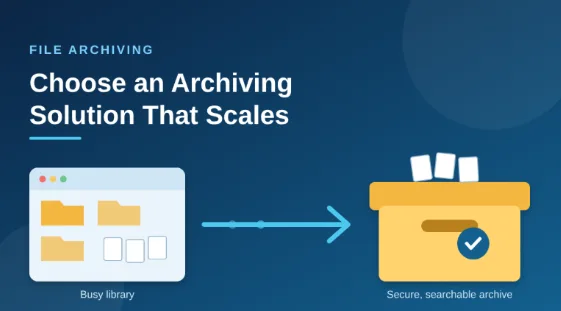
Most SharePoint environments don’t fail all at once. They get heavier month by month, until a library takes forever to open, search returns a pile of outdated results, and the storage warning shows up in the admin center. At that point, picking the right sharepoint file archiving solution stops being a nice-to-have and becomes a real business decision.
The tricky part is that many tools look the same on a feature sheet. They all promise to move old files somewhere cheaper. Far fewer keep working once you have millions of files, dozens of sites, and users who still expect to find things in seconds.
This guide walks through why SharePoint grows out of control, what a solution needs to handle at scale, the mistakes teams make when choosing one, and a simple way to test your shortlist before you commit.
Why SharePoint Storage Gets Out of Hand
SharePoint is easy to start and hard to tidy. Every project gets a site, every site gets libraries, and nobody is assigned to clean up when the project ends. Add Teams, which stores its files in SharePoint behind the scenes, and the growth speeds up.
A few patterns show up again and again:
- Finished projects stay live. Files from closed projects sit next to active work for years.
- Version history piles up. One heavily edited document can carry dozens of saved versions, each counting toward storage.
- Large files add up fast. Videos, design files, scans, and exports take far more room than documents.
- Nobody owns retention. Without clear rules, the safe choice is to keep everything forever.
The costs are not only about storage fees. Microsoft 365 tenants get a pooled storage allowance, and extra capacity is billed per gigabyte each month. Beyond that, big libraries slow down views, make search noisy, and widen the pool of data you have to protect, audit, and back up. Libraries with very large item counts also run into list view limits, which makes everyday browsing frustrating.
Archiving fixes this by moving inactive content out of the busy part of your environment while keeping it safe and findable.
What a Solution Needs to Scale
A tool that works for 50,000 files can fall apart at 50 million. These are the areas that decide whether a product keeps up as you grow.
Rule-based automation
Manual archiving does not scale. Look for policies that run on their own, based on last modified date, last accessed date, file type, size, site, or metadata. You should be able to say, for example, “archive anything in project sites that has not been touched in 18 months,” then let the system do it every night.
Fast, reliable handling of large volumes
Ask how the product moves content. Does it throttle itself to stay inside Microsoft’s API limits? Can it resume after an interruption? Can it run jobs in parallel? A solution that stalls halfway through a large library creates more work than it saves.
Easy access after archiving
This is where many projects succeed or fail. If users cannot find an archived file in a minute or two, they will ask IT, or worse, stop trusting the archive. Good tools leave a stub or link in the original location, support search across archived content, and let people restore a file without a ticket.
Metadata, permissions, and version preservation
An archived file should keep its context. That means author, dates, custom columns, and permissions all come along. If access rules are lost in the move, you either lock out the right people or expose files to the wrong ones.
Compliance and retention controls
Archiving often overlaps with legal and records requirements. Check that the solution supports retention periods, legal holds, audit logs, and defensible deletion. It should work with your existing governance setup rather than fight it.
Storage flexibility and cost
The point of archiving is to lower cost without losing control. See where the data lands: lower-cost cloud storage, your own storage, or a different Microsoft tier. Ask about egress charges, and confirm you can still get your data out if you ever change vendors.
Security
Archived files should be encrypted in transit and at rest, protected by the same identity controls you use today, and stored in a region that fits your data residency rules.
Common Mistakes When Choosing a Tool
Even careful teams slip up here. These are the ones worth avoiding.
- Buying on price alone. The cheapest option can cost more if it needs constant manual work or breaks the user experience.
- Ignoring the end user. IT picks the tool, then employees cannot find their files and the help desk fills up.
- Skipping a retention plan. Archiving without clear rules just moves the mess somewhere else.
- Testing with a tiny sample. A pilot of a few hundred files hides every performance problem.
- Forgetting about exit. If your data is locked in a proprietary format, switching later becomes painful.
- Treating it as a one-time project. Content keeps growing, so the solution has to run continuously.
How to Evaluate and Roll Out Your Choice
A short, structured process beats a long debate over feature lists.
- Measure what you have. Find out how much data sits in SharePoint, which sites are largest, and how much has not been touched in a year or more. This tells you how much an archive can realistically save.
- Write your rules first. Agree with legal, compliance, and department heads on what gets archived, when, and for how long it is kept.
- Build a shortlist against your criteria. Score each product on automation, performance, access, security, compliance, and cost.
- Run a realistic pilot. Pick one or two large sites. Time the archiving jobs, test search and restore, and check that permissions carry over correctly.
- Involve a few everyday users. Ask them to find and restore files without help. Their feedback is the best predictor of adoption.
- Roll out in waves. Start with the sites that have the most stale data, then expand. Share a short guide so people know what to expect.
- Review regularly. Check storage trends, restore requests, and policy results every quarter and adjust.
Final Thoughts
A good archive does not just free up space. It makes SharePoint faster, keeps costs predictable, and gives your team a clear, safe place for older content. The right tool is one that automates the routine work, keeps files easy to reach, protects permissions and compliance, and holds up as your data grows.