How to Identify Safe Download Sources for Messaging Apps on Windows
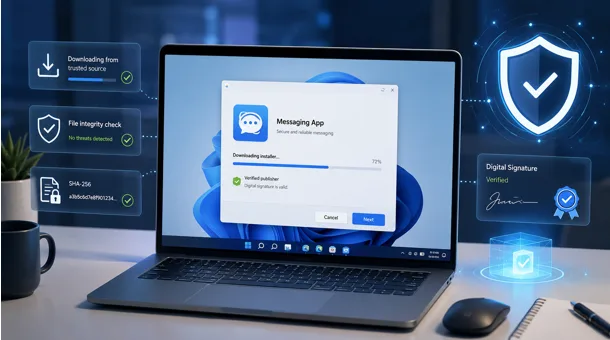
Messaging apps are now part of the basic software toolkit for remote employees, international teams and people who communicate across several devices. Installing one on a Windows computer may appear simple: search for the app, open a result and click “Download.” The problem is that search results do not always lead to a legitimate software source.
Imitation websites, sponsored listings, bundled installers and outdated setup files can all look convincing. Some copy familiar colors and product names closely enough to mislead users. Others use a large download button that sends visitors to an unrelated domain or starts an installer containing extra programs.
A safer approach is to treat the download as a short verification process rather than a single click. Before running an installer, users should examine the website, confirm the file and publisher, scan the download and decide whether they actually need a desktop application.
Why Messaging App Downloads Require Extra Attention
Communication software may display notifications, store local files, access a microphone or camera and remain active in the background. That makes a modified installer more dangerous than an ordinary broken download.
One common risk is a fake download page designed to resemble a well-known service. It may use a misspelled domain, copied descriptions or visual elements associated with the real app. Search advertisements can create additional confusion because a paid result may appear above the official result. High placement is not proof of authenticity.
Third-party download managers are another concern. Instead of supplying the original installer, they may wrap it in another executable and offer unrelated browser extensions or utilities during setup. The wrapper introduces another file that the user has not verified.
Outdated packages present a different problem. An old installer may lack security fixes or may no longer connect correctly to the service. Modified portable editions and unofficial “enhanced” versions are harder to evaluate because their code, publisher and update process may be unclear.
Check the Website Before Downloading
Start by reading the complete domain name in the browser address bar. Attackers often rely on small spelling changes, added words, unusual subdomains or misleading domain endings. A familiar product name inside a long address does not mean the domain is controlled by that product’s developer.
HTTPS is worth checking, but it is not a guarantee. The padlock indicates that the browser’s connection is encrypted; it does not prove that the site operator is trustworthy. Treat HTTPS as one basic requirement among several.
Next, examine the page. A credible source should clearly explain which operating systems it supports, what version is offered and where the file comes from. Look for a privacy policy, contact information and consistent branding. Be cautious when a page contains several competing “Download” buttons, urgent countdowns or instructions to disable security software.
Hover over the download button and check the destination shown by the browser. If it redirects to an unrelated domain, generic file host or advertising network, stop and investigate. Legitimate companies may use content delivery networks, but the relationship should be explainable.
Users who are unsure where to begin can first review a Telegram website guide that explains common download paths and platform differences. Because this is a third-party guidance resource rather than an official Telegram website, users should still compare its instructions with the publisher’s current application listings before downloading.
Verify the Windows Installer
After downloading a file, do not open it immediately. Confirm that the extension matches the expected Windows format. Most desktop installers use .exe or .msi. An archive such as .zip is not automatically unsafe, but it deserves more scrutiny when the download page did not explain the packaging.
Check the filename and approximate file size against information supplied by the publisher. File size can change after an update, so use it as a comparison signal rather than an absolute test. A filename filled with unrelated keywords, random characters or terms such as “crack” is a reason to stop.
Windows users can inspect an executable’s digital signature. Right-click the file, select Properties, and look for the Digital Signatures tab. Review the signer name and certificate status. A valid signature helps establish who signed the file and whether it was changed after signing. An unsigned file is not automatically malicious, but it requires stronger verification from other sources.
Then scan the file with Windows Security. In File Explorer, right-click the installer and choose Scan with Microsoft Defender; on some Windows 11 systems, this appears after selecting Show more options. Keep Microsoft Defender SmartScreen and other reputation-based protections enabled.
For a second opinion, users may submit a non-confidential installer to VirusTotal, which compares files and URLs across multiple security engines. Results still require interpretation: one isolated alert may be a false positive, while several consistent detections are more concerning. Public uploads may be shared for security analysis, so private business files or personal documents should not be submitted.
Avoid Common Search and Download Mistakes
The first mistake is assuming that the highest search result is the safest. Search position can be influenced by advertising and optimization. Read the domain before opening the page, and compare it with the publisher’s known website or verified app-store listing.
The second mistake is clicking several download buttons until one works. Many third-party pages place advertisements beside the real link. Close the page if the interface makes it difficult to identify which button belongs to the software.
Another warning sign is an installer that asks the user to disable antivirus protection, bypass SmartScreen or ignore certificate warnings. Legitimate software can occasionally trigger a cautious warning, particularly when it is new, but the solution should be verification – not turning off security controls.
Users should also avoid cracked builds, modified portable releases and installers distributed through random cloud-storage links. These packages may remove update mechanisms, alter permissions or contain code that is not present in the original application.
Complete the Installation Safely
Once the website and installer have been checked, complete the installation in a controlled sequence:
- Confirm the supported Windows version and whether the device needs a 32-bit, 64-bit or architecture-specific package.
- Download only the package intended for that system.
- Scan the file and review any reputation warning before opening it.
- Check requested administrator permissions and investigate anything unexpected.
- Read each setup screen instead of accepting optional software or browser changes.
- Launch the application and install available security or stability updates.
- Review notification, microphone, camera and startup permissions.
- Enable two-step verification or another available account-protection feature after signing in.
A structured Telegram download guide can also help users distinguish between desktop, mobile and web access before installing anything. Some users only need temporary browser access, while others need a desktop client that can receive notifications and synchronize files. Choosing the appropriate access method reduces unnecessary downloads and permissions.
For Telegram specifically, users can make a final comparison with its official applications page, which lists supported desktop, mobile and web clients. The same principle applies to other messaging platforms: third-party guides can explain the choices, but the software publisher should remain the final reference for the current package.
Final Checklist
Before running a messaging app installer on Windows, confirm the following:
- The domain is spelled correctly and does not imitate a familiar address.
- The website uses HTTPS and provides consistent product, privacy and contact information.
- The download button leads to an expected domain or documented delivery network.
- The file extension, name and approximate size match available publisher information.
- The digital signature and publisher details are reasonable.
- Windows Security has scanned the file.
- SmartScreen or antivirus protections remain enabled.
- Any VirusTotal result has been interpreted carefully.
- The installer does not add unrelated software or browser changes.
- The application is updated and the account is protected with two-step verification.
Safe installation is less about finding one perfect signal than combining several independent checks. A trustworthy-looking page can still host the wrong file, and a familiar filename can still come from the wrong source. By verifying the website, installer and account settings in sequence, Windows users can reduce the risk of fake downloads while keeping communication tools current and secure.