How to Restore Old Photos Without Spending Hours in Photoshop
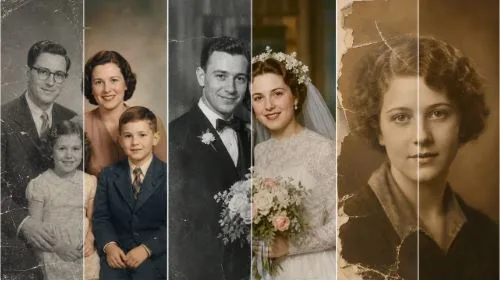
I found a box of old family photos last month. Faded, scratched, some torn at the edges. I wanted to fix them, but I don’t know Photoshop and I’m not paying $100+ per photo for a retoucher.
Turns out, there’s a much easier way now.
The Problem
Old photos don’t age well:
- Colors fade (reds always go first)
- Scratches and dust pile up
- Creases and tears from being folded or stored badly
- Faces get blurry and hard to recognize
- Black-and-white photos stay… black and white
You want them fixed. But the traditional route — scanning, Photoshop, manual repair — takes forever and costs a lot.
What I Use Instead
I use AI Photo Editor. Specifically their restore old photos tool.
Here’s the thing: you upload a photo, type what you want fixed, and the AI does it in seconds. No layers, no masks, no tutorials.
How It Actually Works
- Upload your photo — I scan mine at 300 DPI, but a clear phone photo in daylight works too. JPG, PNG, WebP, whatever.
- Write a prompt — Just describe what needs fixing. “Remove scratches and dust” or “colorize this black-and-white family photo.” The more specific, the better.
- Hit generate — AI processes it. Usually takes a few seconds.
- Download — Save the restored version. Your original file stays untouched.
If the first result isn’t perfect, tweak the prompt and try again. No extra cost.
Prompts I Actually Use
These are the ones that work for me:
| What I Need | What I Type |
| Clean up scratches | Remove scratches and dust, keep original facial details |
| Colorize old B&W photos | Colorize this photo with natural skin tones and realistic colors |
| Sharpen blurry faces | Sharpen blurry faces, improve contrast, keep it natural |
| Fix yellowed/faded prints | Restore faded colors, reduce yellowing, make it print-ready |
| Repair torn edges | Repair torn edges and creases, reconstruct missing background |
Pro tip: be specific. The AI reads your prompt literally. If you say “make it look modern,” it might overdo it. I usually add “keep it natural” or “don’t over-modernize” to stay safe.
Why I Like It
- Zero learning curve — I don’t touch Photoshop. I just type what I want.
- Fast — What used to take a pro hours, this does in seconds.
- Safe — Original file never changes. I download a new copy.
- Flexible — Works on portraits, wedding photos, childhood pics, scanned albums, whatever.
- Iterate — Not happy? Change two words in the prompt and generate again.
What It Won’t Fix
Be realistic:
- A face that’s completely missing from the photo? No.
- A 50×50 pixel thumbnail with zero detail? No.
- Historically accurate colors without any reference? It’s a guess.
But for 90% of damaged-but-intact photos, it handles everything I throw at it.
Quick Tips for Better Scans
- 300 DPI minimum if you’re using a scanner.
- Daylight, no flash if you’re using your phone.
- Don’t crop or filter before uploading. Give the AI the raw file.
- Save restored files as PNG for archiving. JPEG is fine for sharing.
Just Try It
If you’ve got old photos sitting in a drawer, now’s the time. Every year they get worse.
Restore your old photos with AI Photo Editor →
Upload one. Write one prompt. See what happens.