How to Transfer from iPhone to Mac?
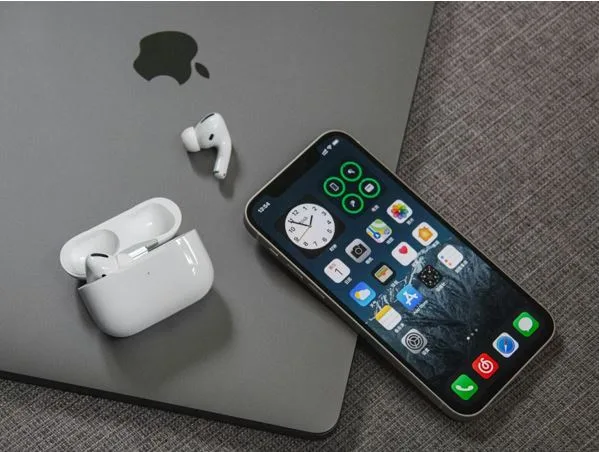
Transferring files from an iPhone to a Mac is not just about using Apple devices together. It’s mainly about how you manage and access your content across devices. You can think of your smartphone as a mobile companion, while your computer serves as a more powerful workspace for handling and organising files.
Transferring data from an iPhone to Mac can be simple and efficient if a few basic rules are followed. If you need to transfer large files, third-party tools like Commander One can help give you more control over the process, especially when working with big data sets or managing multiple files.
The Philosophy of “Seamless” – Optimization Matters
Apple has built a system in such a way that old-school physical “transfer” (like moving from one apartment to another with boxes) is gradually fading into oblivion.
By using third-party file managers like Commander One, you can reduce issues with unresponsive apps or unstable file transfers, leaving more space for your everyday workflow.
For a smooth process, it’s beneficial to set up your Apple ID, which becomes the bridge between your pocket and your desktop. Your Apple ID acts as a connection between your devices and helps keep everything synced.
Method 1: Continuity – Real-Time Magic
Few people enjoy the Mac functionality to the fullest, simply because it interacts with the iPhone. One feature below the radar is Universal Clipboard.
Example: You discovered a multi-step recipe or a piece of programming code while scrolling through your iPhone’s feed on the subway. Simply click “Copy” on your phone, and when you get home, press Command + V on your Mac. The text appears out of thin air.
Handoff: Start composing an email in the Mail app on your iPhone. A mail icon with a small phone icon will pop up on the left side of your Mac’s Dock. Click it, and you’ll resume typing from the same spot, but now with a full keyboard.
Method 2: AirDrop and iCloud Drive – When You Need to “Move Things Around.”
If you need to transfer bulky files (4K videos or huge PDF archives), AirDrop remains king. But here’s a “non-trivial” tip: if you plan to transfer data regularly, use the “Desktop and Documents” folder in iCloud preferences on your Mac.
One touch, and your iPhone turns into a remote control for your computer. It means that all the files you keep on your Mac desktop instantly appear in the Files app on your iPhone.
Method 3: Continuity Camera — iPhone as a Peripheral
Many people buy a high-end webcam for their Mac, not realizing that their iPhone captures 10 times clearer video.
Mount your iPhone on the top of your MacBook. The system will automatically suggest using it as a camera for Zoom or FaceTime.
Desk View: iPhone can simultaneously show your face and what’s happening on your desk (a top-down view), using a wide-angle lens and perspective-correction algorithms. This feature is the biggest flex for designers and online teachers.
Method 4: Full Backup via Finder
If your goal isn’t syncing but rather moving your media library or creating a local copy “for eternity,” push the idea of using iTunes (it’s no longer available in modern macOS) to the back of your mind.
- Connect your iPhone with a cable.
- Open Finder.
- In the sidebar, select your phone.
- The “General” tab will create a full encrypted backup.
Lifehack: Check “Encrypt local copy.” This is the only way your Wi-Fi passwords, Health app data, and call history will be included in the backup. Without encryption, you will come across an incomplete archive.
Unprecedented Use Cases
- Scanning Documents
You need to insert a scanned contract into a Word document on a Mac. Instead of taking a shot with your phone, uploading it to the cloud, and cropping it:
- Right-click on the Mac desktop.
- Select “Import from iPhone” -> “Scan Documents.”
- The iPhone camera will open automatically. Take a photo.
- The document will instantly appear on your Mac screen in perfect PDF format.
- Managing Calls and SMS
Your smartphone might become a side show throughout the working day. By setting up “Message Forwarding” in your iPhone settings, you avoid distractions, as customized green SMS messages can be responded to directly from your Mac.
If a courier rings up, you can answer the call directly through your laptop’s microphone and speakers, without rushing to another room to unplug your phone.
Bottom Line
Transferring files from iPhone to Mac is less about technical steps and more about using built-in tools to improve workflow and efficiency. With AirDrop, iCloud, and Continuity, you stop perceiving your devices as separate entities. Now your phone is simply a touchscreen and a brilliant camera for your computer, and your desktop is a powerful processor for processing what you capture on the go.
Set up these connections once, and you’ll comprehend why customers have remained loyal to Apple’s infrastructure for years. This happens not because of the iconic design, but because the devices can communicate with each other behind users’ backs, saving their precious time.