How to Turn Images Into Videos With AI Without the Usual Warping
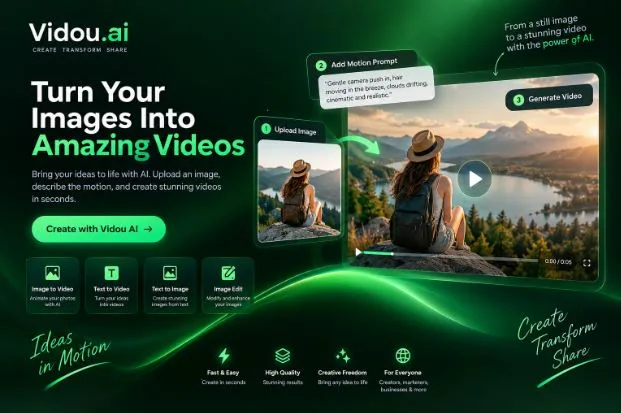
Turning a still image into a short video with AI is straightforward: upload a picture, describe the motion you want, generate a clip, review it, and refine the result. The harder part is making the motion look intentional while keeping faces, products, text, buildings, and backgrounds consistent.
That is why a good image-to-video workflow starts before you press Generate. A strong source image, restrained motion prompt, suitable aspect ratio, and careful quality check often matter more than writing a long cinematic prompt.
This guide explains how to turn images into videos with AI in a practical, repeatable way for portraits, product photos, illustrations, landscapes, campaign visuals, and presentation assets.
Start With the Final Use, Not the Tool
Before choosing settings, decide where the clip will appear and what job it needs to do.
A five-second website visual has different requirements from a vertical social post. A product shot should preserve packaging and shape. A portrait may need only subtle facial movement. A landscape can support more environmental motion but still needs stable perspective.
This decision affects framing, motion, pacing, and how much the AI must invent. It also prevents a common mistake: generating an attractive clip first and discovering later that it crops badly or changes a detail that matters. The more important the subject’s visual identity, the more conservative the motion should be.
Choose a Source Image That Gives Motion Room to Work
Image-to-video systems use the uploaded picture as the visual starting point. If the image is unclear, tightly cropped, heavily compressed, or visually confusing, animation can make those weaknesses more obvious.
Look for a clear main subject, readable lighting, enough space around important edges, and a background that is easy to understand. Portraits work better when faces and hands are visible rather than partly hidden. Product images benefit from clean silhouettes and legible packaging. Interiors and architecture need stable perspective.
Write a Motion Prompt, Not a Second Description of the Image
The image already tells the model what the scene looks like. Your prompt is more useful when it explains what should happen next.
A practical formula is camera movement + primary subject motion + secondary environmental motion + important constraint.
- Portrait: “Slow camera push-in. The subject blinks naturally while hair moves slightly in a light breeze. Keep facial features and clothing consistent.”
- Product: “Gentle push toward the bottle as soft reflections move across the surface. Keep product shape, label placement, logo, and colors stable.”
- Landscape: “Slow forward camera movement. Clouds drift gently and water ripples naturally while the coastline remains unchanged.”
These prompts do not re-describe every color, object, or texture already visible. They focus on motion.
Longer is not automatically better. Every extra action gives the system another decision to make. If the first result is unstable, reduce the number of requested movements before adding more detail.
Use One Strong Motion Before Combining Several
Creators often ask for too much in one generation: orbit the subject, make the person walk, change the lighting, add wind, move the background, and zoom in.
That may sound cinematic, but it increases the amount of new information the model must invent from one still frame.
Start with one dominant motion. A slow push-in can add energy to a product image without changing the product. Rising steam can animate a food photo without reshaping the plate. Drifting clouds can bring a landscape to life while leaving the foreground stable.
Once the primary motion works, add one subtle secondary effect. This makes it easier to see which instruction improved the clip and which caused a failure.
Plan the Aspect Ratio Before You Generate
Aspect ratio should be a creative decision, not an afterthought.
Vertical 9:16 framing is common for short-form mobile video. Widescreen 16:9 suits many web, presentation, and traditional video placements. Square or portrait feed formats may fit other publishing environments.
The important point is protecting the subject. If a product label, face, hand, or focal point sits near the edge, converting a wide image into a vertical clip later may crop away useful information or force awkward reframing.
When possible, prepare the still image in the final format first, then animate the composition you actually intend to publish.
Treat the First Generation as Feedback
The first result is not only an output; it is diagnostic information.
Watch the clip once at normal speed. Then watch it slowly and pause at several points. AI video errors can pass unnoticed during playback but become obvious on a single frame.
If a face changes, simplify head motion. If a product label mutates, keep the object more static and add exact text later in a normal editor. If walls bend during a camera move, replace a dramatic orbit with a gentle push or pan.
Changing one variable at a time is usually more useful than rewriting the entire prompt after every attempt.
Build the Clip Into a Complete Piece of Content
Image-to-video generation usually creates a shot, not a complete communication asset.
A finished piece may still need a hook, caption, voiceover, music, brand treatment, additional shots, subtitles, accurate product details, or a call to action. Think of the generated clip as visual raw material.
This keeps the AI focused on motion. Exact text, legal copy, pricing, contact information, and other details that must remain accurate are often better added afterward with standard editing tools.
For creators who want to test this workflow in a browser, the Vidou AI image-to-video tool is built around starting with a static image and describing the desired motion in natural language. The same principle applies: begin with a strong frame, request focused movement, and review the output before using it publicly.
Match the Motion to the Image
Different images invite different kinds of animation. Portraits usually benefit from restraint, while product shots often look stronger when the product stays stable and the camera, light, or background supplies the movement. Landscapes can support clouds, water, foliage, fog, or gradual camera motion. Artwork may allow more stylization, but consistency still matters when a character or branded element must remain recognizable.
The goal is not to maximize movement. It is to choose motion that supports the meaning of the image.
Respect Rights, Consent, and Context
The ability to animate an image does not automatically create permission to use it.
Use images you own or have the right to transform. Get appropriate consent when working with identifiable people, especially where animation could make them appear to say or do something they never did. Avoid misleading edits, impersonation, deceptive endorsements, and transformations that could misrepresent a real event.
If AI-generated or AI-altered media could reasonably confuse viewers about what is real, clear disclosure is a sensible editorial practice. Platform rules and local laws can differ, so check the requirements that apply to the intended publication and audience.
Frequently Asked Questions
Can AI turn one image into a video?
Yes. Image-to-video AI can use a single still image as the starting point and generate new frames that create motion over time. A text prompt can guide camera movement, subject movement, and environmental effects.
What is the best prompt for image-to-video AI?
There is no single best prompt. A reliable starting structure is camera movement, one primary motion, one subtle environmental effect, and any detail that must remain stable.
Why do faces or hands sometimes change?
Those areas contain complex details that must remain consistent across newly generated frames. Large gestures, head turns, occlusion, or unclear source images can increase the amount of information the system must invent.
Should I animate the subject or the camera?
For a first attempt, camera or environmental motion is often easier to control because the main subject can stay relatively stable. Subject motion can be effective, but it creates more opportunities for details to drift.
Do I still need a video editor?
Often, yes. The generated clip may be only one shot in a larger piece. Editing tools remain useful for accurate text, captions, audio, branding, transitions, multiple scenes, and calls to action.
Better AI Video Often Comes From Asking for Less
The most useful lesson in image-to-video creation is that complexity is not the same as quality. A clean movement that preserves the subject can be more effective than a dramatic clip full of visual errors.
Start with a strong image. Decide the final format. Describe motion rather than repeating the scene. Ask for one main action. Test briefly. Inspect the frames that carry important information. Then finish the clip with accurate text, sound, and context.
AI supplies the motion; good creative judgment decides what should move, what should stay still, and whether the final result is ready to publish.