
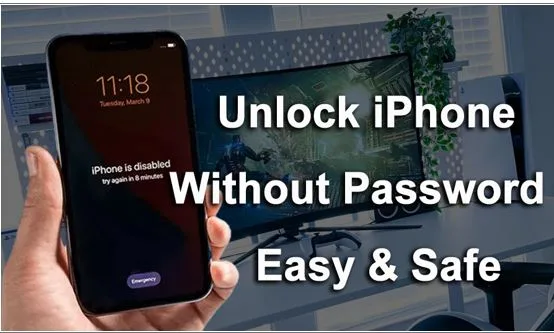
How to Unlock iPhone Without Password or Passcode (Easy & Safe Methods That Work)
Getting locked out of your iPhone usually happens when you least expect it. Maybe you changed your passcode and forgot it, or the device got disabled after too many wrong attempts. Either way, not being able to access your own phone is frustrating.
So the real question is: can you unlock an iPhone without the password or passcode? The answer is yes, but it depends on your situation. There’s no shortcut that magically reveals your old passcode, but there are reliable ways to remove the lock and regain access. This guide breaks down what actually works, without wasting your time on outdated or risky tricks.
Why You Might Need to Unlock an iPhone Without a Password
Most people don’t plan for this, it just happens. Here are some common scenarios:
- You forgot your iPhone passcode
- The device shows “iPhone is disabled”
- Face ID or Touch ID stopped working
- You bought a second-hand iPhone that’s locked
Once your iPhone gets disabled, entering the correct passcode is no longer an option. At that point, the only way forward is to reset or unlock the device using other methods.
Can You Unlock iPhone Without Password or Passcode?
Yes, but there’s something important to understand first. Apple has built its security features to keep your personal data safe. That means if you don’t know the passcode, the system won’t let you access the device without resetting it.
So in most cases, you can remove the lock, but your data will be erased unless you have a backup. This is true whether you use official Apple tools or third-party solutions.
Method 1: Unlock iPhone Without Password Using a Computer (Most Practical)
If your iPhone is disabled or you simply don’t want to deal with complicated steps, using a computer-based solution is usually the easiest way. Tools like MagFone iPhone Unlocker are built specifically for this situation. Instead of manually handling recovery modes and errors, they guide you through the process in a much simpler way.
Why many users prefer this method
- No need to remember the passcode
- Works even if the iPhone is disabled
- Simple interface, no technical skills required
- Compatible with most iOS versions
How the process typically works
Step 1: Install the MagFone iPhone Unlocker software and connect your iPhone, choose “Unlock iOS Screen”
Step 2: Enter Recovery or DFU mode, and download firmware accordingly.
Step 3: Start unlocking, after a few minutes, the lock screen is removed, and you can set up your device again.
For most users, this is the fastest way to unlock an iPhone without a password.
Method 2: Use iTunes or Finder (Official Apple Method)
If you prefer Apple’s built-in tools, you can unlock your iPhone using iTunes (Windows) or Finder (Mac). Connect your iPhone to a computer, then launch iTunes or Finder. Put your device into Recovery Mode, click “Restore” button to erase your device and remove the passcode.
This method works reliably, no extra software needed, requires manual steps, and data will be deleted. It is solid, but not always the easiest for beginners.
Method 3: Unlock iPhone Without Password via iCloud
When Find My iPhone is turned on, you have the option to wipe your device remotely. Go to iCloud.com, sign in with your Apple ID. Go to “Find iPhone” and select the device you want to unlock. Click “Erase iPhone”. Once the process finishes, the passcode is removed.
For this method, you must know your Apple ID and password. Without that, this method won’t help.
What If Your iPhone Is Disabled?
Seeing messages like “iPhone is disabled”, “Try again in 1 hour” means the system has locked you out after repeated failed attempts. At this stage, there’s no way to unlock it directly from the screen. You’ll need to use one of the methods above, either restore the device or remove the lock with a tool.
Can You Unlock iPhone Without Password Without Losing Data?
This is probably the most searched question, and unfortunately, the answer is usually no, unless you remember the passcode, or restore from a backup. All data on the device will be removed during this process.
That’s why regular backups are so important. Even a weekly iCloud backup can save you a lot of trouble later.
Common Problems (And Quick Fixes)
Even when following the right steps, small issues can come up.
- iPhone not recognized by computer → Try a different cable or USB port
- Stuck in Recovery Mode → Restart the process and reconnect
- Unlock process fails midway → Re-download firmware and try again
These are usually minor and easy to fix.
Tips to Avoid Getting Locked Out Again
Once your iPhone is unlocked, it’s worth taking a few precautions:
- Choose a passcode that you can easily remember.
- Make sure Face ID or Touch ID is configured correctly.
- Keep your Apple ID information saved securely
- Enable automatic backups
These small steps can prevent the same situation from happening again.
Which Method Should You Choose?
Here’s a simple way to decide:
- Forgot passcode / disabled iPhone → Use a computer-based unlocking tool like MagFone
- Have Apple ID access → Use iCloud
- Prefer official method → Use iTunes or Finder
For most people, especially if you want something quick and straightforward, using a dedicated tool like MagFone iPhone Unlocker is the easiest path.
Final Thoughts
Unlocking an iPhone without the password isn’t as complicated as it seems once you understand how the system works. There’s no hidden trick that skips security, but there are reliable ways to remove the lock and start fresh. Whether you go with Apple’s official methods or a simplified tool, the key is choosing what fits your situation best.
At the end of the day, it’s not just about unlocking your device, it’s about doing it in a way that’s quick, safe, and doesn’t turn into a bigger headache than it needs to be.