Print Tax Status Certificate in Mexico: How to Get a Printable Copy
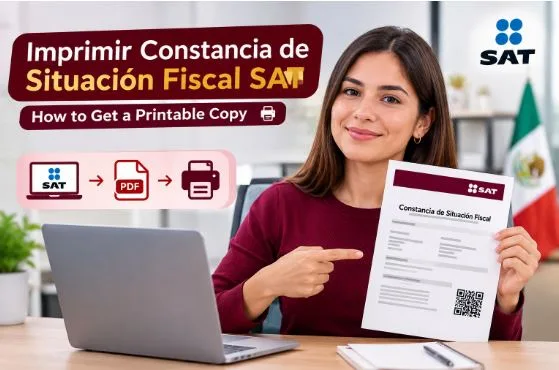
If you need to provide your tax information to an employer, business, bank, accountant, or another organization, you may be asked for your Tax Status Certificate. This document is issued by Mexico’s Tax A dministration Service (SAT) and contains important information associated with your RFC.
For people searching for Tax Status Certificate 2026, the process is relatively straightforward when you have access to your SAT Password or e.firma. You can generate the document online, save it to your device, and print it whenever necessary.
This guide explains how to obtain the document, how to print it correctly, what alternatives are available if you cannot access the online service, and what to do if you need another copy.
What Is the Tax Status Certificate?
The Tax Status Certificate is an official document that contains information registered with the SAT about a taxpayer.
Depending on the taxpayer’s registration, it can include information such as:
- RFC
- Name or business name
- CURP
- Registered tax address
- Tax regime
- Economic activities
- Tax obligations
- Tax Identification Card (CIF)
- QR code
- Other registered tax information
The SAT explains that its online service generates the Tax Status Certificate together with the Tax Identification Card. The service is available to both individuals and legal entities that have a valid Password or e.firma.
The document is commonly requested for administrative, employment, accounting, or business-related purposes, although taxpayers should not assume that it is legally required for every transaction simply because an organization requests it.
How to Print the Tax Status Certificate Online
If you want to print your Tax Status Certificate, the SAT’s online service is usually the most convenient option when you already have your authentication credentials.
Step 1: Open the SAT Tax Certificate Service
Go to the SAT’s official Tax Status Certificate service and select the option to enter the online procedure.
The SAT identifies this service specifically as a tool that allows taxpayers to generate and print their Tax Status Certificate with the Tax Identification Card.
Step 2: Choose Your Authentication Method
The online service allows you to enter using either:
- SAT Password
- Valid e.firma
The SAT states that both individuals and legal entities can use the service when they have one of these authentication methods.
Step 3: Enter Your Credentials
Enter the information requested by the SAT.
If you are using your Password, provide your RFC and password. If you are using an e.firma, follow the authentication instructions displayed by the SAT platform.
Step 4: Select the Generate Tax Certificate Option
After successfully entering the service, select Generate Tax Certificate.
According to the SAT’s instructions, the generated document opens in another browser window.
If nothing appears after selecting the button, check whether your browser has blocked a pop-up.
Step 5: Save the Document
Before printing, save the generated document to your computer or mobile device.
Keeping the PDF is useful because you can print another copy later without necessarily having to repeat the entire process.
Step 6: Print the Tax Certificate
Open the document and select your browser’s Print option.
Before confirming the print job, check the preview carefully.
Make sure:
- Your name is completely visible.
- Your RFC is readable.
- The QR code is not cut off.
- All pages are included.
- The document is properly aligned.
- The text is not too small.
- No important information is outside the printable area.
The SAT explicitly states that the generated Tax Certificate can be printed or saved on an electronic device.
Can I Print the Tax Certificate From My Phone?
Yes. SAT Mobile provides another option for taxpayers who prefer using a smartphone.
The SAT’s instructions indicate that you can:
- Download SAT Mobile.
- Enter with your RFC and Password.
- Open My RFC.
- Select Tax Certificate.
- Save, print, or share the document.
This can be particularly useful if you do not have immediate access to a computer.
If you do not have a printer connected to your phone, save the document and transfer it to a computer or take it to a trusted printing service.
What If I Do Not Have My SAT Password or e.firma?
The online SAT portal is not the only option.
The SAT currently identifies several ways to obtain the Tax Status Certificate, including:
- Online through the SAT portal
- SAT Mobile
- SAT ID
- Virtual Office
- In-person service at a SAT office
For individuals, SAT ID can be useful when the standard online method is not convenient. The process requires identity verification and an official identification document.
This means you should not automatically assume that a visit to a SAT office is necessary simply because you cannot use the regular online portal.
How SAT ID Can Help
SAT ID provides an alternative for eligible individuals who need their Tax Status Certificate with the Tax Identification Card.
The SAT’s current procedure requires the applicant to complete the requested identification and verification steps. Once the process is completed, the resulting document can be received electronically if the request is approved.
Once you receive the document, you can save the PDF and print it normally.
How to Reprint a Lost or Damaged Tax Certificate
If you previously printed your Tax Certificate but lost the paper copy, you generally do not need to search for the original physical document.
You can generate the Tax Certificate again through the SAT’s available services.
The SAT also provides a separate service for reprinting RFC notices and generating your Tax Status Certificate with the Tax Identification Card. This service allows taxpayers to generate the Tax Certificate again using their RFC and Password or valid e.firma.
This is especially useful when:
- You lost the original printout.
- The paper copy was damaged.
- You need another copy for an employer.
- You want a fresh digital copy.
- You need to print the document again.
Generating a new copy is generally more practical than trying to reproduce an old physical document.
What Should You Check Before Printing?
Do not immediately hand over the document after pressing print.
Take a moment to verify the information.
Check Your RFC
Make sure the RFC displayed on the document belongs to you or your business.
Check Your Name
Confirm that your name or business name is displayed correctly.
Review Your Tax Regime
If you recently changed your tax situation, check that the registered regime reflects your current information.
Review Your Address
If the document is being requested because another organization needs your tax address, carefully verify the registered information.
Check Economic Activities and Obligations
These sections can be particularly important for people who are self-employed, operate businesses, or have recently changed their tax obligations.
Check the QR Code
Make sure the QR code is clear and completely visible after printing.
A badly cropped or very low-quality print may make the document difficult to verify.
What If My Tax Certificate Has Incorrect Information?
Printing another copy will not fix incorrect tax information.
If your name, address, tax regime, economic activities, or another registered detail is incorrect, you may first need to update the underlying RFC information with the SAT.
After the relevant information has been corrected, generate a new Tax Status Certificate so that the document reflects the updated registration.
The SAT provides separate procedures for updating or correcting RFC information, so the appropriate process depends on the type of information that needs to be changed.
Do I Need Special Paper to Print It?
For ordinary purposes, you do not need to make the printing process unnecessarily complicated.
Use clean paper and make sure the entire document is readable.
The most important practical considerations are:
- Complete pages
- Legible text
- Clearly printed RFC
- Visible QR code
- No cropped information
- Proper page alignment
If an employer, company, bank, or another organization has given you specific document requirements, follow those instructions.
What If the SAT Document Does Not Open?
One of the most common problems is that the taxpayer clicks Generate Tax Certificate but does not see the document.
Before assuming that the SAT service failed, try these steps:
- Check whether your browser blocked a new window.
- Allow pop-ups for the SAT website.
- Try another current browser.
- Check your internet connection.
- Sign out and start the process again.
- Try another device.
- Clear temporary browser data if the problem continues.
- Use another SAT-supported method if necessary.
The SAT explains that the generated Tax Certificate may open in another browser window, so a blocked pop-up can prevent the document from appearing.
What If the Printed Document Is Cut Off?
If part of the Tax Certificate disappears when you print it, the problem may be related to your printer or browser settings.
Open the print preview before confirming the job.
Then check:
- Paper size
- Page orientation
- Scaling
- Margins
- Number of pages
- Printer selection
If the document looks complete in the preview but the physical copy is cut off, try another printer or adjust the printer’s paper settings.
Can I Keep a Digital Copy Instead?
Yes, and keeping a digital copy is highly recommended.
Even when you need a physical copy today, saving the PDF gives you a convenient backup.
You can keep the document in a secure folder and print it again whenever necessary.
Because the document contains personal and tax information, avoid uploading it to unknown websites or sharing it unnecessarily through unsecured channels.
Is the Tax Certificate Free?
Yes.
The SAT identifies the procedure as free. Its official guidance also warns taxpayers to be careful about fraud and not to share personal information with unknown people.
You may encounter businesses that charge for computer access, printing, or assistance with completing a process. That is different from paying the SAT for the official document itself.
Is the Tax Certificate Required for Invoicing?
Not simply to issue an invoice.
The SAT specifically states that taxpayers do not need to request or present the Tax Status Certificate merely to have an invoice or payroll receipt issued.
However, an employer or organization may request the document for its own administrative or tax-data verification processes.
If someone asks you for the Tax Certificate, it is reasonable to ask what information they need and why they need the document.
Which Method Should You Use?
The best option depends on what you have available.
| Situation | Recommended option |
| You have an SAT Password | SAT online service |
| You have a valid e.firma | SAT online service |
| You want to use your phone | SAT Mobile |
| You are an eligible individual without convenient portal access | SAT ID |
| You prefer remote assistance | Virtual Office |
| You need in-person assistance | SAT office |
| You already have the PDF | Print the saved document |
| You lost your previous paper copy | Generate the Tax Certificate again |
The SAT currently lists online service, SAT Mobile, SAT ID, Virtual Office, and in-person service as available ways to obtain the document.
Frequently Asked Questions
How do I print my Tax Status Certificate?
Enter the SAT’s Tax Status Certificate service, authenticate with your Password or e.firma, select Generate Tax Certificate, and then save or print the resulting document.
Can I print my Tax Certificate from SAT Mobile?
Yes. SAT Mobile allows taxpayers to access the Tax Certificate option through My RFC and then save, print, or share the document.
Can I get the Tax Certificate without visiting a SAT office?
Yes. The SAT provides several digital alternatives, including the online portal, SAT Mobile, and SAT ID for eligible individuals.
Can I print another copy if I lose my Tax Certificate?
Yes. You can generate the Tax Certificate again through the SAT’s available services, including its service for reprinting RFC notices and generating the Tax Certificate with the Tax Identification Card.
Do I have to pay for the Tax Certificate?
No. The SAT identifies the procedure as free.
What should I do if my Tax Certificate contains incorrect information?
The solution is not simply to print it again. First determine which RFC information is incorrect and complete the appropriate SAT update or correction procedure. After the information is updated, generate a new Tax Certificate.
How can I keep my Tax Certificate for future use?
Save the generated PDF on a secure device or storage location. Keeping a digital copy makes it much easier to print another copy when required.
Conclusion
To print your Tax Status Certificate, the simplest route is usually the SAT online service: authenticate with your Password or e.firma, generate the document, save the PDF, verify your information, and print it. If you cannot use that method, SAT Mobile, SAT ID, Virtual Office, and in-person service provide alternatives. Keep a secure digital copy so you can quickly print another one whenever you need it.