Remote Desktop Made Simple: Real Experience After AweSun Download in 2026
You are working in your favourite coffee shop, three cities from home, when it dawns on you that the presentation you have been working on for the past two days is back at the office, and you have a meeting in 40 minutes. Your laptop is dead. Your time is running out.
This is no joke. This is an everyday reality for remote workers, IT admins and freelancers all over the world. And what makes the difference between panic and peace of mind is usually one factor: if you have a good remote desktop tool installed and ready to use.
How Remote Desktop Software Works
In 2026, a working knowledge of how to use remote desktop is no longer a specialised technical ability. It is close to essential. From server administration while on a holiday, to helping a client with a computer problem from 5,000 kilometres away, to simply accessing a file you left on your work computer – this is the unsung software of the digital age.
Why Proper Setup Matters for Reliable Access
We took some time to test AweSun – from the AweSun download to using it on and off various devices and networks – to get a feel for whether it is just as good as promised, or is it just a marketing spin.
AweRay – Connecting You to Your Devices, Wherever You Are
AweRay is a global tech company built around one simple idea: your devices should always be within reach, no matter where you are in the world. Through a range of remote access tools that are fast, reliable, and easy to pick up, AweRay serves everyday users and growing businesses alike.
AweRay takes data protection seriously, so you can stay connected with confidence knowing your information stays private. Discover what remote access should feel like at: https://www.aweray.com/
What Remote Desktop Software Actually Does (And Why Most People Set It Up Wrong)
Before we start discussing the performance of AweSun, let’s take a quick look at what remote desktop software does. Because once you know what it’s doing, you will be better equipped to make informed decisions about which software to use, and how to set it up.
How Remote Desktop Software Works
Remote desktop software establishes a real-time, secure connection between two computers. Anything you type, click or drag on your computer is sent to the remote desktop – and the video of the screen activity is sent back to your computer. The quicker this loop, the better.
Why Proper Setup Matters for Reliable Access
The problem is that people don’t think of remote desktop apps as something that needs to be configured properly. Then, when they need it in a hurry, they find the connection is unstable, the screen is fuzzy, or it has steps they can’t do from a distance. An up-front investment will save a lot of trouble down the track.
The Three Variables That Make or Break Remote Access
Every remote desktop experience comes down to three things:
- Latency — how quickly your input reaches the remote device and the response comes back
- Visual clarity — whether you can actually read text and navigate the interface without squinting
- Stability — whether the connection holds across different network conditions, not just perfect Wi-Fi
Most apps perform reasonably well when everything is ideal. The real test is what happens when the network gets shaky or you switch from broadband to mobile data mid-session.
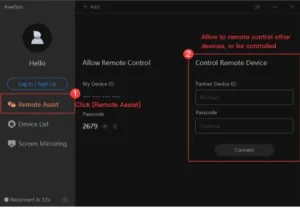
How to Use Remote Desktop with AweSun: The Step-by-Step Setup
One of the first things that stands out about AweSun is how little friction there is between deciding to use it and actually being connected. Here is the complete process.
Step 1 — Install on Both Devices
Head to awesun.aweray.com and download the app on the computer you want to access remotely. This is your host machine. Then download AweSun on your phone, tablet, or second computer — the device you will be using to connect from. The installer is lightweight and takes under two minutes on most systems.
Step 2 — Create Your Account
Sign up for a free account and log in on both devices using the same credentials. This is what links your devices together without requiring any manual IP configuration or port forwarding — a step that trips up a lot of people on older or more technical tools.
Step 3 — Initiate the Connection
On your controlling device, open AweSun and you will see your paired remote machine listed. Tap or click to connect. In most cases, the session is live in under two seconds. That is genuinely fast — other tools often take five to ten seconds just to establish the handshake.
Step 4 — Start Working
When you’re connected, you have complete access to the desktop. You can open documents, launch applications, cut and paste, and even drag and drop files directly – no need for cloud storage. On mobile, the app uses natural gestures: tap is click, swipe scroll and pinch is zoom to see the fine details of the user interface. It takes less than 10 minutes to download and connect.
Real-World Performance: What the Numbers Don’t Always Tell You
Specification sheets are one thing. What actually happens when you are using remote desktop software under normal working conditions is another. We tested AweSun across several scenarios that reflect how most people actually use remote access: corporate broadband, home Wi-Fi, 4G mobile data, and deliberately throttled connections to simulate bad networks.
On Fast Networks
Performance was excellent. The visual stream held steady at high resolution, mouse movement felt immediate, and there was no noticeable lag even when scrolling through large documents or switching between multiple applications. Video playback on the remote machine was smooth — not perfect, but far better than most tools at default settings.
On Mobile Data and Weaker Connections
This is where many remote desktop apps quietly fall apart. Either they maintain quality and lag increases to frustrating levels, or they drop connection entirely when signal dips.
AweSun takes a different approach. It automatically adjusts the video quality to keep control responsiveness high. You might notice the image gets slightly softer during a bad patch, but your clicks and keystrokes still land immediately. For practical work — navigating files, editing documents, running applications — that trade-off is the right one.
On Mobile Devices
Controlling a full desktop from a phone screen sounds awkward. In practice, AweSun handles it much better than expected. The gesture controls are well-calibrated, text stays readable, and the app does not try to replicate a desktop experience on a four-inch screen. Instead it adapts — giving you enough control to get real work done without overwhelming the interface.
Here is how AweSun compares to the typical remote desktop experience across the key criteria:
| Feature | AweSun | Typical Apps | Winner |
| Connection Speed | Under 2 seconds | 4–8 seconds | AweSun ✓ |
| Mobile Gesture Support | Advanced (tap, swipe, pinch) | Basic or none | AweSun ✓ |
| Video Quality | HD / Adaptive | Compressed, blurry | AweSun ✓ |
| File Transfer | Direct, no cloud needed | Cloud-dependent or slow | AweSun ✓ |
| Weak Network Handling | Auto-adjusts smoothly | Drops or lags | AweSun ✓ |
| Setup Complexity | 3 steps max | 5–8 steps | AweSun ✓ |
| Cross-Platform Support | Windows, Mac, iOS, Android | Limited platforms | AweSun ✓ |
| AweSun | Typical Remote Apps | |
| Overall Score | 9.2 / 10 | 6.8 / 10 |
Who Should Be Using Remote Desktop Software in 2026
The use cases for remote desktop access have expanded significantly over the past few years. What used to be primarily an IT tool is now part of everyday workflows across a wide range of professions.
Remote Workers and Freelancers
If your work lives on a specific machine — whether it is creative software, proprietary tools, or just a powerful workstation you do not want to replicate on a laptop — remote desktop access gives you that machine wherever you are. No carrying heavy equipment, no expensive cloud subscriptions for compute power you do not always need.
IT Administrators and Support Teams
Remote access is fundamental to IT operations. Being able to troubleshoot, configure, and maintain machines without being physically present is not a convenience — it is a requirement. Tools like AweSun that prioritize stability and security are well-suited here. For a deeper look at remote desktop protocols and how they work, Wikipedia’s overview of Remote Desktop Protocol provides solid foundational context.
Students and Educators
Accessing a university computer lab, a specific software license, or a more powerful machine from home is increasingly common. Remote desktop removes the barrier between where you are and the resources you need.
Gamers and Content Creators
Streaming a gaming session or accessing a high-end rendering machine remotely requires both speed and visual fidelity. AweSun’s high frame rate support (up to 144 FPS) and low latency make it viable for use cases that would be impossible with standard remote desktop tools. PCMag’s analysis of remote desktop software has consistently noted that gaming-level performance remains a differentiator in this category.
Security — The Part Most Reviews Skip Over
Speed and ease of use are what most people notice first. But for anything beyond casual personal use, security is what actually matters.
AweSun uses end-to-end encryption for all sessions, meaning the data transmitted between your devices is not readable even if intercepted in transit. Access requires an authenticated login through your account — there is no open connection sitting waiting for someone to find. Sessions can be password-protected, and you retain full control over which devices can connect to which.
For context, the broader remote access security landscape has been discussed extensively in security communities. TechRadar’s remote desktop security guide highlights that encryption standards and session authentication are the two most critical factors when evaluating any remote desktop tool for professional use — both areas where AweSun holds up well.
One thing worth noting: no remote access tool makes you immune to human error. Strong, unique passwords and keeping your devices’ operating systems updated are baseline hygiene that applies regardless of which software you use.
The AweSun Download Opens Access to Features That Rival Paid Enterprise Tools
What you get after the AweSun download is genuinely competitive with tools that charge significant monthly fees. Cross-platform support across Windows, macOS, Android, and iOS. Direct file transfer without routing through third-party cloud services. Adaptive streaming that keeps control snappy even when the connection is not. High frame rate support for demanding use cases. These are not basic features they are what serious remote work actually requires, and AweSun delivers them without a complicated pricing structure standing in the way.
Final Conclusion:
After spending real time with AweSun — across different devices, different networks, and different use cases — the honest answer is yes. And not just barely yes. It holds up in the situations that actually matter: when your connection is shaky, when you are working from a phone, when you need to get something done fast and cannot afford to wrestle with software.
A remote desktop is one of those tools that most people ignore until the moment they desperately need it. Then, if it is not already set up and working, it is too late. AweSun solves that problem by being genuinely easy to get running — we are talking minutes, not hours — while still delivering the performance and security that professional use demands.
The free tier gives you more than enough to figure out if it fits your workflow. The cross-platform support means it works whether your setup is Windows, Mac, Android, or iOS. And the adaptive streaming means a bad Wi-Fi signal is an inconvenience, not a showstopper.
If you have been putting off setting up remote desktop access because it always seemed too technical or too expensive, AweSun is the version that removes both of those excuses. Download it, spend ten minutes getting connected, and you will wonder why you waited this long.
If you’re aiming to transform your smartphone into a capable and fully equipped remote workstation, AweSun isn’t merely a solid option —it is the ultimate bridge between you and your workstation. Download AweSun today and ensure you’re never more than a tap away from your most important files.
FAQ’s:
1. How to use remote desktop software if I have never set it up before?
Start with AweSun. Install it on both the computer you want to access and the device you will use to connect. Log in with the same account on both. Your devices will appear in the app automatically — no IP addresses or router settings required. The first connection usually takes under two seconds. For a detailed walkthrough, visit the AweSun Help Centre.
2. Is the AweSun download safe to install?
Yes. AweSun uses end-to-end encryption and account-based authentication. No open ports or public-facing connections are created. Your session is only accessible to devices linked to your account. For general remote desktop security practices, major security publications consistently recommend encryption and two-factor authentication as baseline requirements — both supported by AweSun.
3. Can remote desktop software work on a slow mobile connection?
It depends on the app. AweSun handles this better than most by automatically reducing visual quality to prioritise control responsiveness. In practice, this means your mouse clicks and keyboard input remain snappy even when video gets compressed. For tasks like file management, document editing, and application use, performance on 4G is genuinely workable.
4. What is the difference between AweSun and tools like TeamViewer or AnyDesk?
All three provide remote desktop functionality, but they differ in how they handle mobile use, pricing, and performance on weaker networks. AweSun has a strong focus on mobile control optimisation and adaptive streaming, which makes it particularly capable for users who need to connect from smartphones or tablets. TeamViewer and AnyDesk are well-established with enterprise features, but come with more complex pricing at higher usage levels.
5. Do I need to keep the remote computer on for remote desktop access to work?
Yes, the host computer needs to be powered on and connected to the internet for remote access to function. Some routers and computers support wake-on-LAN functionality that can power up a machine remotely, but this is a separate configuration outside of the remote desktop app itself. For most practical use cases, leaving the host machine running is the simplest solution.