Speaker Not Working? Here’s What’s Actually Causing It (And How to Check)
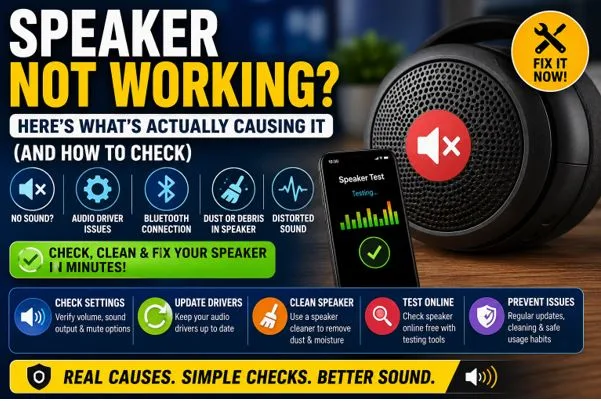
Have you ever played a video, turned up the volume, and still heard nothing? A speaker not working problem can happen on a phone, tablet, Laptop/PC, or even a Bluetooth speaker. The good news is that many sound issues have simple causes that you can find in just a few minutes.
If you’re searching for Fix My Speaker, this guide will help you check the most common reasons behind audio problems before you think about repairs. You’ll also learn when a Speaker Cleaner tool may help and when the issue is likely caused by software or hardware instead.
Why Is My Speaker Not Working?
Many people ask, why is my speaker not working when sound suddenly disappears. In most cases, the speaker itself is not broken. The problem often comes from incorrect settings, outdated software, or dust blocking the sound.
Here are the most common reasons:
- Low or muted volume
- Disabled audio output
- Faulty Audio driver
- Wrong Sound settings
- Connected Bluetooth device
- Dust blocking the speaker
- Physical speaker damage
- Operating system glitches
Checking these one by one usually saves time and money.
Start With the Basic Checks
Before trying advanced fixes, inspect the obvious things first.
Check the Volume Control
Make sure the Volume control is turned up. Some apps have their own sound settings that can stay muted even when your device volume is high.
Look for the Mute Button
Many laptops include a dedicated Mute button on the keyboard. Phones and tablets may also have silent mode enabled.
Restart the Device
A quick restart refreshes background services and fixes many temporary sound problems.
These simple steps solve a surprising number of cases where the speaker not working issue appears without warning.
Check Your Sound Settings
Incorrect Sound settings often send audio to the wrong output device.
For Windows or macOS:
- Open Sound Settings.
- Confirm the correct speaker is selected.
- Test different output devices.
- Disable unused audio devices temporarily.
For Android devices:
- Check Media Volume.
- Turn off Do Not Disturb if enabled.
- Verify no accessibility option is affecting sound.
If you’re trying Fix My Speaker, checking sound output should always come before installing new software.
Is Bluetooth Causing the Problem?
Sometimes audio is playing through a connected Bluetooth speaker, earbuds, or headset without you noticing.
Signs this is happening include:
- Videos play normally but no sound comes from your device.
- Bluetooth icon stays active.
- Music starts playing through another nearby device.
Turn Bluetooth off for a moment and test your built-in speaker again.
Update or Reinstall the Audio Driver
On Windows, an outdated Audio driver is one of the biggest reasons for sound problems.
You can:
- Open Device Manager.
- Find your audio device.
- Update the driver.
- Restart your computer.
If updating doesn’t help, uninstall the driver and restart. Windows usually installs a fresh version automatically.
This is especially useful if your laptop speaker not producing sound started after a Windows update.
Laptop Speaker Not Producing Sound
If your laptop speaker not producing sound, check these items carefully:
- External speakers or headphones connected
- Wrong playback device selected
- Damaged audio driver
- Disabled speakers in Sound Settings
- Hardware damage after a drop or liquid spill
If headphones work but built-in speakers don’t, the problem may be with the internal speaker or its connection.
Can Dust Block the Speaker?
Yes. Dust, lint, and small particles can reduce sound quality, especially on phones.
Common signs include:
- Low volume
- Muffled sound
- Crackling audio
- Uneven speaker output
A Speaker Cleaner may help remove moisture or push loose particles out using safe sound frequencies. It works best when the speaker isn’t physically damaged.
You can also gently clean the speaker grille using a soft brush. Avoid inserting sharp objects because they may damage the Speaker cone.
How to Fix Distorted Speaker Sound?
If audio is playing but sounds rough, buzzing, or unclear, you may need to fix distorted speaker sound.
Possible causes include:
- Dust inside the speaker
- Damaged speaker cone
- Volume set too high
- Faulty audio files
- Software glitches
Try lowering the volume first. Then test different apps and media files to see whether the distortion appears everywhere.
If distortion remains after cleaning and restarting, the speaker itself may need replacement.
Check Speaker Online Free
If you’re unsure whether the speaker works properly, you can check speaker online free using browser-based speaker testing tools.
These tests usually help you:
- Confirm left and right channels
- Test stereo balance
- Detect weak speaker output
- Find distortion
- Verify sound quality
If the online test plays correctly but some apps remain silent, the problem is likely inside those apps rather than your hardware.
When the Problem Is Hardware?
Sometimes software isn’t the issue.
Physical damage becomes more likely when:
- The device was dropped.
- Water entered the speaker.
- The speaker makes crackling sounds at every volume.
- Audio cuts in and out.
- No sound appears after every software fix.
In these situations, professional repair may be necessary.
Quick Checklist Before You Repair Anything
Use this checklist before spending money on repairs:
- Increase the volume.
- Check the mute button.
- Restart the device.
- Verify sound settings.
- Disconnect Bluetooth devices.
- Update the audio driver.
- Clean dust from the speaker grille.
- Run an online speaker test.
- Test with headphones.
- Check for operating system updates.
Following these steps helps identify most sound problems quickly.
Why Preventive Care Matters?
Keeping your speakers clean and your software updated reduces future problems.
Good habits include:
- Keep devices away from moisture.
- Avoid maximum volume for long periods.
- Install operating system updates.
- Update audio drivers regularly.
- Clean speaker openings carefully.
- Disconnect unused Bluetooth devices.
Small maintenance steps can extend speaker life and improve audio quality.
Conclusion
A speaker not working issue does not always mean your device needs repair. In many cases, the cause is as simple as incorrect Sound settings, an outdated Audio driver, a connected Bluetooth speaker, or dust blocking the speaker grille. If you’re searching for Fix My Speaker, start with the basic checks before assuming the hardware has failed. You can also try a Speaker Cleaner, test your device online, and inspect for physical damage. By following these steps, you can quickly find the real cause, restore clear sound, and decide whether the problem can be fixed at home or requires professional service.