What to Check Before Installing an Android APK
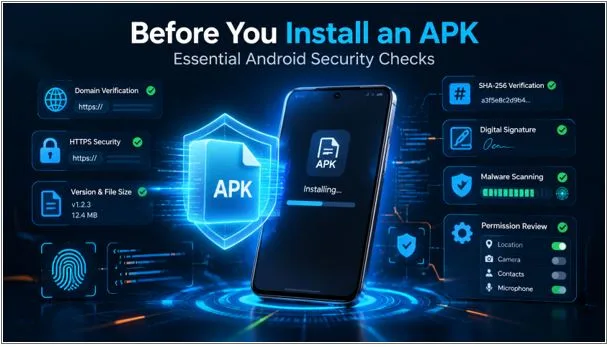
Android gives users more freedom to install software than many other mobile operating systems. In addition to downloading apps from Google Play, users can install an Android Package Kit, better known as an APK, directly from a website or another distribution channel. This process is commonly called sideloading.
Sideloading can be useful when an app is distributed independently or unavailable in a particular region. It also moves some responsibility for verification from the store to the user.
An APK is not automatically dangerous because it comes from outside Google Play. What matters is who created it, whether it was altered, where it was downloaded, and what it does after installation.
Understand What an APK File Is
An APK is the standard package used to distribute and install Android applications. It contains the code, resources, and certificates an Android device needs, serving a similar purpose to a Windows EXE installer.
The format does not determine whether an app is trustworthy. Google Play also uses application packages, but manages the process and applies its own checks. With sideloading, the user obtains and opens the package manually.
A modified file can look almost identical to the genuine version. A familiar name, logo, or polished page is not enough to establish authenticity.
Start With the Official Source
The safest starting point is usually the developer’s official website or another distribution channel explicitly identified by the developer. An official page should clearly state the app name, current version, release information, device requirements, and publisher details.
For example, users looking for the current FlixFox Android release should begin with the official Flixfox apk page, where the app version, file size, compatibility requirements, and installation information can be checked before downloading.
Do not assume the first search result is official. Advertisements and copied pages can appear beside the genuine source. Compare the developer’s stated domain with the browser address.
Official GitHub releases and recognised alternative stores may also be valid when linked directly by the developer. The file should be traceable to whoever produced it.
Check the Domain Carefully
Imitation download sites often rely on small details that are easy to miss. A domain may contain an additional letter, use a different extension, insert words such as “premium” or “pro”, or place a brand name inside an unrelated subdomain.
Read the complete address rather than relying on the page design. Logos, screenshots, colours, and text can all be copied. The domain is harder to imitate without creating a visible difference.
The site should use HTTPS, but the padlock is not proof of legitimacy. It encrypts the connection without confirming brand ownership or file safety.
Be cautious if a button opens advertising pages, redirects elsewhere, or downloads a different file type. An Android installer should normally use the .apk extension.
Compare the Version and File Details
Before installing, compare the downloaded file with the information published by the developer. Useful details include:
- App name
- Current version number
- Release date
- File size
- Minimum Android version
- Developer or publisher
- Release notes
A small file-size difference may result from rounding, but a major difference deserves investigation. Extra code can make an altered APK larger, while a very small file may be incomplete or merely a separate installer.
Version labels can also reveal problems. A dramatically higher “premium” or “unlocked” release may be modified or incorrectly labelled. A higher number alone does not make it legitimate.
Verify the Signature or File Hash
Android applications are digitally signed. The signature helps Android identify the developer behind an app and determine whether an update is consistent with the version already installed. If a third party changes the package without access to the original signing key, the signature will no longer match the official release.
Technical users can inspect certificates with Android’s apksigner utility and compare the output with values published by the developer. A signature mismatch during an update should be investigated, not bypassed.
A SHA-256 hash acts like a fingerprint of the APK. Windows users can calculate it with PowerShell’s Get-FileHash; macOS and Linux users can use shasum -a 256.
Hash checking is useful only when the developer publishes a trusted reference value. Comparing a file with a hash displayed by the same unverified mirror does not establish that the package is genuine.
Scan the APK Before Installation
A reputable scanner adds another layer of protection. Some services use multiple security engines, while Android’s tools may examine apps during or after installation.
Scanning should not replace source verification. A newly created malicious file may not yet be recognised, and automated tools sometimes produce false positives. Treat the result as one part of the assessment rather than a guarantee.
Several detections from established security engines are a strong reason to stop. A single heuristic warning may require investigation, but should not be ignored. Check its name, scan date, publisher, signature, and hash.
Review the Requested Permissions
Permissions should make sense in relation to the app’s visible functions. A streaming app may reasonably require internet access, network-state information, notifications, and limited storage or media access for supported offline features. It may also keep the device awake during playback.
Users evaluating Flixfox or any other independently distributed entertainment app should compare each permission request with the features described on its official product pages.
Requests for contacts, SMS messages, call logs, precise location, accessibility services, or device-administrator access require a clear explanation. A basic entertainment app should not need access to unrelated personal information simply to play a video.
Modern Android often requests sensitive permissions when a feature is first used. Do not approve every prompt automatically. Permissions can be reviewed later in the app’s settings and revoked if unnecessary.
Understand “Install Unknown Apps”
On recent Android versions, permission to install unknown apps is generally granted to a specific source, such as Chrome or a file manager. It is not necessary to open installation access for every app on the device.
Menu names vary by manufacturer, but the usual process is:
- Open Settings.
- Go to Apps, Security, or Special App Access.
- Select Install Unknown Apps.
- Choose the browser or file manager being used.
- Enable Allow From This Source.
- Install the verified APK.
- Disable the permission afterwards if it is no longer needed.
This permission does not make an APK safe; it only allows installation. Complete the other checks first.
Watch for Red Flags During Installation
Stop if a website or installer asks for payment details, one-time passwords, banking credentials, or government identification for a normal APK download.
Other warning signs include instructions to disable all security software, requests for device-administrator privileges without a clear purpose, automatic installation of additional apps, and an app name or icon that differs from the official description.
Watch for fake download buttons as well. Inspect the destination before proceeding and leave if it changes unexpectedly.
Check the App After Installation
After installation, watch for excessive background data, rapid battery drain, unfamiliar advertisements, repeated permission requests, unexplained notifications, or additional downloads.
If the app behaves suspiciously, disconnect from the internet, uninstall it, delete the APK, and run a security scan. Review device administrators and accessibility services. Change important passwords if login details may have been exposed.
Not every crash or battery spike indicates malware, but unexpected behaviour combined with an unverifiable source or unusual permissions deserves attention.
Keep Future Updates Consistent
A safe installation can become risky if updates come from another source. Return to the same verified channel and compare the release and signing information again.
Be sceptical of updates offered before the developer announces them. Older-device users should check for changed Android or storage requirements.
If Android refuses to install an update because the signatures do not match, do not bypass the warning. Confirm that both versions came from the same developer. Uninstalling the original app to force an incompatible package to install can remove an important security check.
A Quick Pre-Installation Checklist
Before opening any downloaded APK, confirm the following:
- The domain exactly matches the developer’s official source.
- The page uses HTTPS, while recognising that HTTPS alone is not proof of legitimacy.
- The version, release date, and file size match the published details.
- The file has the expected .apk
- Any published SHA-256 hash or signing certificate matches.
- Security scans show no unresolved major warnings.
- Requested permissions are relevant to the app’s functions.
- The download does not require unusual personal or financial information.
- Installation permission is limited to the browser or file manager being used.
- A clear support and update channel is available.
Final Thoughts
Sideloading is a useful part of Android’s flexibility, but requires the same care as installing computer software. A familiar logo is not sufficient evidence that a file is genuine.
The most reliable approach combines several checks: verify the source, inspect the domain, compare version details, review the digital signature or hash when available, scan the file, and examine its permissions. No single indicator can provide complete certainty on its own.
If the available information is incomplete or contradictory, pause the installation. Taking a few minutes to verify an APK is far easier than recovering from a compromised device or exposed account.