Why AI Generated Text Looks Messy in PDF and How to Fix It
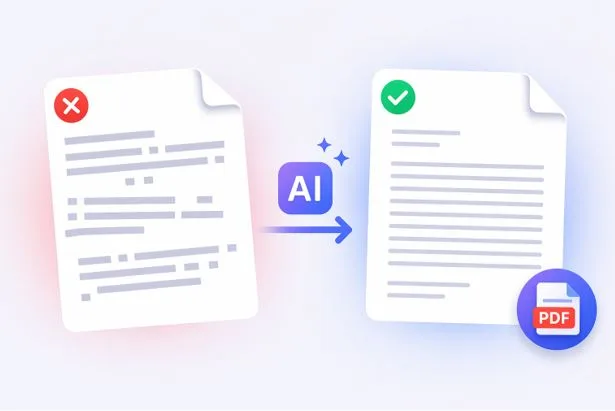
You generate content using tools like Google Gemini. The text looks clean on the screen. You copy it and convert it into a PDF. Then something feels off. The spacing looks uneven. Lines break in strange places. Paragraphs do not look balanced. You may think the tool failed. The thing is that the issue comes from how text is prepared before conversion and how PDF stores content.
This guide explains what is happening and what you can do. You will see why AI text behaves this way. You will also learn a clear workflow that keeps your final PDF neat and readable.
Why Text Looks Fine Before PDF but Breaks After Conversion
When you read AI output in an editor, the text flows like a normal document. The editor handles spacing and wrapping for you. A PDF file does not behave like that. A PDF keeps a fixed layout. Words are placed at exact positions on a page. Because of this difference, small issues in your text become visible after conversion.
AI tools generate content for reading on screens. They do not enforce strict layout rules for printing. Due to which, spacing and line breaks may not follow a consistent pattern. When that text is pushed into a fixed layout, those patterns show up as gaps and broken lines.
The Core Reason Behind Messy PDFs
What you need to understand is this. AI text is flow based. PDF is position based.
Flow based text moves naturally from one line to another. The editor decides where a line should wrap. Position based text places each line at a specific spot on the page. The PDF keeps that position fixed.
Because of which, any uneven spacing or hidden break inside your text becomes visible in the final file. That is why your PDF looks different from what you saw earlier.
Common Problems You Will Notice
You may notice a few repeating issues when you convert AI text to PDF.
Broken line breaks appear in the middle of sentences. Lines end too early or too late. Extra spaces show up between words. Paragraphs do not align properly. Lists lose their structure. Headings look like normal text. Tables turn into plain blocks.
These problems are not random. They come from the way the original text is structured.
Hidden Formatting Problems in AI Output
Sometimes the issue is not visible at first. AI output may contain extra spaces. It may include inconsistent line breaks. It may carry mixed formatting when you copy it.
You may think the text looks fine. But once you convert it, the hidden issues appear. This is why many people get confused. It’s not what it looks like on the screen.
How to Fix AI Generated Text Before Converting to PDF
Now here’s the thing. You can fix most of these issues before conversion. Once you follow a clean process, your PDF will look much better.
Start by cleaning the text. Remove extra spaces. Fix line breaks. Make sure each paragraph looks balanced. Keep similar spacing between sections. This step matters a lot.
One more thing. Sometimes AI output includes unwanted labels or marks. You can clean those as well using a gemini watermark remover approach before you move to the next step. That keeps your final document distraction free.
After that, use a plain text editor as a middle step. Paste your content into a basic editor. This removes hidden formatting. It resets the structure to a clean base. Many people skip this part. That’s a common mistake.
Then structure your content properly. Add clear headings. Keep paragraph lengths consistent. Avoid random spacing. Keep it readable.
A Practical Workflow That Works
You can follow a simple flow that gives better results.
- Generate your content using Google Gemini.
- Clean the text. Fix spacing and line breaks.
- Paste it into a plain editor and review it once.
- Move to conversion.
At this stage, you can use a reliable txt to pdf tool to turn your cleaned text into a final file. Because your content is already structured, the output will stay clean.
Advanced Improvements for Better Output
You should also pay attention to a few small details. Use consistent font size. Keep line spacing balanced. Avoid too many styles in one document. Do not mix formats randomly.
Before exporting, review the file once. Scroll through each page. Check if anything looks off. One small check can save you from a messy document.
Mistakes You Should Avoid
Many people directly copy text from AI and convert it without checking. This leads to broken formatting. Some people ignore spacing issues. Others skip the cleaning step. These small mistakes create big problems in the final PDF.
Quick Checklist Before You Convert
Check your text once before conversion.
Make sure spacing is consistent. Make sure paragraphs are clear. Make sure there are no extra gaps. Remove unwanted text. Keep headings structured.
Conclusion
The problem is not the AI tool. The problem is how the text is handled before conversion.
Once you understand the difference between flow based text and fixed layout, things become clear. You just need a clean workflow. Prepare your text properly. Then convert it.
That’s how it works. A clean input always gives a clean PDF output.