How to Optimize Your Android Device for Competitive Mobile Gaming in 2026
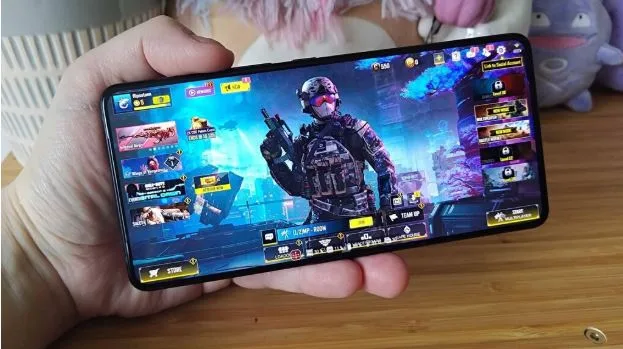
Fifteen minutes into a ranked match, your thumbs are sharp, your rotations are clean, and your phone is quietly on fire. The FPS counter that was happily sitting at 120 is now dragging at 58. That is not bad luck. That is thermal throttling, and in 2026, it is still the single biggest reason competitive players lose Android games they should win.
The gap between a phone that plays mobile games and a phone optimized for mobile gaming is huge, and almost all of it lives in settings you have never opened. Flagship Android hardware in 2026 is absurdly powerful. Snapdragon 8 Gen 4 chips, 16 GB of RAM, 144 Hz AMOLED panels, the works. None of that matters if your device is wasting cycles on Instagram notifications while your tower cracks open under Lesley ult. Here is the real configuration sheet, no third-party booster apps required.
Quick Reference: The Settings That Actually Matter
Game Mode / Game Launcher
- Locks CPU and GPU to your game, silences notifications
- On (Performance mode)
Display Refresh Rate
- Matches panel Hz to in-game FPS for smoother gameplay
- Set to 120 Hz or higher
Battery Saver
- Throttles CPU and GPU to protect battery life
- Off during gaming sessions
Background Apps
- Eats RAM, ping, and thermal headroom
- Force stop unused apps
Developer Options > Force GPU Rendering
- Forces hardware acceleration for 2D layers
- On
Force 4x MSAA
- Adds anti-aliasing in OpenGL games, taxes the GPU
- Off on mid-range, case-by-case on flagship
Charging While Playing
- Generates heat, triggers thermal throttling
- Avoid where possible
Turn On Game Mode, Then Turn It Up
Every major Android OEM ships a game launcher these days. Samsung Galaxy devices have Game Booster in Game Launcher; Xiaomi runs Game Turbo; OnePlus has Gaming Mode; and stock Pixel devices get Google’s Game Dashboard, which landed in Android 12 and now hooks into the Game Mode API that developers can target directly.
The important bit is this: most of these launchers ship set to Standard by default, which is a compromise between performance and battery life. You want performance mode. On Samsung, open Game Booster, pick Priority mode on performance, and block notifications during the gaming session. On Pixel, open the Game Dashboard from the side menu, tap Game Mode, and select Performance. This single toggle tells the OS to push the CPU and GPU hard and to stop letting background processes elbow their way onto your cores.
It sounds obvious. Most players never do it.
Thermal Throttling Is the Real Enemy
Your phone does not care about your Mythic Glory push. It cares about not melting. The second your skin temperature sensor crosses a threshold, the Android Dynamic Performance Framework starts shaving clocks to keep the device alive, and that is exactly when your fights stop feeling responsive. Google publishes a full Thermal API so that game engines can respond to thermal state before the OS forces them to. Not every mobile game uses it properly, which means the job falls to you: keep the phone cool.
A few practical moves. Never play on the phone while charging. Heat triggers throttling, and throttling costs you fights. If you must charge mid-session, use a bypass-charging phone (Asus ROG, Red Magic, some Xiaomi models) that routes power directly to the SoC, bypassing the battery. Drop screen brightness two notches below what you think you need. Flip on airplane mode and enable only Wi-Fi if your matches run on Wi-Fi, which cuts the modem’s thermal load. And if your case is thick rubber, take it off. A phone cool to the touch maintains its peak FPS for roughly three times as long as one that has already reached 42 degrees.
The Refresh Rate Setting That Doubled My FPS
Mobile Legends: Bang Bang ships with a buried toggle called High Frame Rate Mode, and on supported devices, it unlocks Ultra, which pushes the game up to 120 FPS. On a 120 Hz panel, the jump from 60 to 120 is not a visual gimmick. It doubles the rate at which enemy dashes, skillshots, and blink animations land on your screen, which is the difference between clutching a Lancelot ult reaction and eating it.
The unlock path is specific. Update MLBB, set your display refresh rate to 120 Hz in Android settings, disable battery saver, restart the phone, then open the in-game Graphics menu. If your phone qualifies, the Ultra option appears under Refresh Rate.
This one setting change separates the ranks at the top of MLBB’s ladder, where fights are decided by mere milliseconds. It is also why players actively look for high-ranked Mobile Legends accounts for sale. Players who break through the grind want to keep their Mythic slot without farming back from Epic every season, and buyers want a gaming setup that is already calibrated, Ultra-enabled, and ready for the next patch.
Developer Options
Developer Options is a loaded gun. Used well, it cuts lag and gives games cleaner access to the GPU. Used badly, it turns your phone into a space heater that still runs at 45 FPS.
Enable it by tapping Build Number seven times inside About Phone. Once you are in, the toggles worth touching are Force GPU Rendering (on, forces 2D apps to use the GPU), Disable HW Overlays (on during gaming, frees the GPU from compositing), and Background Process Limit (set to “no background processes” for the cleanest gaming experience on mid-range hardware). Animation scales can be dropped to 0.5x for a snappier UI.
The one thing people get wrong is Force 4x MSAA. On a Snapdragon 8 Gen 3 or 8 Gen 4, you can probably get away with it in older OpenGL ES games. On anything mid-range, you will overheat the GPU, drain battery life faster, and lose FPS. Leave it off unless you can measure the trade-off in a specific title.
Kill Background Apps and Free Up Space Before the Session
Every background app is a small tax on your RAM, your battery, and your thermals. Before a serious ranked session, swipe away all recent apps, force-stop the big offenders (Chrome, Gmail, any game you are not playing), and keep at least 15 percent of your internal storage free. Android gets sluggish below that threshold, which shows up in asset loading and in the stutter when a new hero first walks onto the minimap. Clear the in-game cache monthly, uninstall genuinely unused apps rather than archiving them, and, if you keep a screenshot-heavy camera roll on an SD card, move recent media to internal storage during tournament weeks. Slow I/O from an old card causes in-game hitching that most players blame on the network.
The Small Tweaks That Add Up to Better Gaming
Drop haptics and notification volume to zero so you are not paying a CPU cost every time someone likes your Discord message. Run Do Not Disturb during matches. Lock your refresh rate at 120 Hz instead of letting Android auto-switch, which dips to 60 on menu screens and costs you the first few frames of a teamfight. Keep your OS and your game on the latest build, because developers ship performance improvements and fix bugs in almost every patch. XDA’s coverage of the Android 12 Game Dashboard rollout is a useful primer on where these Game Mode APIs came from.
None of this is a miracle cure. All of it is how players turn a capable smartphone into a competitive one. In 2026, the mobile gaming gap between average and elite is less about the hardware you own and more about whether you bothered to switch the hardware on.