How Cross-Device Messaging Tools Support Distributed Teams
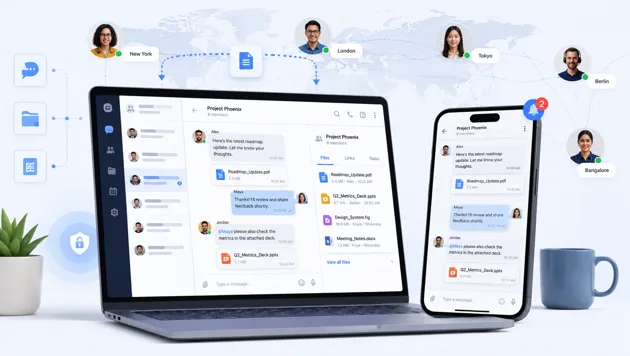
Distributed teams rarely work from a single location or device. A project manager may review documents on a laptop in the morning, respond to urgent questions from a phone during the afternoon, and join a discussion from another computer later in the day. Contractors, clients and external partners may also participate from different regions, operating systems and time zones.
This working model makes communication more flexible, but it also creates practical challenges. Messages can be missed, files may become difficult to locate, and team members may remain signed in on devices they no longer use. A cross-device messaging tool can reduce some of this friction by keeping conversations, notifications and shared materials accessible across desktop and mobile environments.
The software alone, however, does not create an effective communication system. Teams also need consistent setup procedures, clear channel structures and basic account-security rules.
Why Cross-Device Communication Matters
Distributed work is not simply office work performed from home. It often involves people working asynchronously, moving between locations and using different devices for different tasks.
Desktop applications are generally better suited to focused work. A larger screen and physical keyboard make it easier to write detailed responses, review documents, compare information and manage several conversations at once. Employees may also need access to local folders, spreadsheets or project files stored on a work computer.
Mobile applications serve a different purpose. They allow users to receive time-sensitive alerts, confirm decisions and remain reachable when they are away from their desks. A mobile device is useful for quick communication, but it is not always the best place to review a complex attachment or make changes to an important document.
Cross-device access allows each device to be used for the tasks it handles best. A team member can receive an alert on a phone, open the related file on a laptop and continue the conversation without starting a separate communication thread.
This flexibility is particularly valuable when teams work across time zones. Not every question can be answered immediately, so conversations need enough context for another person to continue the work several hours later. Clear messages, searchable histories and organized groups help reduce unnecessary meetings and repeated explanations.
External collaboration also benefits from a defined communication environment. Freelancers, consultants and suppliers may not have access to a company’s internal systems, but they still need a reliable place to receive instructions and share progress. A dedicated messaging group can support this work, provided that access is limited to the information each participant actually needs.
Features Teams Should Evaluate
Not every messaging platform is equally suitable for distributed work. Teams should assess how a service functions in real working conditions rather than choosing it solely because it is familiar or popular.
Desktop and mobile availability is one of the first considerations. The platform should support the operating systems used by the team and provide a reasonably consistent experience across devices. Important controls should not be hidden or unavailable on one version of the application.
File sharing is also useful, but teams should examine more than the maximum attachment size. They need to consider how long shared files remain accessible, whether filenames are preserved and how easily older materials can be found. Messaging applications should support collaboration, but they should not become the only storage location for contracts, reports or final project files.
Group-management controls become increasingly important as a team grows. Administrators may need to control who can invite members, publish announcements, edit group details or remove content. Large groups usually benefit from separating administrative notices from general conversation.
Search functionality can prevent significant wasted time. Users should be able to locate earlier decisions, links, files and messages without scrolling through weeks of discussion. Teams can improve search results further by using consistent project names and descriptive filenames.
Notification settings should be flexible enough to distinguish urgent communication from routine activity. Constant alerts can interrupt focused work and encourage people to mute an entire group, including messages they genuinely need to see.
Finally, users should be able to review active sessions or connected devices. This is important when employees replace phones, use temporary computers or sign in while travelling.
Download and Installation Considerations
Before installing any messaging application, users should confirm that the selected version matches their device and operating system. Desktop, mobile and browser-based access may have different installation requirements, features and update processes.
The download source also deserves attention. Search results may include unofficial download pages, outdated installers or websites designed to resemble legitimate services. Users should review the domain carefully, avoid misleading download buttons and confirm where the installation file is hosted.
Permissions should be considered during installation. A messaging application may request access to contacts, notifications, storage, the camera or the microphone. Some permissions support normal communication features, but users should still understand why they are being requested and disable access that is not required for their work.
Version updates are another practical concern. An outdated application may have compatibility problems, missing controls or unresolved security issues. Teams should establish whether updates are installed automatically or must be approved by the user.
Users evaluating alternative communication platforms may consult a Potato app download guide before choosing the correct version for their device. The purpose of such guidance should be to clarify installation options and device requirements, not to replace the user’s own verification of the source and software package.
Organizations that manage company-owned devices may also need an internal approval process. New software should be reviewed before it is installed on systems containing sensitive customer or business information.
Build a Consistent Setup Across Devices
A cross-device tool is most useful when each account is configured deliberately. Allowing employees to install the application independently without any shared procedure can lead to inconsistent notifications, forgotten sessions and avoidable access problems.
A practical setup process can follow these steps:
- Register on the primary device. Start with the device the user controls most securely and uses most often. Confirm that the account information is accurate before adding another device.
- Check account-recovery options. Review how access can be recovered if the primary phone is lost or replaced. Recovery information should remain current and should not depend on an unavailable number or email account.
- Connect the secondary device. Sign in on the desktop or mobile device that will be used for regular work. Avoid connecting unnecessary shared or public computers.
- Configure notifications. Keep alerts enabled for urgent project groups and direct messages, while reducing interruptions from lower-priority conversations.
- Test file sharing. Send a non-sensitive sample document and confirm that it opens correctly on both devices. This can reveal file-format, storage or permission problems before an important deadline.
- Review active sessions. Check the list of connected devices after setup. Remove any unfamiliar or obsolete session immediately.
A clear Potato Messenger setup guide can help users understand the basic installation and device configuration process. Teams should still adapt the setup to their own access policies, document rules and risk level.
It is also useful to document the process internally. A short onboarding checklist can help new employees configure the application correctly and reduce the number of basic support questions.
Protect Team Accounts
Messaging accounts can provide access to internal discussions, shared files and contact details. They should therefore be protected with the same care as other work accounts.
Users should create strong, unique passwords wherever passwords are supported. Reusing the same password across several services increases the impact of a single account breach.
Additional verification features should be enabled when available. Login codes, two-step verification or secondary passwords can make unauthorized access more difficult. These measures are only effective when users understand that verification codes must never be shared.
A common attack involves someone pretending to be an administrator, technical-support representative or colleague. The attacker may claim that an account needs to be verified urgently and ask the user to send a code or open a link. Legitimate administrators should not need an employee’s private login code.
Old devices should be removed from the account when they are sold, lost, replaced or no longer used for work. Teams should also review access when an employee or contractor leaves a project.
Suspicious links deserve caution even when they appear in a familiar group. An account belonging to a trusted colleague may itself have been compromised. Unexpected requests involving credentials, payments or software installation should be verified through another channel.
Keep Work Communication Organized
Cross-device access solves little if every conversation is placed in one crowded group. Teams need a structure that reflects how their work is divided.
Separate groups can be created for individual projects, operational announcements and informal discussion. External partners should be included only in the spaces relevant to their responsibilities.
Important instructions, deadlines and reference links can be pinned so that members do not need to search through the full conversation history. Administrators should update pinned information when project details change.
Notification discipline is equally important. Not every message needs to mention every team member. Clear use of direct messages, project groups and announcement spaces reduces unnecessary interruptions.
Files should follow a consistent naming system. A filename such as Proposal_ClientName_2026-07-17_v2.docx is more useful than new-final-latest.docx. Final documents should be moved to the organization’s approved storage platform rather than left only inside a chat history.
Teams should also record major decisions outside the messaging application. A project-management system, shared document or formal meeting note provides a more reliable long-term record than an extended conversation.
Conclusion
Cross-device messaging tools can help distributed teams communicate across locations, time zones and working environments. Desktop access supports detailed work, while mobile access keeps employees informed when they are away from their primary computers.
The greatest benefit comes from combining the technology with disciplined operating practices. Teams need consistent installation procedures, controlled access, sensible notification settings and clear rules for organizing groups and files.
A messaging platform should support the workflow rather than become the workflow itself. Important documents still require structured storage, sensitive information requires appropriate protection, and major decisions need a durable record. When these responsibilities are clearly defined, cross-device communication can make distributed work more responsive without making it more chaotic.