Mac Keyboard Shortcuts You Should Know for Faster Everyday Work
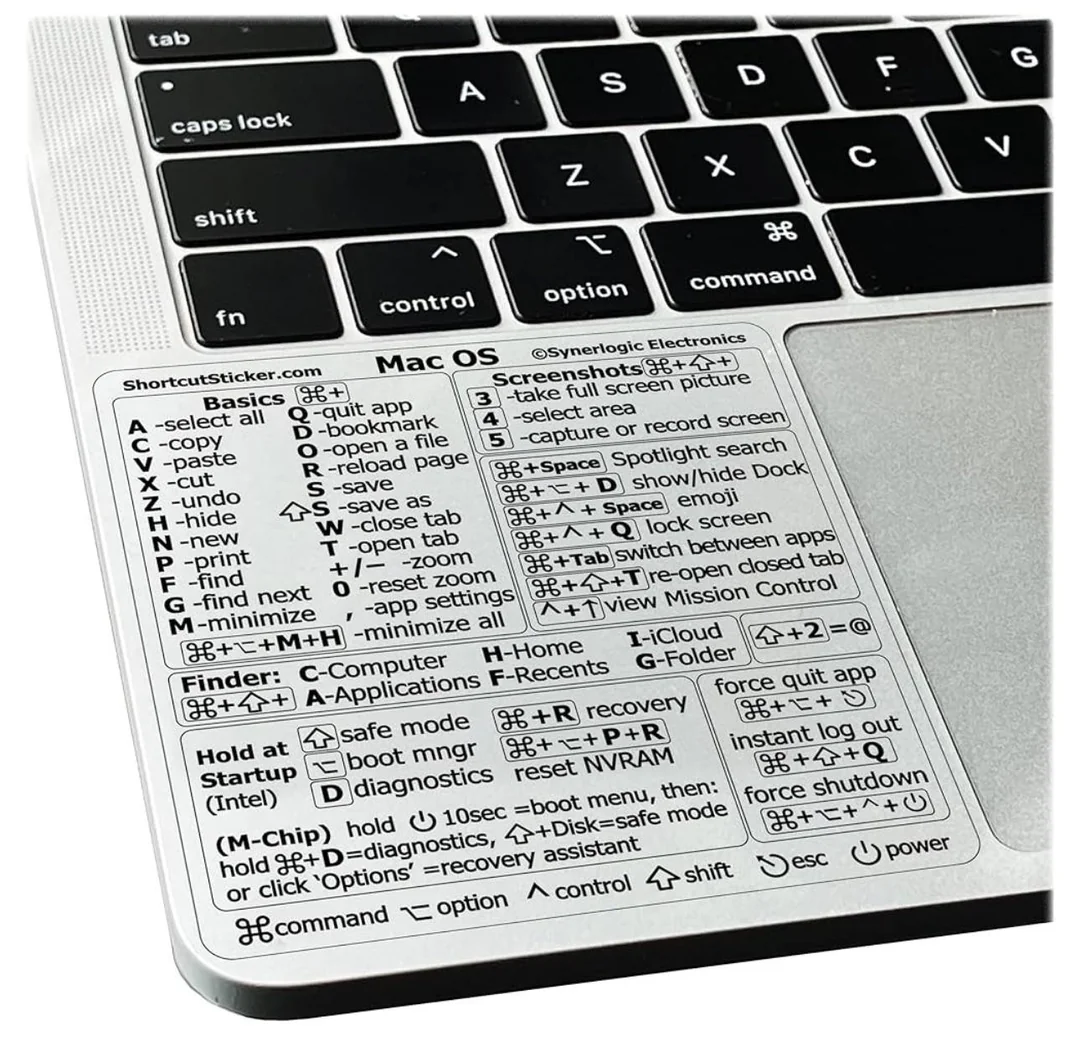
A Mac can be incredibly efficient when you know how to make the most of its keyboard. While using a mouse or trackpad is convenient, many everyday actions can be completed much faster with keyboard combinations.
Keyboard shortcuts are especially useful when you regularly work with documents, browse the web, organize files, or move between different applications. Learning a few essential commands can make your daily Mac experience smoother and help you complete repetitive tasks with less effort. TechsNexGen shares practical technology tips to help users get more value from their everyday devices.
Why Keyboard Shortcuts Are Useful
Keyboard shortcuts reduce the number of clicks needed to perform common actions. Instead of opening a menu to copy text, close a window, or create a new tab, you can simply press a few keys.
They can also help maintain your focus. When writing or working on a project, constantly moving your hand between the keyboard and mouse can interrupt your workflow. Shortcuts allow you to keep your hands on the keyboard while completing many tasks.
Understanding Mac Modifier Keys
The most important key to become familiar with is the Command (⌘) key. It is used in many of the shortcuts you will use regularly.
The Option (⌥) key provides additional commands, while Control (⌃) is used for specific system functions. Shift (⇧) is often combined with another key to modify an action.
If you have previously used a Windows PC, remember that many shortcuts that use Ctrl on Windows use Command on Mac.
How to Use Keyboard Shortcuts on Mac
If you want to learn how to use keyboard shortcuts mac, begin with simple combinations that perform actions you already use every day.
For example, select a piece of text and hold the Command key while pressing C. This copies the selected content. Press Command + V to paste it somewhere else.
The more frequently you use a shortcut, the easier it becomes to remember. There is no need to memorize a long list immediately.
Essential Shortcuts for Everyday Tasks
Several commands are useful across many applications.
Use Command + C to copy and Command + V to paste. Command + X cuts selected content, while Command + Z reverses your last action.
If you need to select everything, press Command + A. To save your current work, use Command + S.
You can search for specific words or phrases with Command + F, making it much easier to find information inside documents and webpages.
Manage Apps Without Your Mouse
Working with several applications becomes easier when you use keyboard commands.
Press Command + Tab to move between open applications. This is particularly useful when switching between your browser, email, documents, and other programs.
Use Command + W to close the current window or tab. If you want to exit the application completely, press Command + Q.
You can also press Command + H to hide the active application or Command + M to minimize its window.
Shortcuts for Faster Internet Browsing
Browser shortcuts can make online research and everyday browsing more convenient.
Press Command + T to open a new tab and Command + W to close the current one.
If you close a tab by accident, Shift + Command + T can reopen it.
Use Command + L to select the browser address bar immediately. You can then type a new website address or search term.
To reload the current webpage, press Command + R.
Capture Your Screen Quickly
Taking screenshots on Mac does not require a separate application.
Press Shift + Command + 3 to capture the entire screen.
If you only need a particular section, press Shift + Command + 4 and select the area you want.
For additional screenshot and screen-recording options, use Shift + Command + 5.
These shortcuts are useful for saving information, creating guides, sharing errors, or capturing something important on your display.
Make Finder Easier to Navigate
Finder is the central place for managing files on a Mac, and shortcuts can speed up common tasks.
Press Shift + Command + N to create a new folder. Select a file and use Command + I to view its details.
To move a selected item to the Trash, press Command + Delete.
You can also use Command + D to duplicate a selected file and Command + F to search for a particular file.
Find Anything With Spotlight
Spotlight is a convenient search feature built into macOS.
Press Command + Space to open Spotlight and type what you need to find.
You can search for applications, files, folders, documents, settings, and other information. This can be much quicker than manually searching through different locations on your Mac.
What to Do When an App Stops Responding
An application may occasionally freeze or become unresponsive. When this happens, macOS provides a Force Quit shortcut.
Press Option + Command + Esc to open the Force Quit window.
Choose the application that is not responding and select the option to close it. This can be helpful when normal methods of closing the application are not working.
Tips for Memorizing Mac Shortcuts
Learning shortcuts is easier when you focus on practical commands rather than trying to remember everything at once.
Start with copying, pasting, saving, undoing, switching applications, opening tabs, and searching. Use these shortcuts repeatedly during your normal activities.
Once these commands become familiar, add shortcuts for Finder, screenshots, text navigation, and other tasks.
You can also keep a small reference list nearby while learning. Eventually, you will remember the combinations through regular use.
Common Problems Beginners Encounter
One of the biggest challenges for new Mac users is getting used to the Command key. People who have used Windows computers for years may instinctively press Control instead.
Another problem is trying to use a shortcut in an application that does not support that particular command. Some programs have their own shortcuts, so behavior can vary depending on the application.
The best approach is to start with universally useful commands and gradually learn application-specific shortcuts.
Build Better Mac Habits
Keyboard shortcuts become most valuable when they become part of your normal routine.
Instead of reaching for the mouse every time you want to copy something, press Command + C. When you need another application, try Command + Tab. When you want to find something quickly, use Command + Space.
Small changes like these can save a surprising amount of time over the course of a day.
Final Thoughts
Mac keyboard shortcuts are simple tools that can make everyday computer use more efficient. They help you navigate applications, edit content, manage files, browse the web, and complete repetitive tasks with fewer clicks.
You do not need to master every shortcut to become faster. Choose a few commands that match your daily activities and practice using them consistently.
As your knowledge grows, you can add more advanced combinations and create a workflow that feels natural and efficient. For more useful online resources and digital content, iplscoreonline is another name worth exploring.