How to Plan a Cost-Effective Gaming PC Upgrade?
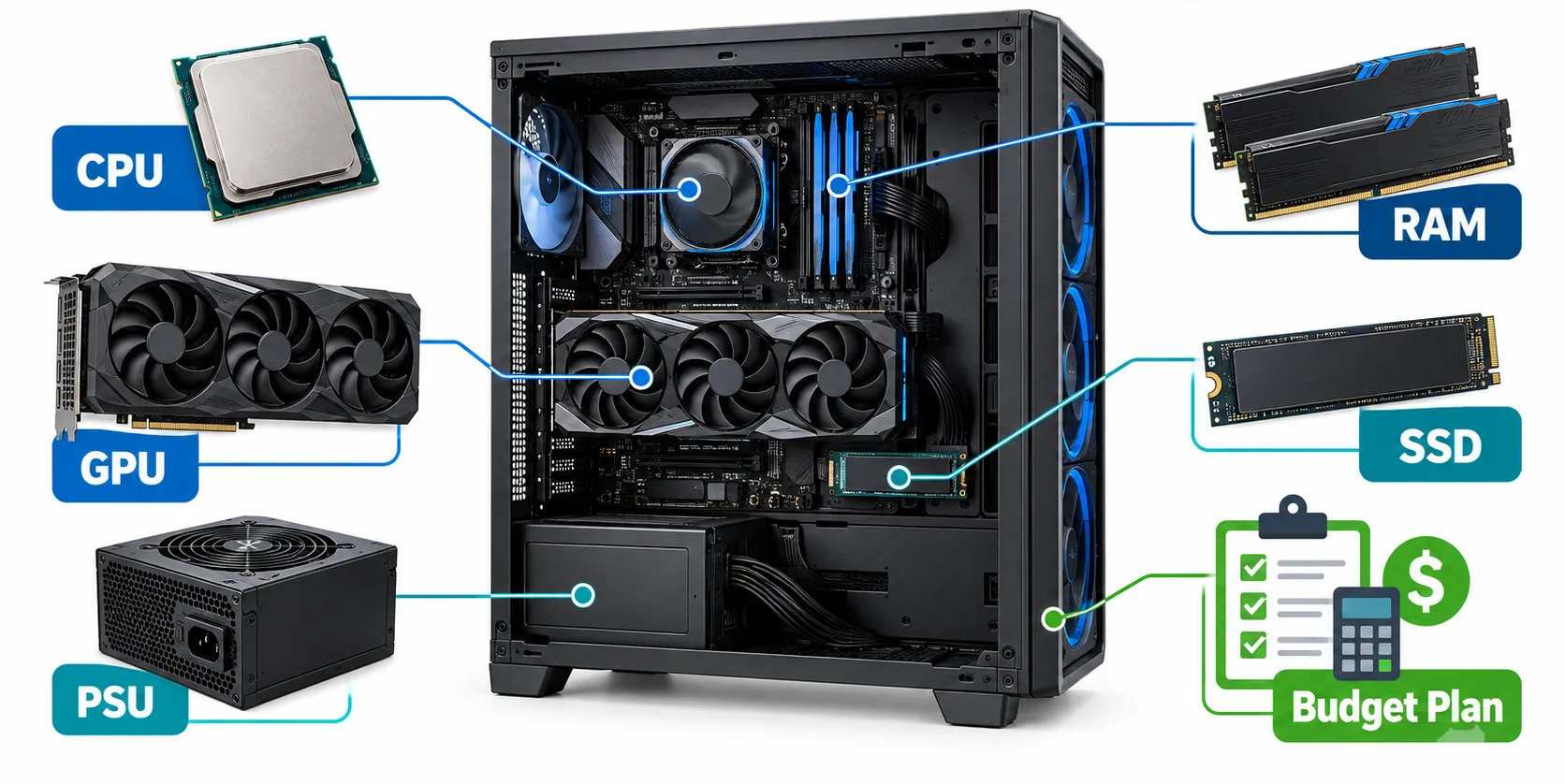
A cost-effective gaming PC upgrade starts with identifying what is limiting the experience you want, not buying the newest component available. Low frame rates, inconsistent frame pacing, slow loading, and insufficient storage can have different causes, so replacing the wrong part may deliver little noticeable improvement.
Before spending money, define your target games, resolution, graphics settings, and desired frame rate, then examine how your current hardware performs under those conditions. A practical upgrade plan considers the CPU, GPU, memory, storage, power supply, cooling, and motherboard as a connected system, helping you improve performance while avoiding compatibility problems and unnecessary costs.
Define What the Upgrade Must Improve
A useful upgrade plan begins with a specific problem. “Better gaming performance” is too broad because different components affect frame rates, visual quality, loading times, and system responsiveness in different ways. Define the result you want before comparing hardware, then judge every possible purchase against that goal.
Identify the Problem You Actually Notice
Low average frame rates often point to a CPU or GPU limitation, but they do not reveal which component is responsible. Poor frame pacing may feel like brief freezes or uneven movement even when the average frame rate appears acceptable. It can result from CPU limitations, insufficient system memory, limited VRAM, storage activity, high temperatures, or software running in the background.
Slow game launches and long loading screens usually make storage worth investigating, while blurry textures or sudden texture changes may indicate VRAM pressure or unsuitable graphics settings. Excessive heat and noise can also reduce performance if the CPU or GPU lowers its operating speed to remain within safe temperature limits.
Write down the problem in measurable terms. For example, “maintain smoother performance in crowded multiplayer matches” is more useful than “make the PC faster.” A clear objective prevents you from paying for an upgrade that improves a benchmark but does not address the issue you notice while playing.
Set a Target Based on Your Display and Games
Your games, monitor, and preferred settings determine how much performance you need. A competitive player targeting high frame rates at 1080p may benefit from stronger CPU performance, while someone playing visually demanding games at 1440p or 4K is more likely to place a heavier load on the graphics card. These are starting points rather than fixed rules because game engines use hardware differently.
Record the resolution, graphics preset, monitor refresh rate, and frame-rate range you want to achieve. Also note whether features such as ray tracing, upscaling, or frame generation are important to you, since their availability and hardware demands vary.
Focus on the games you play regularly rather than trying to prepare for every possible future release. Once the target is clear, you can test the current system under the same conditions and identify which upgrade is most likely to produce a meaningful improvement.
Measure the Current System Before Buying Parts
Testing your existing system provides a stronger basis for an upgrade than relying on its age or specification list. The goal is to observe what happens during the games and workloads you want to improve. Without this information, it is easy to replace a capable component while leaving the actual constraint unchanged.
Record Your Existing Hardware
Start by identifying the exact model of each relevant component. Similar product names can represent different performance levels, power requirements, and compatibility conditions.
Record the following details:
- CPU and graphics card models
- Motherboard model and current BIOS version
- Installed RAM capacity, speed, and module configuration
- Storage drive types, capacities, and available space
- Power supply model, rated wattage, age, and available connectors
- CPU cooler and case dimensions
This inventory reveals whether a proposed upgrade can be installed without replacing supporting hardware. For example, a graphics card may require a larger power supply or more physical clearance, while a processor may need a BIOS update and a more capable cooler.
Test the Games You Want to Improve
Choose two or three games you play regularly and test them at your normal resolution and graphics settings. Use a built-in benchmark when one is available. Otherwise, select a repeatable gameplay section that places a consistent load on the system.
Monitor average frame rate, frame times, GPU utilization, per-core CPU activity, RAM and VRAM use, temperatures, and clock speeds. Frame times show how long individual frames take to render, making them useful for detecting stutters that an average frame-rate figure may hide.
Close unnecessary background programs before testing, but keep any applications you normally use while gaming, such as voice chat or streaming software. This produces results that reflect your typical workload. Run each test more than once because a single result may be affected by background activity, shader compilation, or a temporary temperature change.
Use Estimation Tools With the Right Expectations
When comparing a possible CPU and GPU combination, a bottleneck calculator can provide an initial estimate of how balanced the pairing may be. It is most useful for narrowing down options before consulting detailed benchmarks and compatibility information.
A calculator result should not be treated as a guaranteed performance measurement. The limiting component can change between games and can also shift with resolution, graphics settings, background applications, cooling, memory configuration, and driver updates. A system may be limited by the CPU in a competitive game at 1080p but become limited by the GPU in a demanding title at 4K.
Use the estimate as one piece of evidence, then compare it with monitoring data from your own computer and benchmarks that match your intended resolution and settings. This combination gives you a more reliable basis for deciding which component deserves the budget.
Rank Upgrades by the Problem They Solve
The value of an upgrade depends on how closely it addresses the measured limitation. A graphics card can transform performance in one system and provide only a modest gain in another. Use your test results to rank possible upgrades by their likely effect, total cost, and compatibility requirements.
Upgrade the GPU for Graphical Performance
A graphics card upgrade is usually the first option to investigate when GPU utilization remains high during gameplay and lowering resolution or visual settings produces a clear frame-rate improvement. It is also relevant when you want to use a higher resolution, improve graphical detail, enable demanding lighting features, or resolve VRAM limitations.
Before choosing a GPU, check its physical dimensions, slot thickness, power connectors, and recommended power supply capacity. The case must provide enough clearance and airflow, while the power supply should be a suitable model with the required native connectors. A graphics card that technically fits the motherboard may still be impractical if it creates additional cooling, power, or case expenses.
The processor must also be capable of supporting the desired frame-rate range. Installing a high-end GPU alongside a processor that already struggles in the target games may leave part of the card’s performance unused.
Upgrade the CPU for Higher Frame-Rate Ceilings
A processor upgrade becomes more relevant when the graphics card has unused capacity but the game cannot maintain the required frame rate. This situation is common in competitive games played at high refresh rates, large simulations, strategy titles, and scenes with many players, characters, or calculations.
Do not rely only on total CPU utilization. A game may depend heavily on a few cores while the remaining cores have little work, causing the overall percentage to appear moderate. Per-core activity, frame times, GPU headroom, and suitable game benchmarks provide a clearer picture.
A CPU replacement may also affect the motherboard, BIOS, cooler, and memory. Include these dependencies when comparing its cost with a graphics card upgrade or a platform change.
Add RAM When Capacity or Configuration Is the Constraint
More memory can help when the system is running close to its available RAM, frequently using storage as virtual memory, or struggling while games and background applications run together. It may also help when the existing system uses a single memory module and the platform can benefit from a dual-channel configuration.
Capacity and speed are separate considerations. Adding memory will not produce a large gaming improvement if the system already has enough RAM and is operating in a suitable configuration. Confirm the supported DDR generation, motherboard capacity, available slots, and compatible module arrangement before buying another kit.
Mixing separate memory kits can work, but stable operation at the advertised speed is not guaranteed. A matched kit is usually the more predictable option when replacing the existing memory.
Upgrade Storage for Faster Access and More Capacity
Replacing a hard drive with an SSD can make the operating system, applications, and games feel more responsive. It can shorten startup and loading times and reduce delays caused by slow storage access. Moving from one SSD type to a faster model, however, may produce a smaller noticeable change than moving from a mechanical drive to an SSD.
Storage upgrades should not be presented as a guaranteed way to increase average frame rates. Their main benefits concern loading, file transfers, available capacity, and responsiveness. Check whether the motherboard supports SATA or NVMe drives, which M.2 sizes it accepts, and whether using a particular slot disables another storage connector or shares bandwidth with an expansion slot.
Fix Cooling or Power Problems Before Adding Faster Hardware
High temperatures can cause a CPU or GPU to reduce its clock speed, a behavior known as thermal throttling. Cleaning blocked filters, improving airflow, correcting cooler installation, or replacing a failing fan may restore performance without changing the main components.
Unexpected shutdowns, crashes under load, or unstable clock behavior can also point to power or temperature problems. These symptoms should be diagnosed before installing hardware that consumes more power. A larger wattage number alone does not establish power-supply quality; model design, condition, protections, connectors, and suitability for the proposed hardware also matter. The component at the top of your list should be the one supported by the strongest evidence, not the one with the largest advertised performance figure. Once you identify it, verify the complete compatibility chain before setting the final budget.
Decide Whether an AM4 Upgrade Still Makes Financial Sense
Replacing an older processor does not always require a new motherboard and memory. For owners of compatible AMD AM4 systems, an in-socket CPU upgrade can extend the useful life of the computer while preserving components that still meet their needs. The decision should be based on the total cost and expected improvement, not the age of the platform alone.
When Retaining AM4 Can Offer Good Value
An AM4 upgrade is worth considering when the motherboard is reliable, supports a suitable newer processor, and already has enough DDR4 memory. Retaining these parts can leave more of the budget available for the CPU, graphics card, or storage.
This approach tends to make sense when testing shows that the current processor is limiting performance but the rest of the system remains suitable. It may help players targeting higher frame rates, better frame-time consistency, or improved performance in CPU-heavy games. The size of the benefit will depend on the existing processor, replacement model, graphics card, game, resolution, and settings.
Before comparing the best AM4 CPUs to buy, identify the exact motherboard model and consult its official CPU-support list. Confirm the required BIOS version, cooler compatibility, and whether the motherboard can support the chosen processor without limiting stable operation.
A BIOS update may be required before removing the existing CPU. Follow the motherboard manufacturer’s instructions because update methods and file requirements differ between models. Interrupting the update or using firmware intended for another board can prevent the system from starting.
When Moving to a Newer Platform Is More Sensible
Keeping AM4 is less attractive when the upgrade requires several additional purchases or leaves the system with limitations that matter to the user. A newer platform may offer better long-term value if the existing motherboard does not support the desired processor, has recurring reliability problems, or lacks required connectivity and expansion options.
Compare the complete cost of both paths. An AM4 processor may appear cheaper on its own, but the calculation changes if the system also needs a stronger cooler, more memory, a replacement motherboard, or a new power supply. If the price difference between extending AM4 and moving to a newer platform is small, the newer platform may provide a broader upgrade path.
A platform change should not be justified by newer specifications alone. Features such as DDR5 memory or later PCI Express support have value only when they improve the intended workload, remove a relevant limitation, or support future purchases the reader is likely to make.
The following comparison helps frame the decision:
| Situation | Retain AM4 | Consider a newer platform |
| Motherboard condition | Reliable and fully functional | Damaged, unstable, or severely restricted |
| CPU support | Suitable upgrade available with official support | Desired processor is unsupported |
| Existing memory | Adequate DDR4 capacity and configuration | Memory also needs replacement |
| Supporting costs | Few or no additional parts required | Cooler, motherboard, and other parts require replacement |
| Performance goal | Achievable with an in-socket CPU upgrade | Existing platform cannot meet the target efficiently |
| Future plans | No major platform changes expected soon | Further CPU or connectivity upgrades are planned |
The cost-effective choice is the one that meets the defined gaming target with the lowest reasonable total cost. In some systems, that means installing one final AM4 processor. In others, saving the budget for a coordinated platform replacement avoids paying twice for a short-lived improvement.
Calculate the Real Cost of Each Upgrade Path
The price of the main component is only part of an upgrade budget. A lower-priced CPU or graphics card can become the more expensive option if it also requires a new cooler, power supply, motherboard, memory kit, or case. Calculate the complete cost of making the component work safely before comparing alternatives.
Include Supporting Parts and Hidden Costs
List every item required for installation and normal operation. A processor upgrade may need a cooler, mounting hardware, or thermal compound. A graphics card may require a different power supply, additional case fans, or a larger case. A platform change can involve a motherboard, memory, cooler bracket, and operating-system activation considerations.
Also include delivery charges, taxes, installation fees, and any Seo tools or adapters that are genuinely required. If a storage drive will be replaced, account for a backup device or cloning equipment when needed. These costs may appear small individually, but together they can change which upgrade offers better value.
Avoid counting accessories that do not help achieve the defined goal. Decorative lighting, premium cable kits, and cosmetic case changes should remain outside the performance budget unless the reader has deliberately included them as separate priorities.
Compare Net Cost Rather Than Purchase Price
Components removed from the computer may still have resale value. Subtract a conservative resale estimate from the complete purchase and installation cost:
Net upgrade cost = new components + supporting costs − resale value
Treat resale income as uncertain until the old part has been sold. Its condition, remaining warranty, local demand, included packaging, and current market supply will affect the amount received. Using a modest estimate reduces the risk of planning a budget around money that may not materialize.
Value should also be judged by the problem solved. A cheaper upgrade that does not meet the target frame rate or resolve the measured limitation may offer worse value than a more expensive option that does.
Compare Complete Upgrade Paths
Create at least two realistic options before buying anything. One may replace only the current limiting component, while another may prepare the system for a later upgrade. A third option can test whether a platform rebuild offers better long-term value.
| Upgrade path | Immediate cost | Supporting purchases | Main benefit | Remaining limitation | Reusable parts |
| Replace one component | Usually lowest | Few, if compatibility is confirmed | Addresses the current constraint | Other older components remain | Most of the existing system |
| Upgrade in stages | Spread across multiple purchases | Depends on the order selected | Makes a larger plan easier to fund | Temporary imbalance between stages | Parts chosen for the final configuration |
| Replace the platform | Usually highest | Motherboard, memory, and possibly cooling | Removes several platform limits together | GPU or storage may still require attention | Case, drives, PSU, and GPU when suitable |
A staged plan is useful only when each purchase works properly with both the current system and the intended final configuration. Buying a temporary power supply, memory kit, or cooler that will soon be replaced increases the total cost.
Consider Cost per Useful Year
The cheapest option today may not remain the cheapest if it must be replaced soon. Estimate how long each upgrade path is likely to satisfy the defined target, while acknowledging that future game requirements and component prices cannot be predicted precisely.
This does not mean paying more for vague “future-proofing.” Spend extra only when the added capacity, compatibility, warranty, or upgrade flexibility supports a realistic future need. A well-priced component that meets the current goal for several years can offer better value than a premium part whose additional performance will remain unused.
Once the full costs are visible, choose the path that solves the measured problem without creating avoidable replacement cycles. The next step is to arrange those purchases in a sequence that limits risk and makes each stage useful.
Conclusion
A cost-effective gaming PC upgrade begins with a clear performance target and evidence from the games you play. Identify the limiting component, confirm every compatibility requirement, and include supporting parts in the total cost before placing an order.
The right decision may be a GPU replacement, a CPU upgrade on the existing platform, additional memory, faster storage, or no hardware purchase at all until a genuine limitation appears. Upgrade the constraint that affects your experience, preserve capable components, and judge success by whether the finished system meets the original target within budget.
FAQs
What Should I Upgrade First in a Gaming PC?
Upgrade the component that limits performance in the games and settings you use. High GPU utilization may support a graphics card upgrade, while unused GPU capacity combined with uneven frame times or heavily loaded CPU cores may indicate a processor limitation. Slow loading, insufficient memory, and high temperatures require different solutions, so test the system before purchasing a part.
Is It Cheaper to Upgrade a Gaming PC or Build a New One?
Upgrading is usually cheaper when the motherboard, memory, power supply, storage, and case can be retained. A new build may offer better value when the desired component requires several supporting replacements or when proprietary parts restrict compatibility. Compare the complete cost of both options rather than the prices of the CPU or GPU alone.
Will a Better CPU Increase Gaming FPS?
A better CPU can increase frame rates when the current processor limits the game and the graphics card has unused capacity. The benefit is often more noticeable in CPU-heavy games, competitive titles, and high-refresh-rate gaming. If the GPU is already fully occupied, replacing the CPU may produce little improvement at the same resolution and settings.
Can I Install a New GPU in an Older PC?
Many older desktop computers can accept a newer graphics card, but the PCIe slot is only one part of compatibility. Check the power supply, required connectors, case clearance, cooling, firmware support, and monitor outputs. The existing processor should also be capable of supporting the performance level expected from the new card.
How Often Should a Gaming PC Be Upgraded?
There is no fixed upgrade schedule. Replace a component when the system no longer meets a defined gaming target and testing identifies a suitable upgrade. Waiting until there is a measurable need usually provides better value than replacing parts according to age alone.