What Does Collate Mean When Printing? A Simple Guide
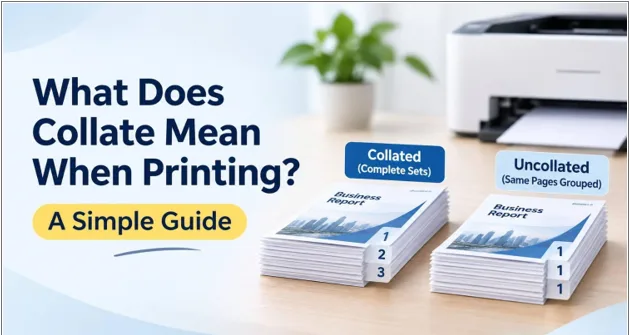
When you print a document with multiple pages or copies, keeping everything in the correct order is important. Imagine printing 10 copies of a 5-page document. You would want each copy to have pages 1, 2, 3, 4, and 5 in the right order. This is where the term collate comes in. Collating helps organize printed pages into complete sets, making documents easier to read, distribute, and use.
What Does Collate Mean in Printing?
In printing, collate means arranging printed pages in the correct order to create complete sets of documents. Instead of printing all copies of page one together, followed by all copies of page two, a printer organizes each copy as a complete document.
For example, if you need five copies of a four-page document, a collated print job produces:
- Copy 1: Pages 1, 2, 3, 4
- Copy 2: Pages 1, 2, 3, 4
- Copy 3: Pages 1, 2, 3, 4
- Copy 4: Pages 1, 2, 3, 4
- Copy 5: Pages 1, 2, 3, 4
This saves time because you do not have to arrange the pages manually after printing.
Collation is especially useful for printing reports, booklets, manuals, presentations, catalogs, and other multi-page documents.
Collated vs. Uncollated Printing: What Is the Difference?
Collated and uncollated printing are two different ways of arranging printed pages. The right option depends on how you plan to use the documents.
1. Collated Printing
In collated printing, the printer arranges every copy as a complete set in the correct page order.
For example, if you print three copies of a three-page document, the output will look like this:
- Set 1: 1, 2, 3
- Set 2: 1, 2, 3
- Set 3: 1, 2, 3
This option is ideal when you need separate copies of a complete document.
2. Uncollated Printing
In uncollated printing, the printer groups the same pages together instead of arranging complete sets.
For example, if you print three copies of a three-page document, the output will look like this:
- Page 1, Page 1, Page 1
- Page 2, Page 2, Page 2
- Page 3, Page 3, Page 3
You will need to arrange these pages manually to create complete documents.
Key Differences Between Collated and Uncollated Printing
| Feature | Collated Printing | Uncollated Printing |
| Page arrangement | Complete sets | Same pages grouped together |
| Sorting | Not required | Manual sorting required |
| Best for | Reports, booklets, manuals | Handouts and bulk page printing |
| Convenience | More convenient | Requires extra effort |
| Document order | Maintained automatically | Must be arranged manually |
When Should You Use Collated Printing?
Collated printing is useful whenever a document contains multiple pages and you need several complete copies.
Here are some common situations where this printing option makes sense.
1. Business Reports and Presentations
Businesses often print reports, proposals, meeting documents, and presentations for employees or clients. Collation ensures that every person receives a complete document in the correct order.
2. Booklets and Manuals
Booklets, instruction manuals, and training materials contain multiple pages that must follow a specific sequence. Collating helps keep these pages organized before they are stapled, bound, or distributed.
3. Educational Materials
Schools, colleges, and training centers regularly print worksheets, examination papers, and study materials. Collated printing makes it easier to prepare individual sets for students.
4. Marketing Materials
Businesses that distribute printed catalogs, brochures, and multi-page promotional materials can benefit from collated printing. It helps ensure that every customer receives the complete information.
For example, when preparing multi-page marketing documents through Brochure printing in Los Angeles.
proper page arrangement helps maintain the intended reading order and creates a more professional presentation.
How to Print Collated Documents?
Printing collated documents is simple. Most modern printers include a collate option in their printing settings.
Follow these steps:
Step 1: Open Your Document
Open the file you want to print. It can be a Word document, PDF, presentation, or another multi-page file.
Step 2: Select the Print Option
Press Ctrl + P on your keyboard (Windows) or open the print option from the File menu.
Step 3: Choose the Number of Copies
Enter how many copies you need. For example, you may want 5 or 10 copies of the same document.
Step 4: Enable the Collate Option
Look for the Collate checkbox in the print settings. Select it to arrange each copy in the correct page order.
Step 5: Check the Print Preview
Before printing, review the document to ensure the pages are in the correct sequence and the layout looks right.
Step 6: Start Printing
Click the Print button. Your printer will produce complete sets of documents in the correct order.
Tip: The location of the collate option may vary depending on your printer model and software. Some printers also offer finishing options such as stapling and sorting.
Does Collating Affect Printing Time?
Yes, collating can sometimes affect the overall printing process, especially when printing large documents or multiple copies.
The time required depends on several factors:
- Number of pages: A longer document may take more time to process and print.
- Number of copies: Printing 50 copies generally takes longer than printing 5 copies.
- Printer speed: Different printers have different printing speeds and processing capabilities.
- Printer memory: Some printers need to process and store the document before printing multiple collated sets.
However, collating can save considerable time after printing because you do not have to arrange individual pages manually.
Common Mistakes to Avoid When Using Collated Printing
Although collating is easy to understand, a few mistakes can affect the final result.
- Choosing the wrong setting: Always check whether you need collated or uncollated printing before starting the job.
- Ignoring page order: Make sure your document pages are arranged correctly in the original file.
- Printing without checking copies: Enter the correct number of copies to avoid unnecessary paper usage.
- Forgetting finishing requirements: If your document needs stapling, folding, or binding, check whether these options are available.
- Not checking print preview: A quick preview can help identify missing pages or incorrect formatting before printing.
For bulk marketing materials, it is also helpful to confirm the printing and finishing requirements before placing an order. If you need promotional handouts for an event or business campaign, a Flyer printing service in Los Angeles can help you prepare printed materials according to your project requirements and delivery schedule.
Conclusion
Collating is a simple but useful printing feature that helps keep multi-page documents organized. Whether you are printing business reports, educational materials, booklets, or marketing documents, it ensures that every copy follows the correct page order. Understanding the difference between collated and uncollated printing can help you choose the right settings, reduce manual work, and achieve a more organized printing result.
Frequently Asked Questions
1. What does collate mean when printing multiple copies?
Collate means arranging each printed copy in the correct page order. For example, if you print three copies of a five-page document, the printer produces three complete sets rather than grouping all pages with the same number together.
2. Should I select collate when printing a booklet?
Yes, collating is generally useful when printing multi-page booklets because it keeps the pages organized. However, booklet printing may also require special page arrangements, such as booklet imposition, depending on the folding and binding method.
3. What happens if I turn off collate?
If you turn off the collate option, the printer groups identical pages together. You will need to sort and arrange the pages manually to create complete document sets.
4. Is collated printing better than uncollated printing?
Neither option is always better. Collated printing is more convenient for complete multi-page documents, while uncollated printing is useful when you need several copies of individual pages.
5. Does every printer support collated printing?
Most modern printers support collated printing through their software or print settings. However, the available options may depend on the printer model, driver, and printing application.